View order details
Open an order and see its items, customer details, notes and amounts.
What it is for
Behind every order are all its details: what was ordered, by whom, where it is delivered to, which notes the guest added and how the amount is made up. In the order window you can also accept or cancel it.
What changes
Nothing. Opening only shows information.
Requirements
You are signed in to the admin area.
Step by step
Open the details
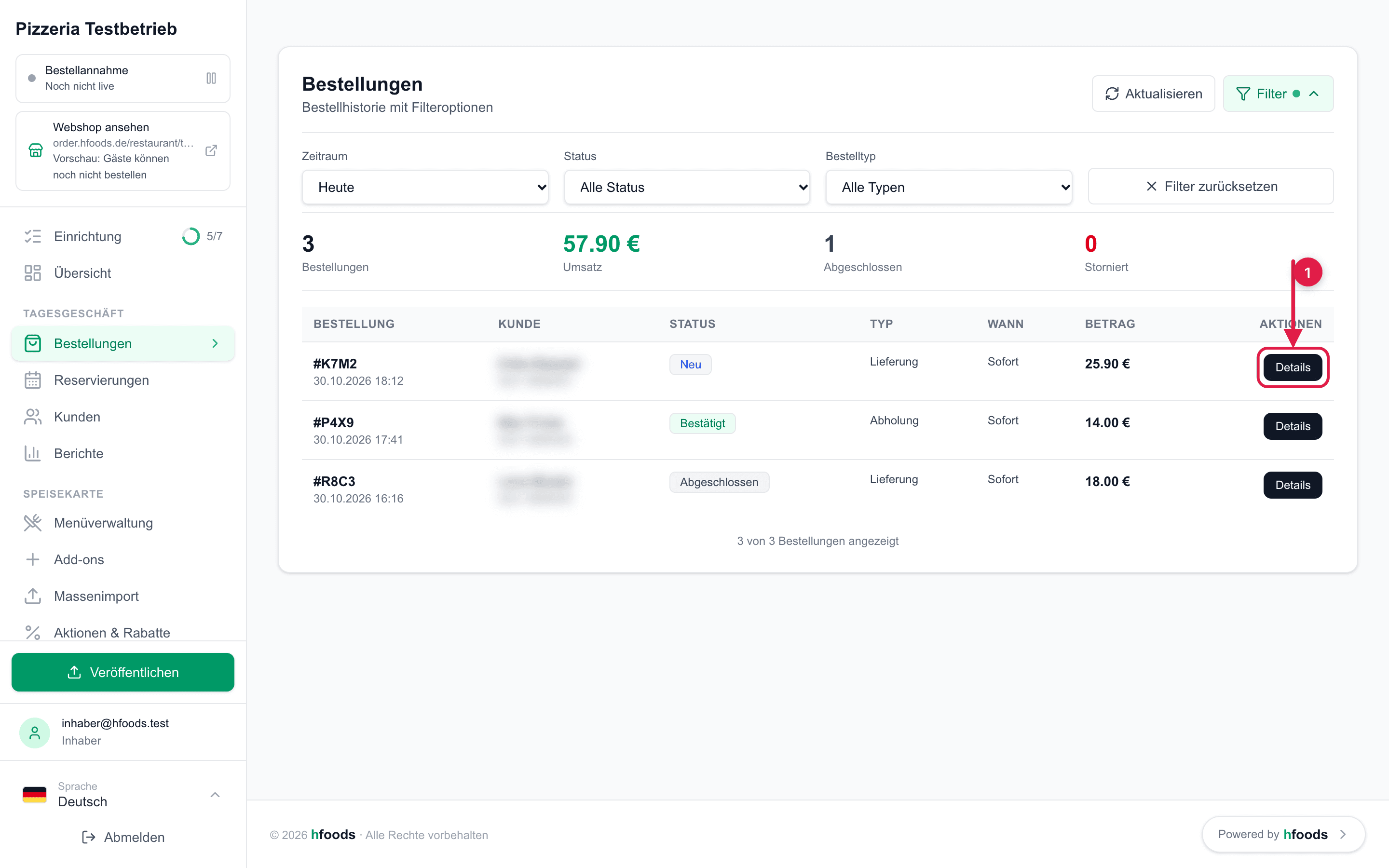
In the sidebar on the left, click Bestellungen (orders) and then Details on the right of the order you want.
Read the order
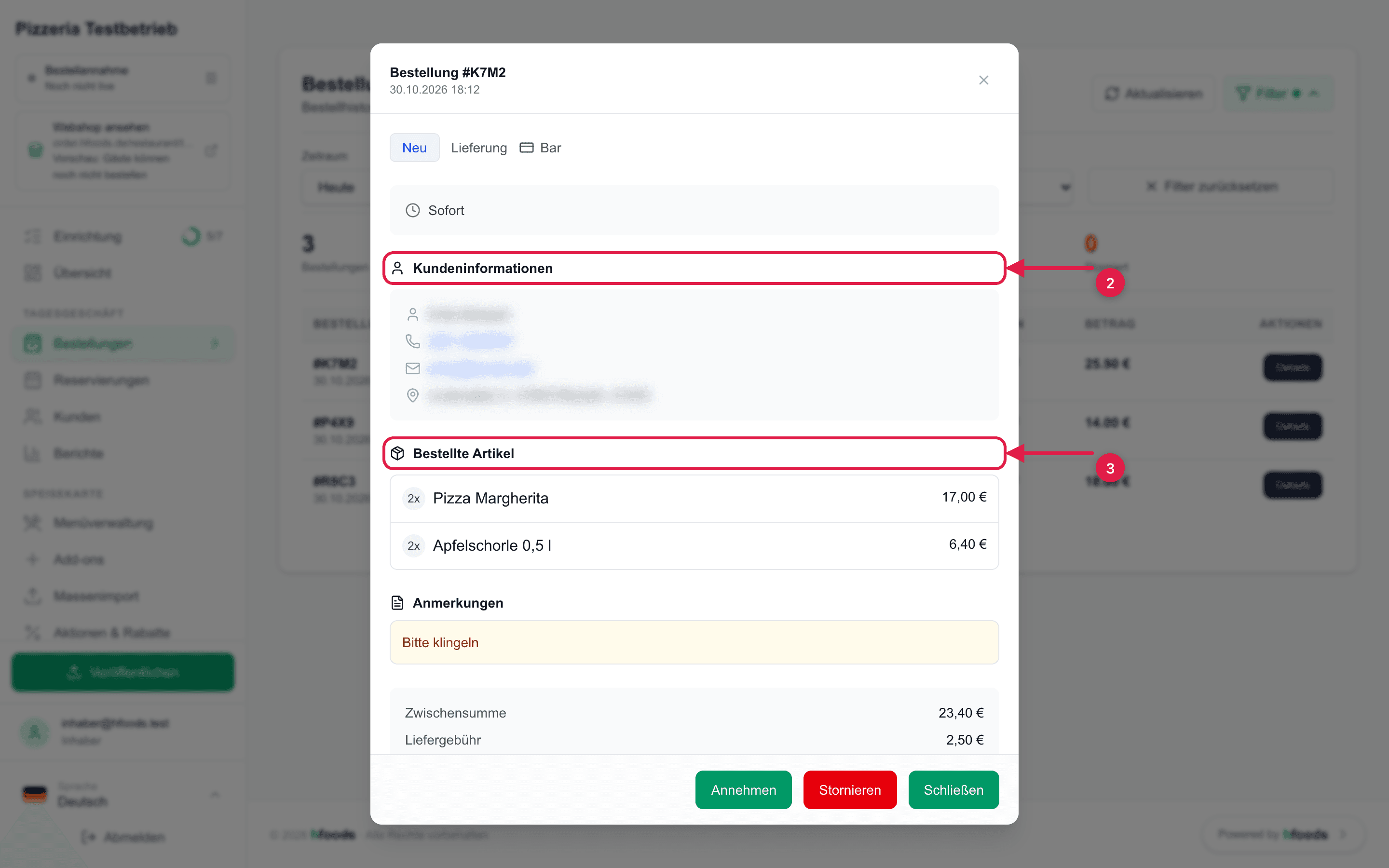
The window shows at the top the order number, the time, the status (for example Neu, new), the order type (Lieferung, delivery, or Abholung, pickup), the payment method and when it should be delivered, such as Sofort (as soon as possible). Below that:
- Kundeninformationen (customer information): name, phone number, email and, for delivery, the address. Phone and email can be clicked directly.
- Bestellte Artikel (ordered items): each item with quantity, chosen size, add-ons and price.
- Anmerkungen (notes): what the guest added, for example "Bitte klingeln" (please ring the bell).
- Zwischensumme (subtotal), Liefergebühr (delivery fee), Trinkgeld (tip) if any, and Gesamt (total).
At the bottom you find Annehmen (accept), Stornieren (cancel) and Schließen (close).
Result
You know all details of the order and can handle it.
Frequently asked questions
What do the statuses mean?
Neu (new): just received. Bestätigt (confirmed): accepted. In Zubereitung (in preparation), Bereit (ready) and Unterwegs (on the way): the order is being worked on or is on its way. Abgeschlossen (completed): done. Storniert (cancelled): called off.
Why can't I accept an order?
If the window says "WinOrder holt diese Bestellung ab. Annehmen bitte in WinOrder." (WinOrder collects this order, please accept it in WinOrder), you accept it in WinOrder.