Complete a setup step
Open an open step on the setup page, understand what it is for, complete it and go straight on to the next step.
What it is for
Each step on the Einrichtung (setup) page explains what it sets up and why it matters. You complete many steps right on that page, such as Betrieb und Kontakt (business and contact) or Zahlungsarten (payment methods). Others, such as Öffnungszeiten (opening hours) or Speisekarte (menu), are set up in their own place in the admin area. You jump there with one click, and a bar at the top of the page takes you back to setup or straight on to the next open step.
What changes
- Once a step is done, it gets a green tick in the list. If it is needed to go live, the counter rises, for example from "5 von 7 für den Start erledigt" (5 of 7 done to go live) to "6 von 7 für den Start erledigt".
- The assistant remembers where you are. You can stop at any time and continue later.
Requirements
You are signed in to the admin area as the owner, see Sign in.
Step by step
Open and read the step
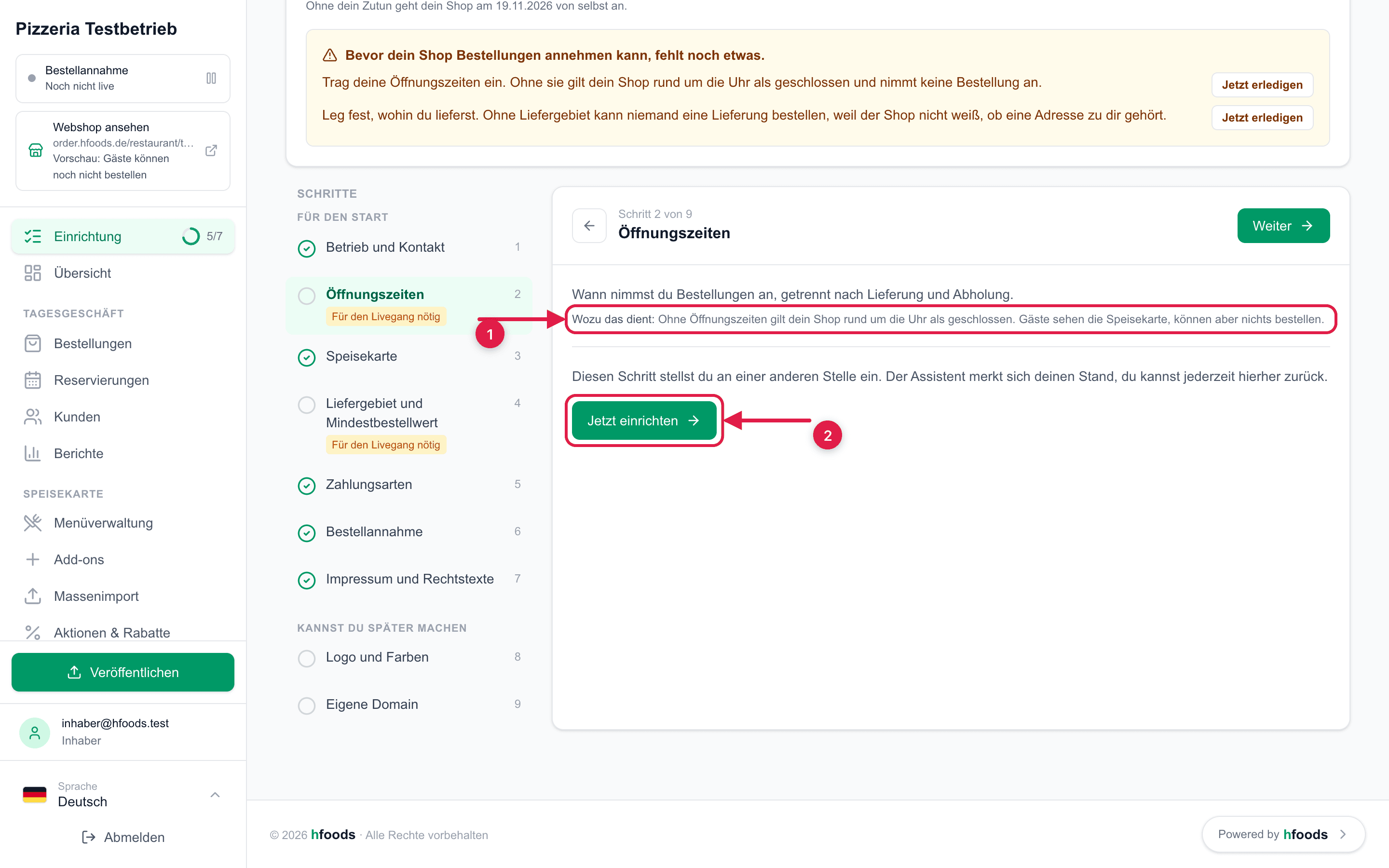
Click Einrichtung on the left and, in the Schritte (steps) list, click the step, in the picture Öffnungszeiten. On the right you then see:
- Schritt 2 von 9 (step 2 of 9) and the name of the step.
- A sentence about what you set up here, for example "Wann nimmst du Bestellungen an, getrennt nach Lieferung und Abholung." (when do you take orders, separately for delivery and pickup).
- Wozu das dient: (what it is for) why the step matters. For opening hours, for example: without them your shop counts as closed around the clock. This explanation only appears for open steps.
Below that comes the actual content. For Betrieb und Kontakt, Zahlungsarten, Bestellannahme (order intake), Logo und Farben (logo and colours), Impressum und Rechtstexte (imprint and legal texts) and Eigene Domain (own domain), the form is right here. Fill it in and save, done. For Öffnungszeiten, Speisekarte and Liefergebiet und Mindestbestellwert (delivery area and minimum order value) it says "Diesen Schritt stellst du an einer anderen Stelle ein." (you set this step up somewhere else). Then click Jetzt einrichten (set up now) and you land right there. If the step is already done, the button is called Ansehen (view).
Move between the steps
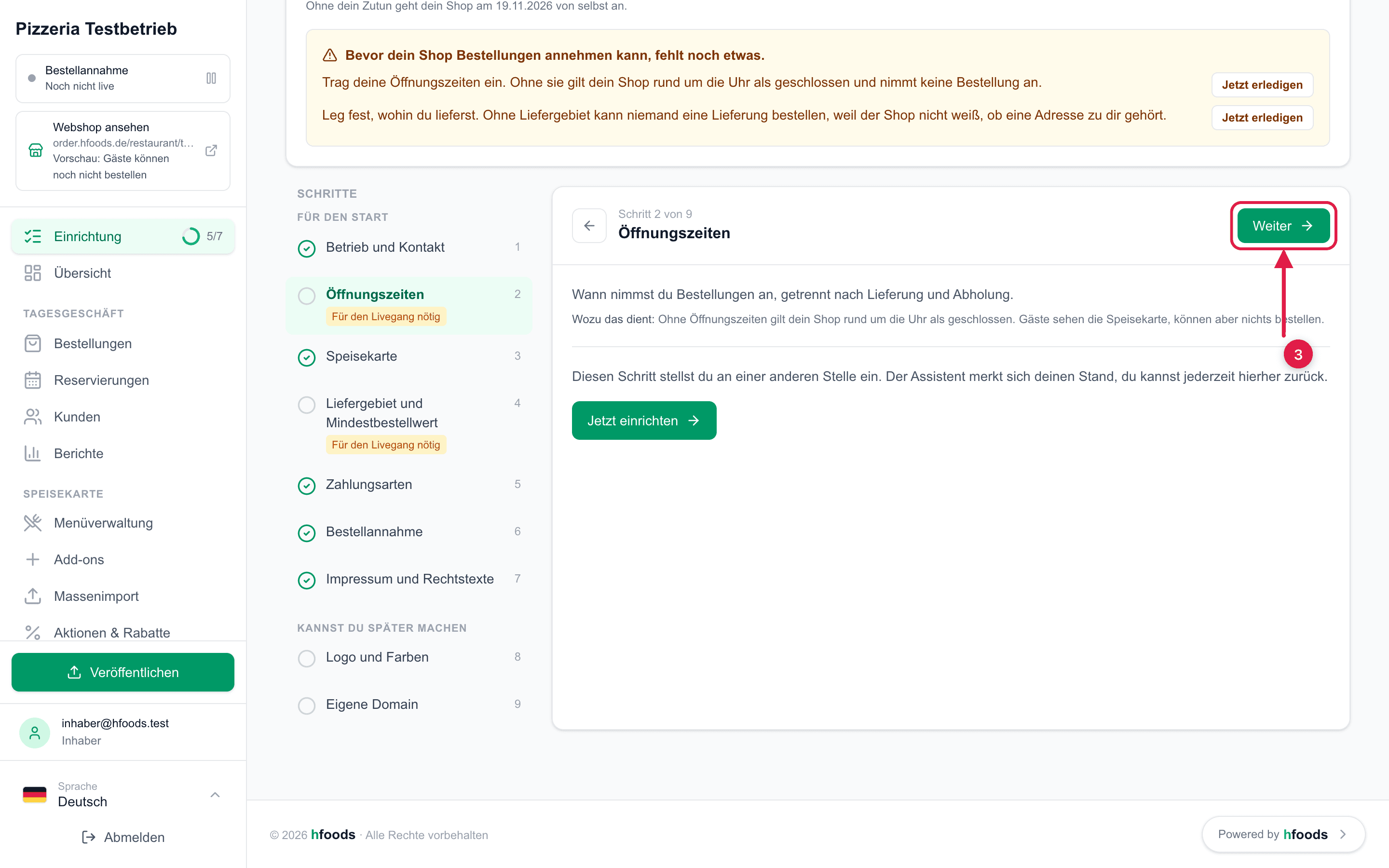
Weiter (next) at the top right takes you to the next step in the list, the arrow to its left to the previous one. The order is that of the list: first all steps Für den Start (to go live), then Logo und Farben and Eigene Domain.
If a step is already done, you can still open and change it. Areas that the hfoods team sets up for you are marked with a note.
Complete it and go straight on
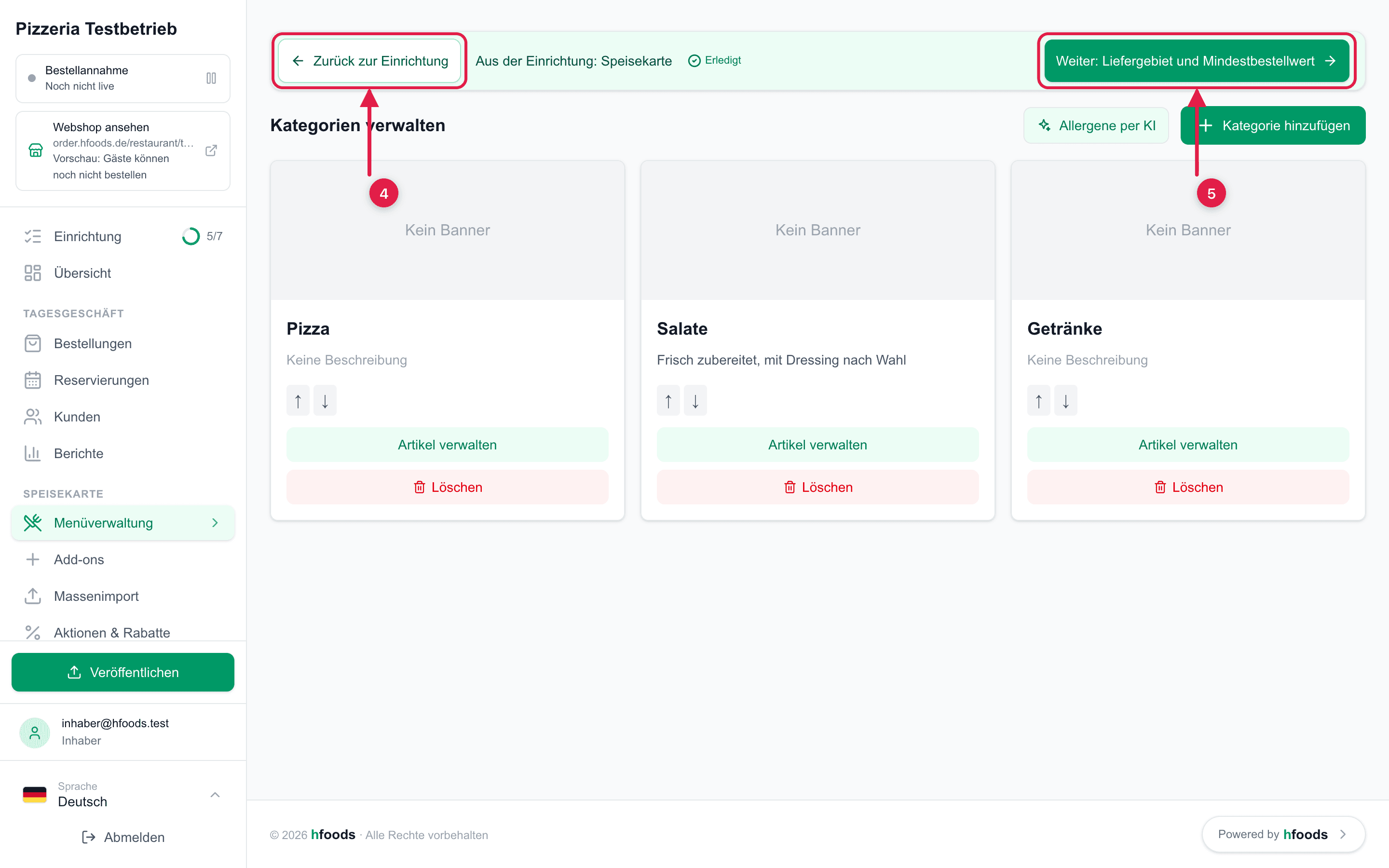
If you opened another page via Jetzt einrichten, there is a green bar at the top. It shows which step you came from and its status, for example "Aus der Einrichtung: Speisekarte" (from setup: menu) with Erledigt (done), and on the left the Zurück zur Einrichtung (back to setup) button.
Set everything up on the page and save there. As soon as the step is done, a button with the next open step appears on the right of the bar, in the picture Weiter: Liefergebiet und Mindestbestellwert (next: delivery area and minimum order value). One click takes you straight there, without a detour through setup. The bar first suggests open steps needed to go live, then logo and domain. On a phone the button is simply called Weiter.
As long as the step is still open, the counter shows in that place, for example "5 von 7 für den Start erledigt".
Result
The step is done and ticked in the list. Once all steps needed to go live are done, the page is called Bereit für den Start (ready to go live), and you can take your shop live, see Go live with your shop.
Tips
- Read Wozu das dient for each step. That way you understand what guests notice.
- For the menu, importing an existing menu is the fastest way.
- Use the Weiter: … button in the bar. That way you work through all open steps one after the other without going back to setup each time.
Frequently asked questions
I completed a step, but it is not ticked yet. Why?
Check whether you saved on the target page. Then reload the Einrichtung page.
Why is there no Weiter button in the bar?
It only appears once the step you came from is done, and only if another step is still open. Otherwise the counter shows there.