Go live with your shop
Look at your shop in the preview first, confirm your email address, open the shop for orders as soon as all required steps are done, and then use the shop link and the QR code.
What it is for
After booking, guests can already open your shop, but cannot order anything yet. Only when you take it live does it accept orders, even during the free trial. You do not need a payment method for that. Before that, the admin area checks whether everything a shop needs for orders is in place and whether your email address is confirmed. It tells you exactly what is still missing. With the preview you already see your shop the way guests see it.
What changes
- From the click on, guests can order from you. Your trial continues unaffected. The Free plan has no trial, there your orders are counted from then on, see Free plan.
- The Einrichtung (setup) page is then called Dein Shop (your shop), and the card shows Dein Shop ist live (your shop is live).
- The floating Leitfaden (guide) disappears as soon as all steps needed to go live are done and your shop is live.
- Your shop never goes live by itself, not even at the end of the trial. It only goes live through Shop live schalten (take shop live).
- To keep your package after the trial, add a payment method by your last trial day, see Add a payment method for your hfoods invoice. Without a payment method your shop then continues on the Free plan at no cost and keeps accepting orders, up to 30 a month.
- If you booked when a payment method was still required to book, your shop goes live by itself on the date shown on the card, for example "Ohne dein Zutun geht dein Shop am 19.11.2026 von selbst an." (without any action from you, your shop goes live by itself on 19.11.2026).
Requirements
- You are signed in as the owner, with the account you booked with. Only the owner can go live.
- Your email address is confirmed, using the link in the email "Bitte bestätige deine E-Mail-Adresse" (please confirm your email address) that you get after booking.
- All steps marked Für den Livegang nötig (needed to go live) are done, see View setup progress. Logo and colours and your own domain are not a requirement.
Step by step
Confirm your email address
After booking we send you the email "Bitte bestätige deine E-Mail-Adresse". Click E-Mail-Adresse bestätigen (confirm email address) in it. The page admin.hfoods.de/email-bestaetigen opens and, after a moment, reports E-Mail-Adresse bestätigt (email address confirmed). Weiter zum Admin (go to the admin panel) takes you back. You do not need to sign in for this.
As long as your address is not confirmed, the Shop live schalten card lists the item "Bestätige deine E-Mail-Adresse über den Link, den wir dir nach der Buchung geschickt haben." (confirm your email address using the link we sent you after booking). If you cannot find the email, check your spam folder or click Link erneut senden (resend link) there. You can request up to five links a day. When you come back to the admin tab after confirming, the item disappears.
Complete the missing items
Click Einrichtung on the left. The Shop live schalten card is at the top. If something is missing, it says Bevor dein Shop Bestellungen annehmen kann, fehlt noch etwas. (before your shop can accept orders, something is still missing) with a list. Each item explains why it is needed, for example:
- Business and contact: your restaurant's address and phone number. With the Free plan you don't enter them when booking, you add them here.
- Opening hours: without them your shop counts as closed around the clock.
- Delivery area: without a delivery area nobody can order a delivery.
- Imprint: in Germany, a public shop without an imprint can be subject to a formal warning.
- Menu: at least one item is needed.
- Payment methods: at least one payment method must be enabled.
- Email address: it has to be confirmed, see the previous step.
If you booked when a payment method was still required to book, the list shows the payment method for your hfoods invoice instead of the email address: without it your shop does not accept orders.
Click Jetzt erledigen (do this now) next to an item. You go straight to the right place, and the bar at the top then takes you back or straight on, see Complete a setup step.
Look at your shop in the preview
At the top right of the card is Vorschau ansehen (view preview), even while something is still missing. One click opens your shop in a new tab, the way guests see it. Nobody can order there yet. Check menu, prices, opening hours and contact details before you go live.
Once all steps needed to go live are done, the page is called Bereit für den Start (ready to go live).
Go live and confirm
Once everything is done, the list disappears and the Shop live schalten button appears next to Vorschau ansehen. Click it. The confirmation Shop jetzt live schalten? (take shop live now?) reminds you: from the click on, your guests can order. Check beforehand that order intake really rings at your place. Then confirm.
The message "Dein Shop ist live und nimmt ab sofort Bestellungen an." (your shop is live and accepts orders from now on) confirms that you are live.
View your shop and spread the word
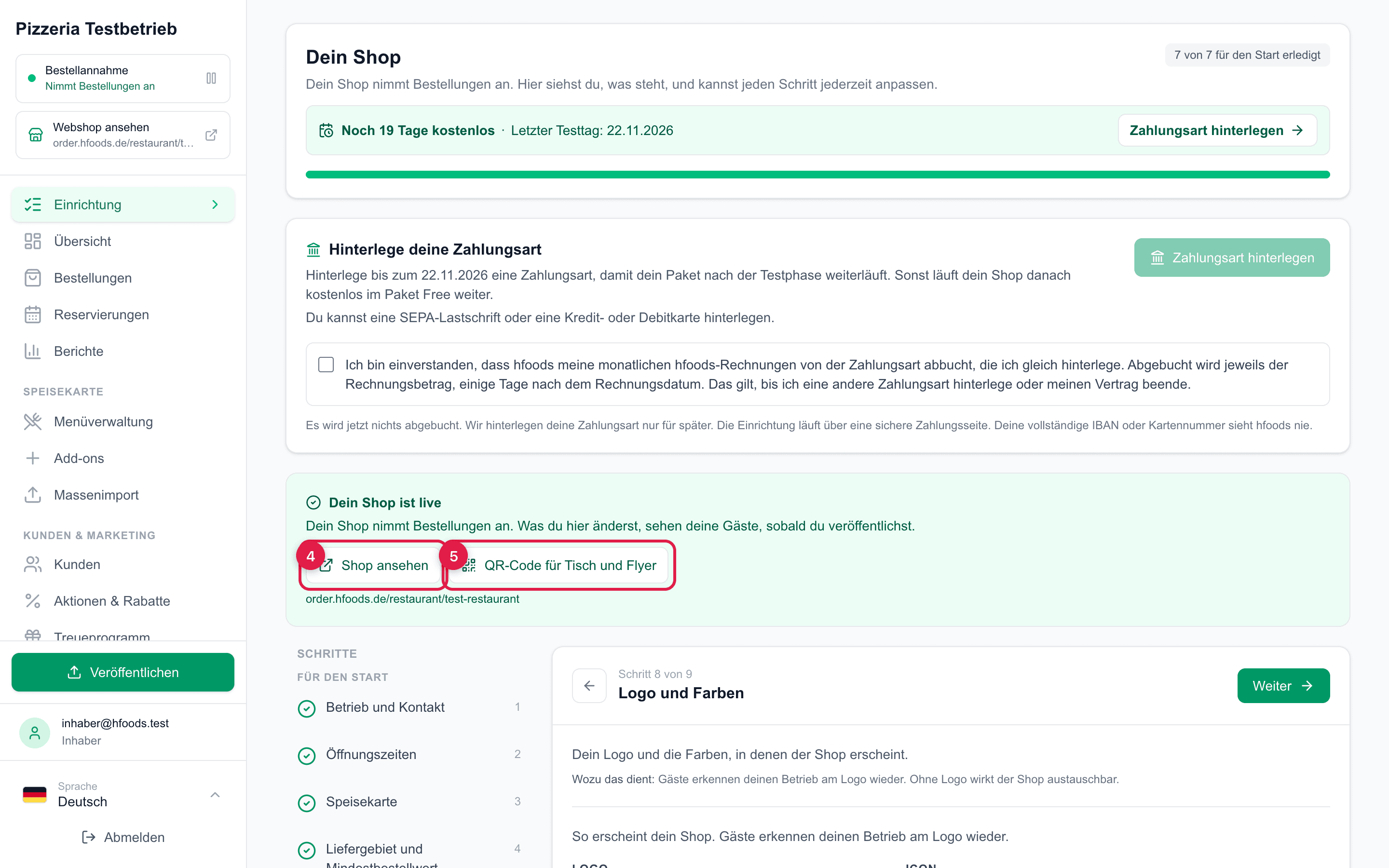
Afterwards the page is called Dein Shop (your shop). In the picture all seven steps needed to go live are ticked, the counter shows "7 von 7 für den Start erledigt" (7 of 7 done to go live), and there is no ring next to Einrichtung in the menu any more. The card shows Dein Shop ist live with two buttons and the address of your shop below:
- Shop ansehen (view shop) opens your shop in a new tab.
- QR-Code für Tisch und Flyer (QR code for tables and flyers) takes you to the QR-Code page. There you download the code or print a ready-made template, see Download the QR code.
Result
Your shop accepts orders. From now on guests see changes to the menu as soon as you publish, see Publish changes. The Einrichtung page stays available. There you adjust any step at any time and add your logo and domain when you are ready.
Test first
Place a test order before going live and check whether it reaches you, for example at the order terminal. An order nobody notices is a lost order.
Frequently asked questions
I do not see a "Shop live schalten" button. Why?
At least one item from the list is still missing, for example the confirmation of your email address, or you are not signed in with the owner account. Only the owner can go live.
Do I need a payment method to go live?
No. During the trial your shop accepts orders without a payment method too. The payment method only makes sure your package keeps running after the trial. On the Free plan you never need a payment method. If you booked when a payment method was still required to book, you need it before you can go live.
The confirmation link has expired.
The page then tells you "Dieser Link ist abgelaufen." (this link has expired). Request a new one in the setup under Shop live schalten with Link erneut senden. If the page says the link is invalid or has already been used and you have already confirmed your address, you are all set.
What happens at the end of the trial?
If a payment method is on file, your shop keeps running, and your package is charged from the first invoice day. Without a payment method your shop continues on the Free plan at no cost: it stays as it is, so it stays live if it was live, and accepts up to 30 orders per calendar month. You do not get an invoice. You can book a package at any time afterwards with Paket buchen (book package), without a new trial, see Free plan.
Do I have to upload a logo or connect a domain first?
No. Both are in the Kannst du später machen (can wait until later) block and do not hold up your start.
My contract has been cancelled. Can I still go live?
No. Withdraw the cancellation first, then you can take your shop live again.