View setup progress
See on the setup page which steps needed to go live are done, what is still missing and what can wait until later.
What it is for
Before your shop takes orders, you set up a few things: contact details, opening hours, menu, delivery area and more. The Einrichtung (setup) page shows you at a glance how far you are. It splits the steps into two blocks: what your shop needs to go live, and what you can just as well do later, such as your logo or your own domain. That way you always know what really stands between you and going live.
What changes
Nothing. The page only shows the status. You can stop at any time and continue later, nothing is lost.
Requirements
You are signed in to the admin area as the owner, see Sign in.
Step by step
Open the setup page and read the status
Click Einrichtung at the very top on the left. Next to the menu item there is a small ring with the status of the steps needed to go live, for example "5/7".
At the top of the page you see:
- The counter on the right, for example "5 von 7 für den Start erledigt" (5 of 7 done to go live), with a green bar below. It only counts the steps needed to go live. Logo and domain do not count.
- The heading. It shows where you stand:
- Deinen Shop starten (get your shop started): something is still missing to go live.
- Bereit für den Start (ready to go live): everything you need is in place. Look at your shop in the preview and take it live when you are ready.
- Dein Shop (your shop): your shop is live and taking orders. The page stays so you can adjust any step at any time.
- The trial notice, if you booked yourself, for example "Noch 19 Tage kostenlos" (19 days left free) with your last trial day. Next to it, Zahlungsart hinterlegen (add payment method) takes you to the card for your hfoods invoice. Once your payment method is on file, the notice shows from when your package is charged, for example "Ab 30.11.2026 kostenpflichtig" (chargeable from 30.11.2026). Without a payment method your shop continues on the Free plan after the last trial day. The notice then reads, for example, "Paket „Kostenlos“ · 12 von 30 Bestellungen im November 2026" (Free plan, 12 of 30 orders in November 2026) with Paket buchen (book package), see Free plan.
Below that, if you booked yourself, come the card for your payment method and then the Shop live schalten (take shop live) card, see Go live with your shop.
Look at the steps in the two blocks
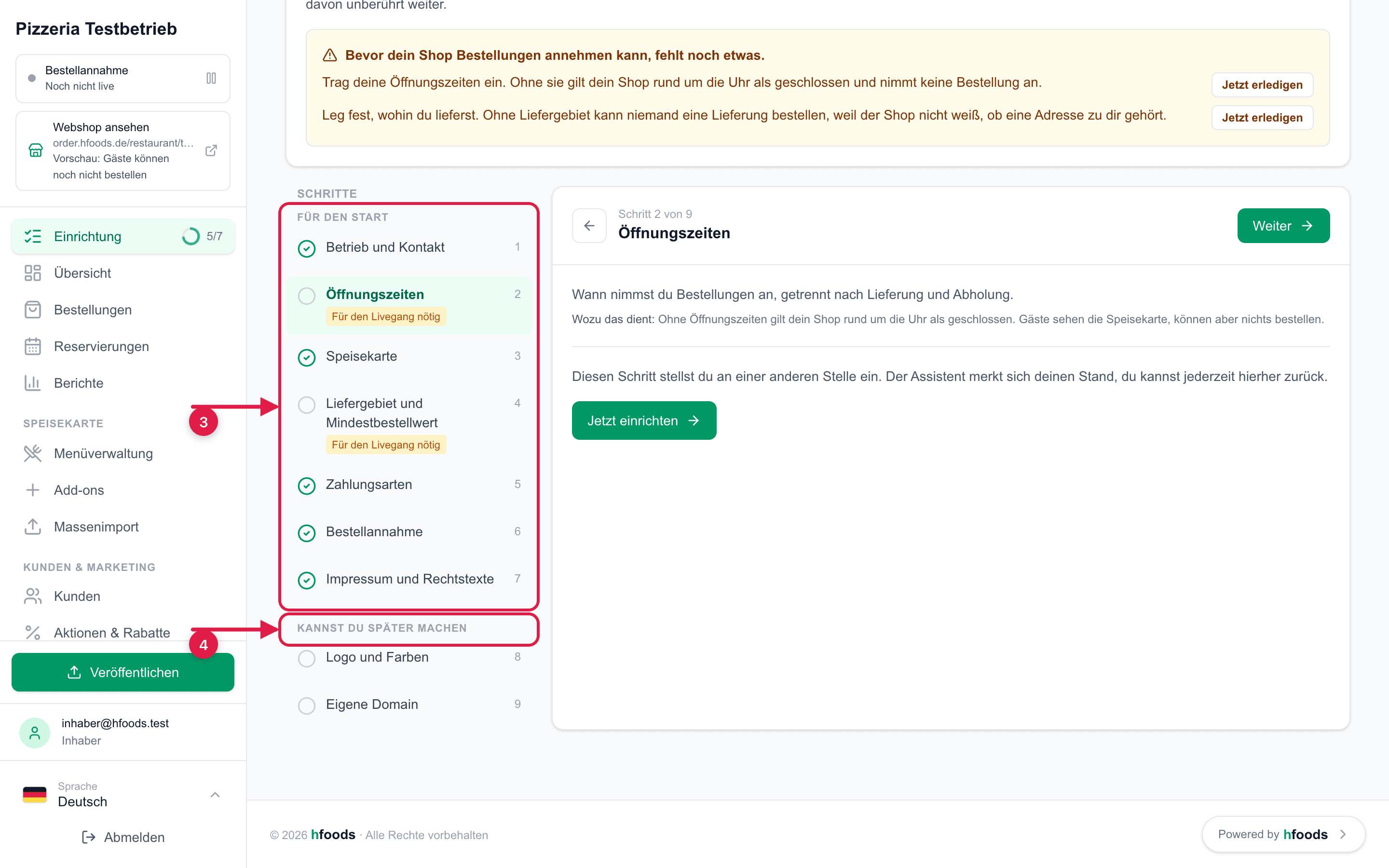
On the left is the Schritte (steps) list, in two blocks. On a phone you expand it via Schritte.
- Für den Start (to go live): Betrieb und Kontakt (business and contact), Öffnungszeiten (opening hours), Speisekarte (menu), Liefergebiet und Mindestbestellwert (delivery area and minimum order value), Zahlungsarten (payment methods), Bestellannahme (order intake), Impressum und Rechtstexte (imprint and legal texts).
- Kannst du später machen (can wait until later): Logo und Farben (logo and colours), Eigene Domain (own domain). Your shop also runs without a logo and without its own domain. You add both whenever it suits you.
The numbers run on through both blocks, from 1 to 9. Each step shows its status: a green tick for Erledigt (done), an empty circle for Offen (open). Steps that do not apply to your business show Entfällt (not needed). The label Für den Livegang nötig (needed to go live) marks open steps without which your shop cannot take orders.
Click a step and its explanation opens on the right, see Complete a setup step.
Result
You know what is done to go live, what is still missing and what can wait. How to complete an open step is explained in Complete a setup step.
Tips
- Do the steps marked Für den Livegang nötig first. Then the remaining steps needed to go live. Logo and domain can wait.
- Once really every step is done, including logo and domain, the page reports Alles eingerichtet (everything set up).
Frequently asked questions
Why does the counter only count 7 steps when the list has 9?
The counter only counts the steps Für den Start. Logo und Farben and Eigene Domain are in the Kannst du später machen block and do not hold up your start.
Does setup disappear from the menu once everything is done?
If you booked yourself, Einrichtung stays in the menu on the left for good. Otherwise the menu item is there as long as a step is open or your shop is not live yet. The ring next to it disappears as soon as all steps needed to go live are done and your shop is live.
Where do I find setup if I hid the guide?
At the very top of the sidebar on the left under Einrichtung, see Use the setup guide.