Check the smart redirect
See where the QR code sends iPhone, Android and computer users, and add app links.
What it is for
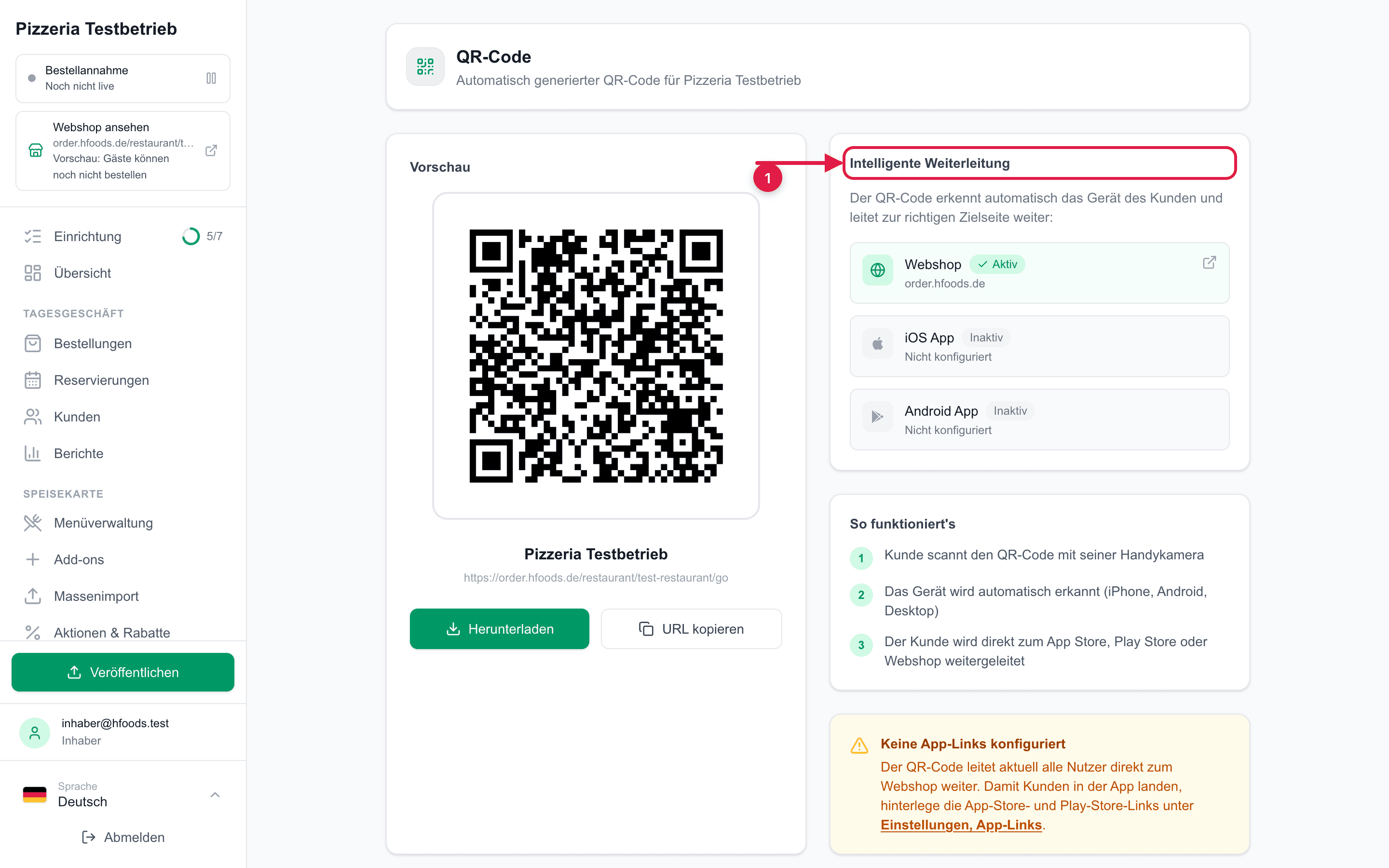
The QR code automatically detects the guest's device. Under Intelligente Weiterleitung (smart redirect) you see which destinations are set up: Webshop, iOS App and Android App.
What changes
This is how it works for your guests:
- The guest scans the QR code with their phone camera.
- The device is detected automatically (iPhone, Android, computer).
- The guest goes straight to the App Store, the Play Store or the web shop.
- Aktiv (active) means: this destination is set up.
- Inaktiv (inactive) with Nicht konfiguriert (not configured) means: the link is missing. Then these guests also end up in the web shop.
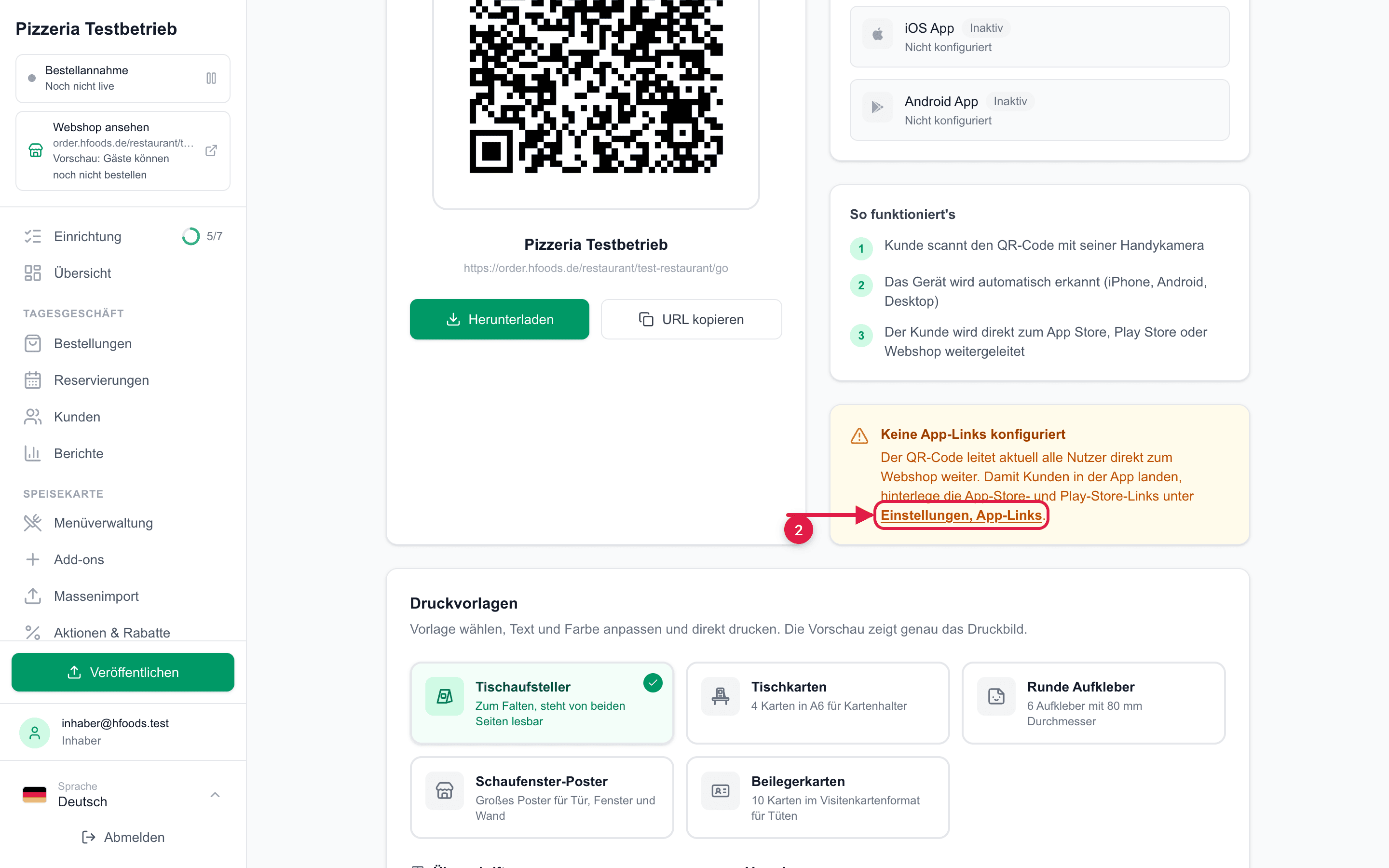
- If both app links are missing, the page shows Keine App-Links konfiguriert (no app links configured).
Requirements
You are signed in to the admin area as the owner. For the app destinations you have your own app in the App Store or Play Store.
Step by step
Check the destinations
In the sidebar on the left, click QR-Code. On the right is Intelligente Weiterleitung with the state of each destination. The small arrow next to an active destination opens it for a test.
Add app links
If the apps show Inaktiv, click Einstellungen, App-Links (settings, app links) in the Keine App-Links konfiguriert notice. You land in the settings at the Verweise auf deine App (links to your app) card. There you enter the links to the App Store and Play Store.
Result
You know where the code sends which devices. With app links in place, iPhone and Android users end up in your app. You do not need to print the code again for this.