Connect the terminal with the restaurant
Connect a new order terminal with your restaurant, using the pairing code or the restaurant's account.
What it is for
The order terminal is the app your restaurant uses to accept online orders and reservations and to print receipts. On first start you choose the language and country first, see Start the terminal for the first time. After that the terminal is not yet assigned to a restaurant and shows Terminal nicht verbunden (terminal not connected).
There are two ways to connect it:
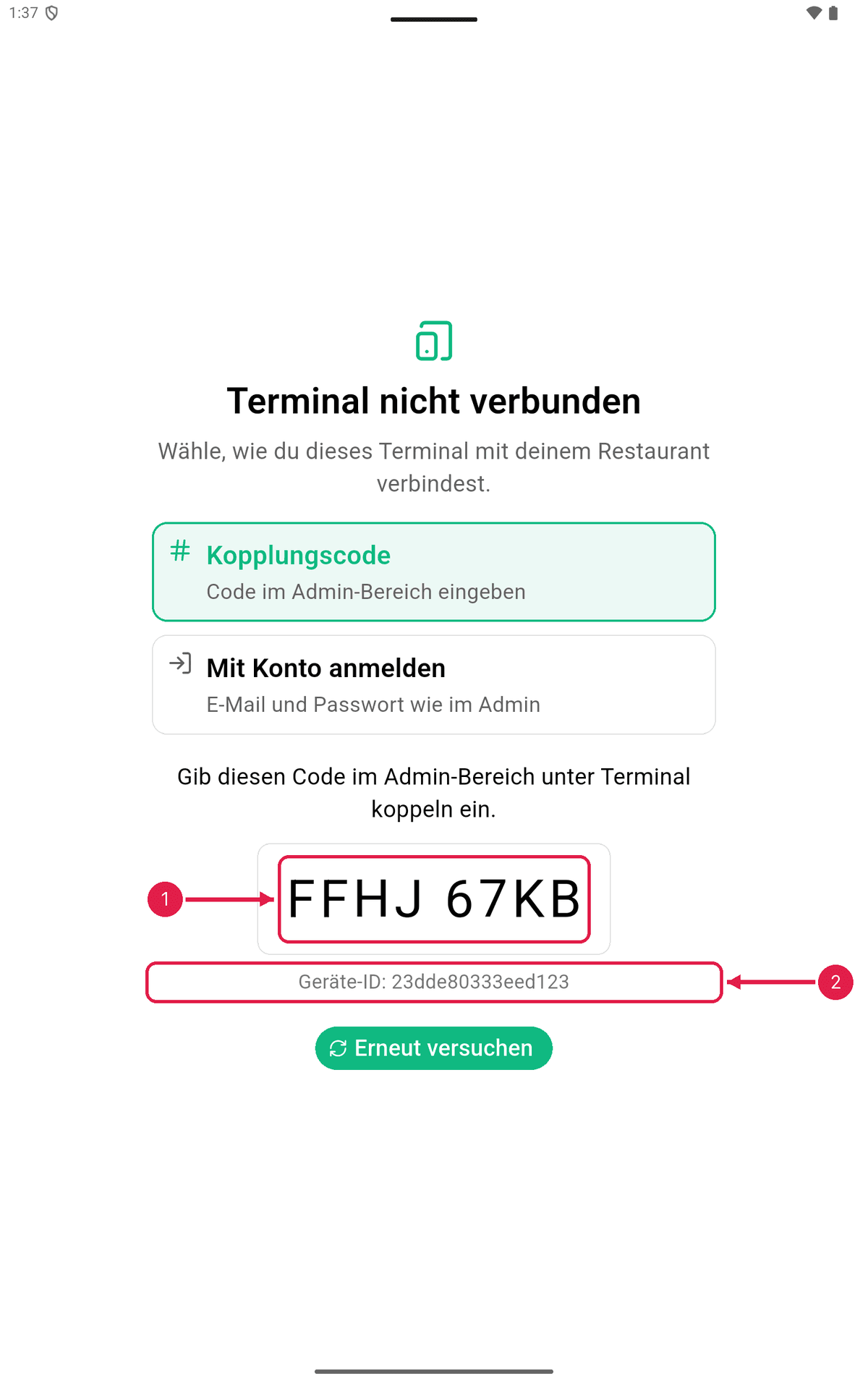
- Kopplungscode (pairing code): the terminal shows a code. You enter it in the admin area, or your account manager or hfoods support does it for you.
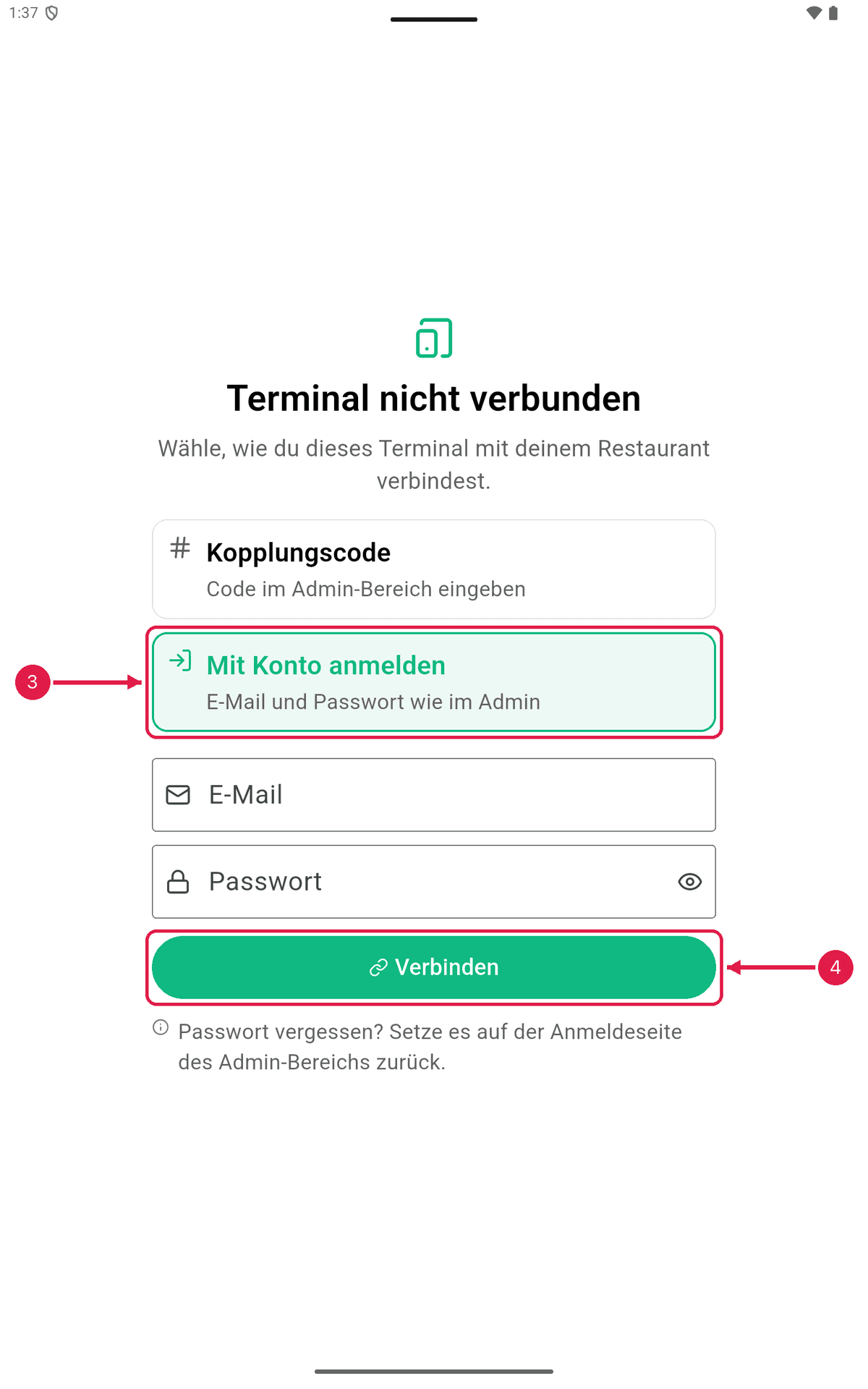
- Mit Konto anmelden (sign in with account): you sign in directly on the terminal with the email address and password you also use for the admin area. The terminal then connects to your restaurant by itself.
Both ways lead to the same result. An example: you put a new tablet in the kitchen but do not have the admin area open right now. Then you simply sign in on the terminal with your account.
What changes
- As long as the terminal is not connected, you choose at the top between Kopplungscode and Mit Konto anmelden.
- Under Kopplungscode you see the code (8 characters) and the Geräte-ID (device ID). Erneut versuchen (try again) reloads the code, for example if there was no connection.
- Under Mit Konto anmelden you enter E-Mail and Passwort (password) and tap Verbinden (connect).
- The restaurant's owner and staff may sign in. Other accounts are rejected, for example customer accounts from the web shop.
- Your account does not stay signed in on the terminal. The terminal signs you out right after connecting and then works as a device of your restaurant. The password is not stored.
- A terminal connected this way appears in the admin area like any other paired device and can be unpaired there the same way, see Pair a device, reset the PIN, unpair.
Requirements
The terminal is switched on and connected to the internet. The app is installed. For Mit Konto anmelden you need the account of the owner or a staff member of your restaurant.
Step by step
Connect with the pairing code
Tap Kopplungscode. Read the code, and the Geräte-ID if needed. Enter the code in the admin area, see Pair a device, reset the PIN, unpair, or give it to your account manager or hfoods support.
Or sign in with your account
Tap Mit Konto anmelden. Enter the E-Mail address and the Passwort of your account; with the eye symbol you can show the password briefly. Tap Verbinden. While the terminal connects, it shows Wird verbunden (connecting).
Result
As soon as the code has been entered in the admin area or the sign-in has worked, the terminal connects and shows your restaurant's Bestellungen (orders).
Tips
- You cannot sign in on the terminal with a username, use your account's email address.
- If you forgot the password, reset it on the sign-in page of the admin area with Passwort vergessen? (forgot password?) and then sign in on the terminal.
Frequently asked questions
Which messages can I see when signing in?
- Das Passwort stimmt nicht. (the password is wrong) or E-Mail oder Passwort stimmt nicht. (email or password is wrong): check what you entered.
- Zu dieser E-Mail gibt es kein Konto. (there is no account for this email): the email address is not known.
- Dieses Konto darf kein Terminal verbinden. (this account may not connect a terminal): sign in with the owner's or a staff member's account.
- Dieses Restaurant ist deaktiviert. (this restaurant is deactivated): contact support.
- Dieses Terminal ist schon mit einem anderen Restaurant verbunden. (this terminal is already connected to another restaurant): unpair it in the admin area first.
- Zu viele Versuche. (too many attempts): wait a moment and try again.
- Keine Verbindung. (no connection): check the terminal's internet.
Does my account stay signed in on the terminal?
No. The terminal only needs your account for connecting and signs you out right afterwards. Whoever uses the terminal afterwards only sees the orders, not your admin area.
How do I disconnect a terminal again?
In the admin area under the devices with Entkoppeln (unpair), see Pair a device, reset the PIN, unpair. The terminal then shows Terminal nicht verbunden again.