Pair, reset PIN, unpair a device
Connect an order terminal with your business, reset its PIN or disconnect it again.
What it is for
For an order terminal or an Android device to receive your orders, you connect it with your business; this is called pairing. A new device shows a pairing code when it starts, which you enter in the admin area. Under Deine Geräte (your devices) you then see all connected devices and can reset their PIN or unpair them again.
What changes
- Pairing: the device is permanently connected with your business and signs in automatically. The message reads "Terminal erfolgreich gekoppelt. Das Gerät meldet sich automatisch an." (terminal paired, the device signs in automatically).
- PIN reset: the device's sales screen is then accessible without a PIN.
- Unpairing: the device loses its connection to the restaurant and no longer receives orders.
Requirements
- You are signed in to the admin area as the owner.
- The device is switched on and shows the pairing code.
Step by step
Open your devices
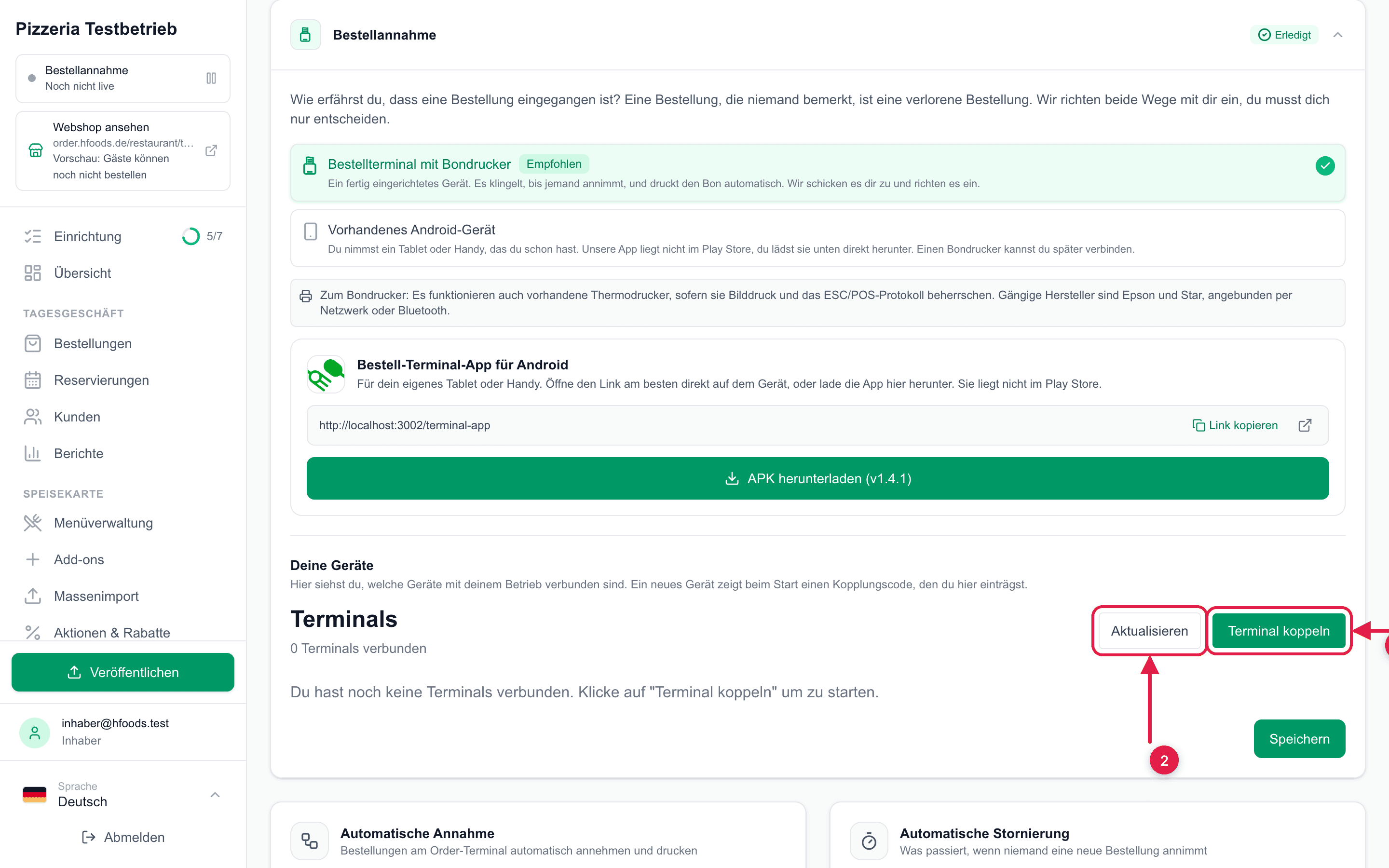
In the sidebar on the left, click Einstellungen (settings) under Shop and, in the Bestelleingang (incoming orders) group, open the Bestellannahme (order intake) card. Deine Geräte shows how many terminals are connected. Aktualisieren (refresh) reloads the list. Click Terminal koppeln (pair terminal).
Enter the pairing code
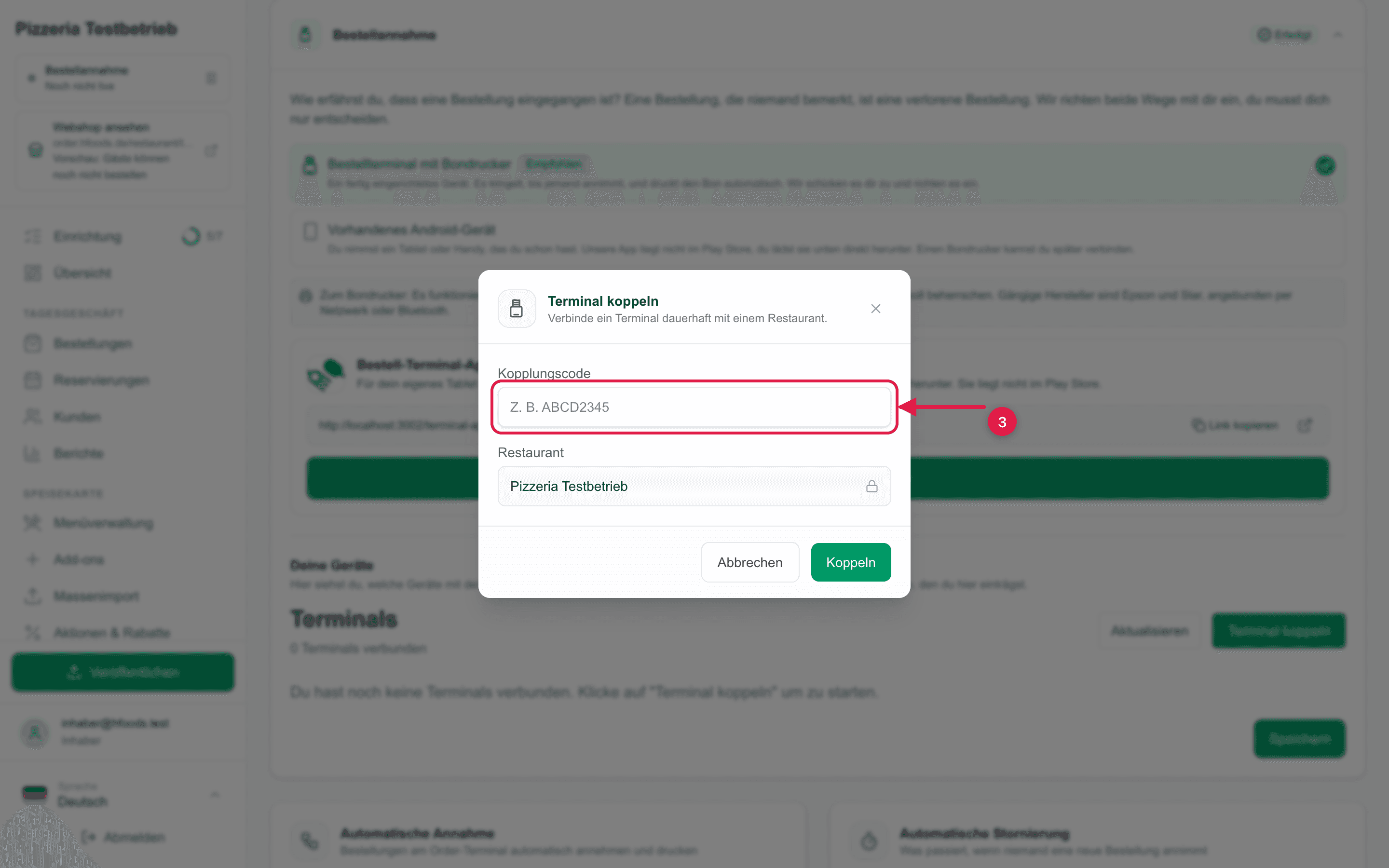
In the Terminal koppeln dialog, enter the code from the device's screen under Kopplungscode (pairing code), for example "ABCD2345". The restaurant is already filled in. Click Koppeln (pair).
Reset the PIN or unpair
The Verbundene Terminals (connected terminals) list shows each device with Device ID, status and Letzter Kontakt (last contact). For each device you find:
- PIN Reset: after the PIN zurücksetzen (reset PIN) confirmation, the device's sales screen is accessible without a PIN. The message "PIN wurde erfolgreich zurückgesetzt." (PIN reset) confirms this.
- Entkoppeln (unpair): after the Terminal entkoppeln (unpair terminal) confirmation, the device loses its connection to the restaurant. The message "Terminal erfolgreich entkoppelt." (terminal unpaired) confirms this.
Result
The device receives your business's orders, or it is disconnected again.
Tips
- After a PIN reset, set a new PIN on the device right away so the sales screen does not stay open.
- Unpair devices you sell or replace so they no longer receive orders.
- If the terminal shows the option Mit Konto anmelden (sign in with account), you can also connect it directly on the device with your email address and password, without entering the code here, see Connect the terminal with the restaurant.
Frequently asked questions
Where do I find the pairing code?
A new device shows it on the screen when it starts.