Assign an add-on group
Set with which categories, items or sizes an add-on group appears.
What it is for
An add-on group only appears with the items you assign it to. You can assign it to a whole category (all pizzas get "Extra-Beläge"), to individual items (only the burger gets "Saucen") or even only to certain sizes (only the large pizza gets an extra crust).
What changes
- Guests see the group with all assigned items as soon as you click Veröffentlichen (publish).
- With a whole category, the group also applies to items you create in that category later.
- If an item has assignments on several levels: size assignments take priority over item assignments, which in turn take priority over category assignments.
- In the list under Add-ons the group shows how many categories and item assignments it has.
Requirements
- You are signed in to the admin area as the owner.
- The add-on group exists, see Create an add-on group, and there are categories with items.
Step by step
Open the group's assignments
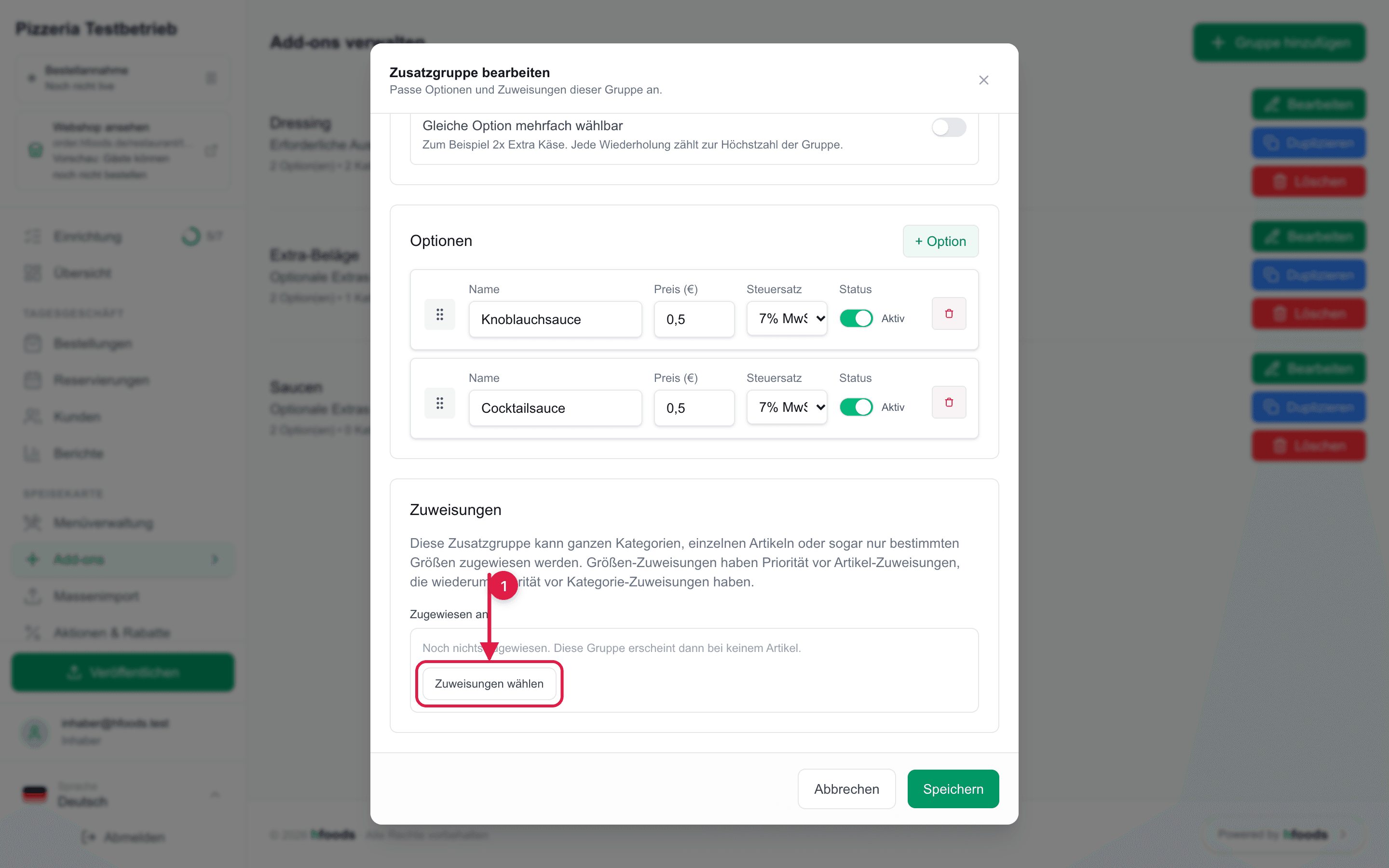
In the sidebar on the left, click Add-ons and then Bearbeiten (edit) on the group. Scroll down in the dialog to the Zuweisungen (assignments) section. Zugewiesen an (assigned to) shows what is assigned so far; for a new group it says "Noch nichts zugewiesen. Diese Gruppe erscheint dann bei keinem Artikel." (nothing assigned yet, the group appears with no item). Click Zuweisungen wählen (choose assignments), or Auswahl ändern (change selection) if something is already assigned.
Choose categories, items or sizes
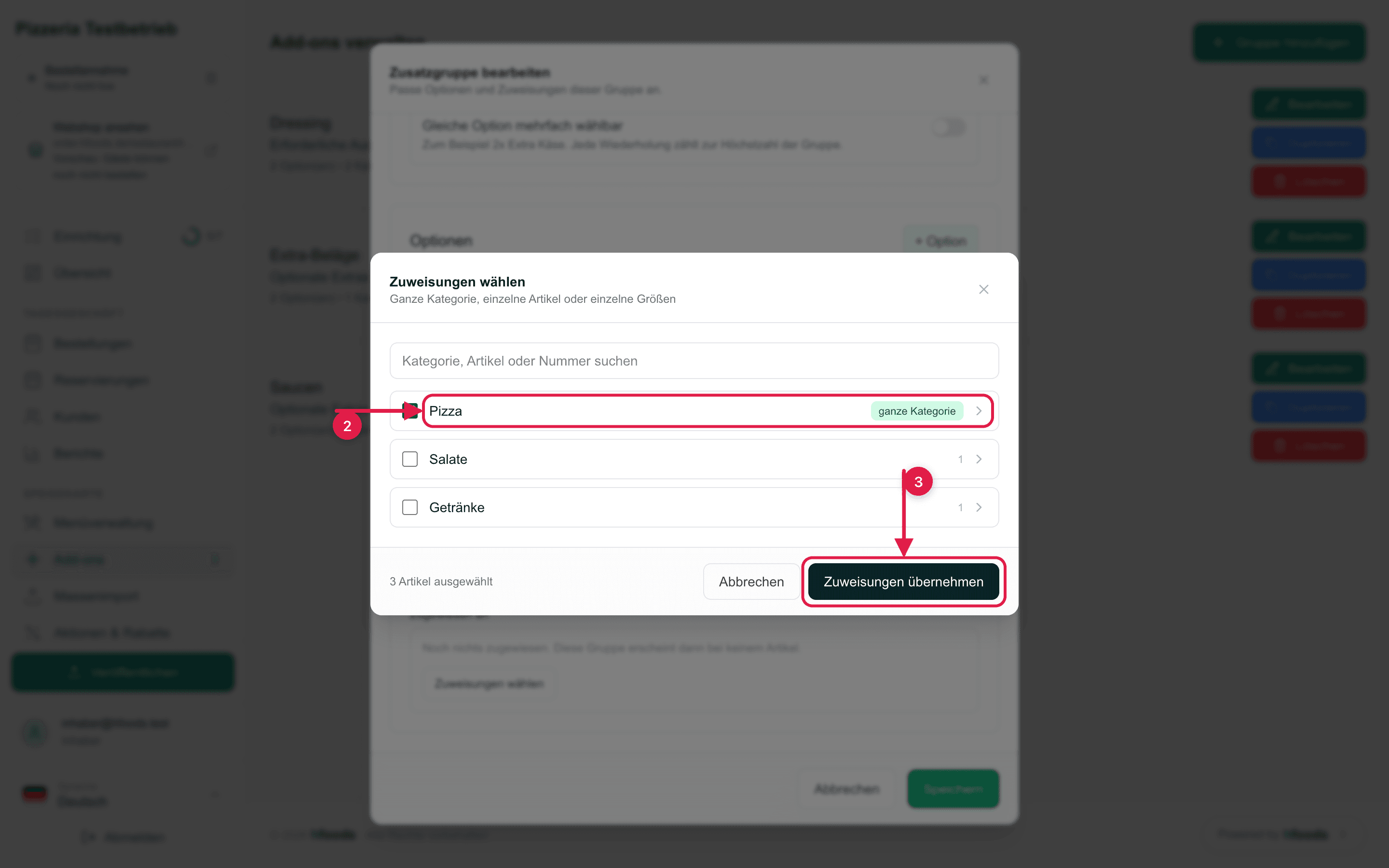
The Zuweisungen wählen dialog shows all categories. This is how you choose:
- Whole category: tick the box in front of the category. ganze Kategorie (whole category) appears next to it.
- Individual items or sizes: click the arrow on the right of the category. Its items and their sizes expand, and you tick only the ones you want.
- The search field Kategorie, Artikel oder Nummer suchen (search category, item or number) finds items quickly.
The bottom left shows how many items are selected. Click Zuweisungen übernehmen (apply assignments).
Save and publish
The Zusatzgruppe bearbeiten (edit add-on group) dialog now shows your selection under Zugewiesen an. Click Speichern (save), then Veröffentlichen (publish) on the left.
Result
The group appears with all assigned items. You set the order of several groups on one item on the item itself, see Change the order of an item's add-ons.
Tips
- Assign whole categories where possible. New items then get the group automatically.
- For exceptions, such as a pizza without extra toppings, assign the individual items instead of the category.
Frequently asked questions
Do I still need to save after "Zuweisungen übernehmen"?
Yes. Zuweisungen übernehmen only puts the selection into the dialog. Only Speichern (save) stores it, and only Veröffentlichen (publish) brings it to guests.
How do I remove an assignment again?
Open Auswahl ändern and untick it. You remove all assignments at once with Alle Zuweisungen entfernen, see Remove all assignments of a group.