Change the order of an item's add-ons
Set the order in which guests see an item's add-on groups, for example dressing first, then extra toppings.
What it is for
When a guest chooses an item, they see the add-on groups that belong to it, for example "Dressing" and "Extra-Beläge" (extra toppings). Required choices such as the dressing are best at the top, optional extras below. You set the order per item.
What changes
- The web shop and the app show this item's add-on groups in the new order. The message Reihenfolge gespeichert (order saved) confirms saving.
- The order only applies to this one item. Other items and the add-on groups themselves stay unchanged.
- Guests see the new order as soon as you click Veröffentlichen (publish).
Requirements
- You are signed in to the admin area as the owner and have opened the category page, see Open a category.
- At least two add-on groups are assigned to the item. You create add-on groups on the left under Add-ons and assign them there to categories, items or sizes. Without an assignment the dialog says Für diesen Artikel sind aktuell keine Zusätze zugeordnet. (no add-ons are assigned to this item).
Step by step
Open the item's add-ons
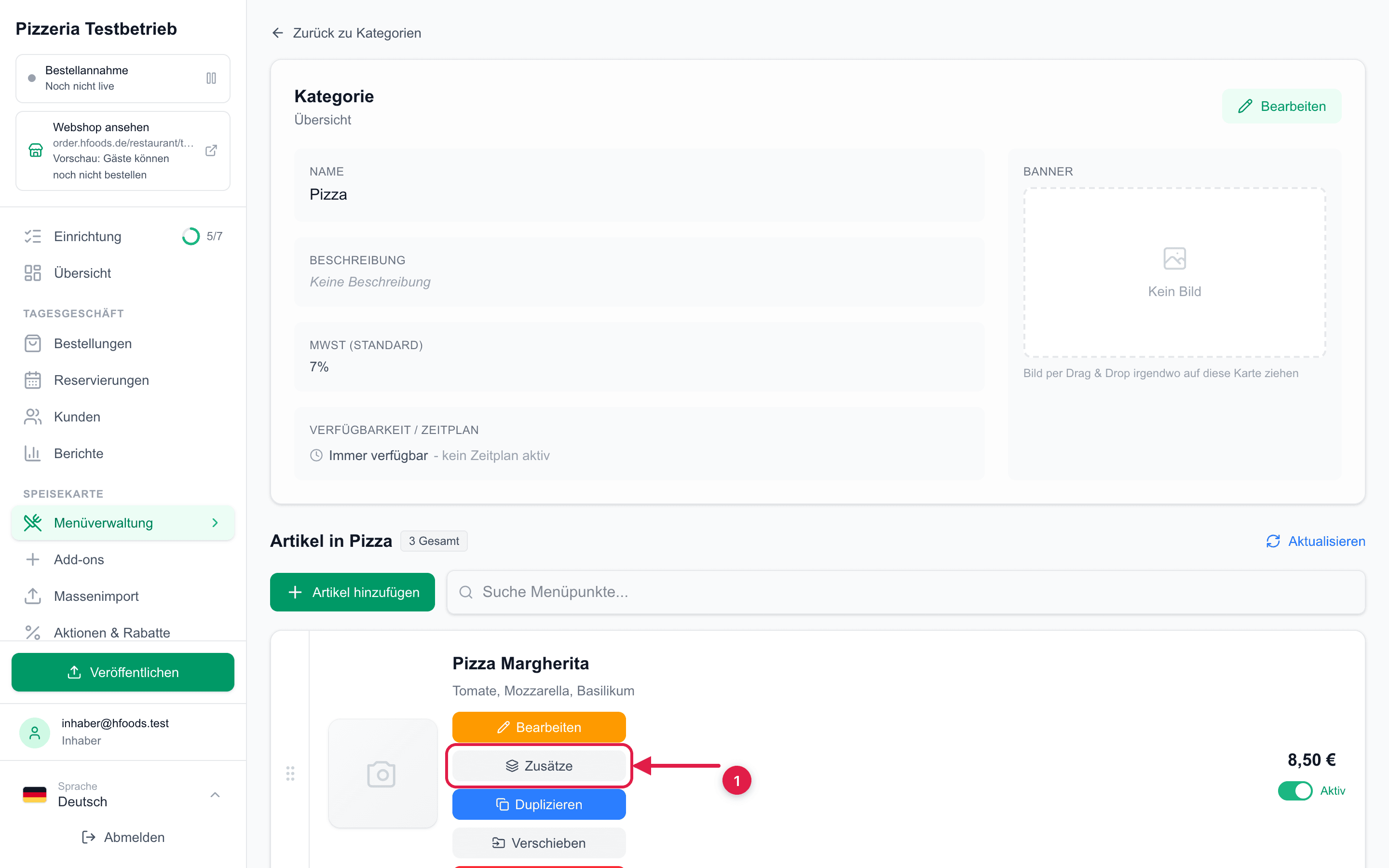
Click Zusätze (add-ons) on the item. The Reihenfolge der Zusätze (order of add-ons) dialog opens with the item's name.
Drag the groups and save
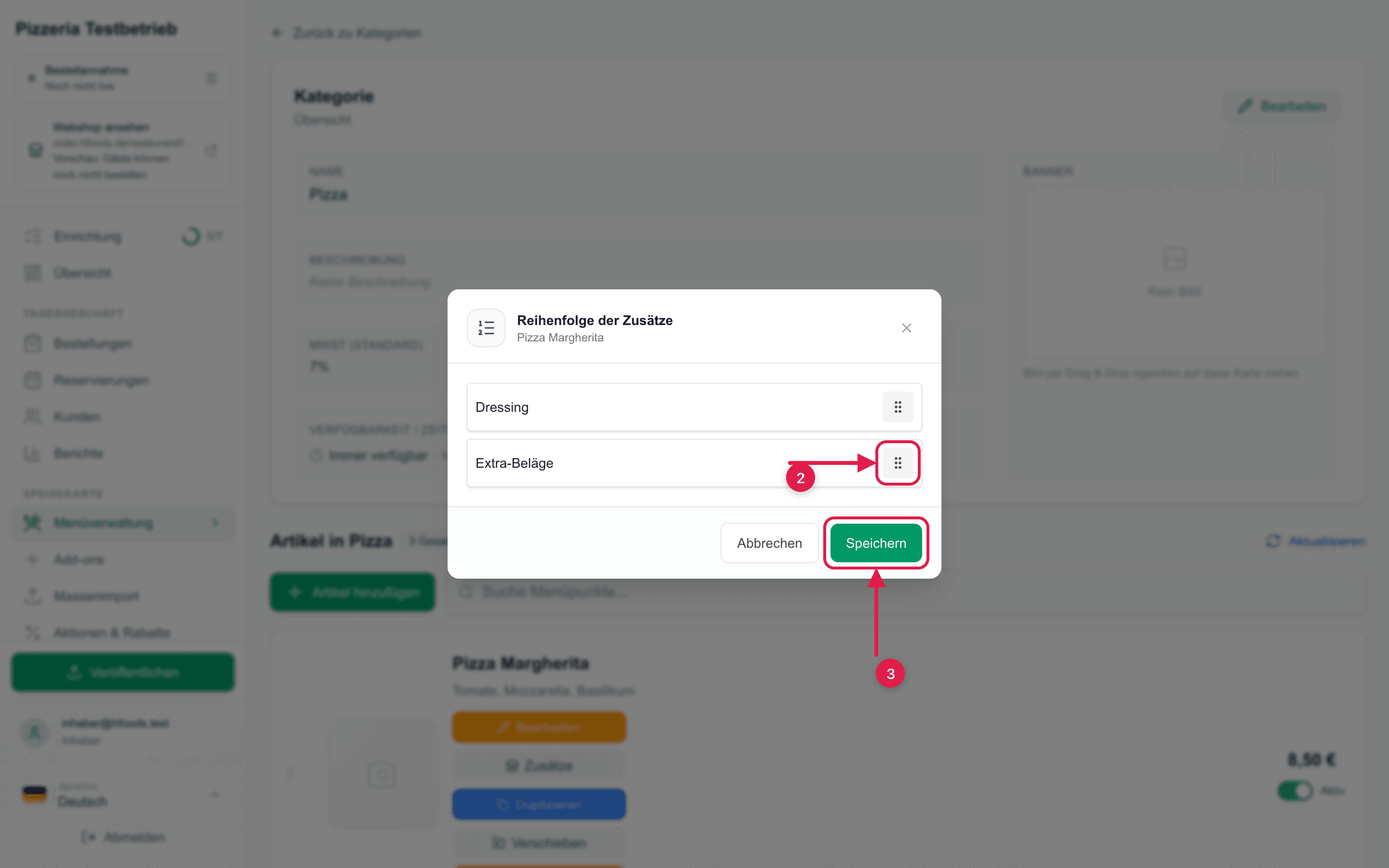
The dialog lists all add-on groups of the item. Hold a group by the handle on the right (Ziehen zum Sortieren, drag to sort) and drag it to the place you want. The top one is what guests see first. Then click Speichern (save). Abbrechen (cancel) discards the change.
Publish
Click Veröffentlichen (publish) on the left so the web shop and the app take over the new order.
Result
When a guest chooses the item, the add-on groups appear in your order.
Tips
- Put required choices such as the side or the dressing at the top. Guests handle the important things first and miss nothing.
- Popular extras directly after that increase the chance of an add-on sale.
Frequently asked questions
Does this change the options within a group?
No. Here you only sort the groups. You edit the options of a group, for example the individual dressings, under Add-ons.
Why do I see no add-ons in the dialog?
No add-on group is assigned to the item yet. You do that under Add-ons.