Download the CSV template
Download the template for the menu import and understand how it is structured.
What it is for
With Massenimport (bulk import) you transfer a complete menu at once instead of creating every category and item one by one. The data comes from a CSV file that you edit, for example, in Excel, Numbers or LibreOffice. The template shows you how this file must be structured, with examples for every column.
What changes
Nothing about your menu. You only download a file.
Requirements
You are signed in to the admin area as the owner, see Sign in.
Step by step
Download the template
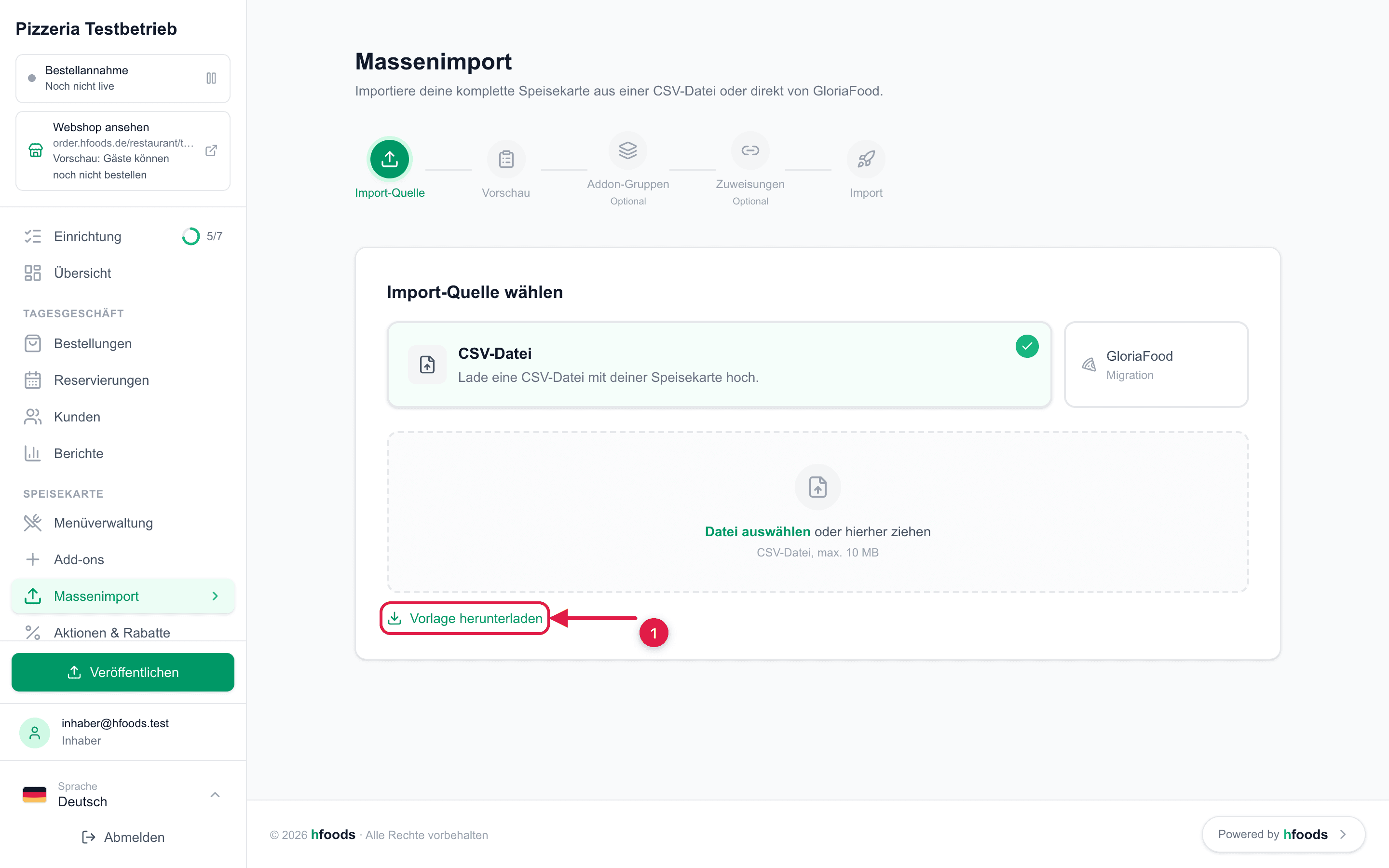
In the sidebar on the left, click Massenimport. Under Import-Quelle wählen (choose import source) you find the Vorlage herunterladen (download template) link. One click saves the CSV file on your device.
Understand the template's structure
The template starts with instructions. Lines starting with # are ignored by the import. Columns are separated by semicolons (;), and their order does not matter. The file has five sections, each with a header row:
- KATEGORIEN (categories): Name, Beschreibung (description), Sortierung (sort order), Verfügbar (available).
- ARTIKEL (items): Name, Kategorie, Beschreibung, Preis (price), Abholpreis (pickup price), MwSt (VAT), Artikelnummer (item number), Allergene (allergens), Zusatzstoffe (additives), Badges, Verfügbar, Sortierung, Größen (sizes). Separate several allergens with semicolons. Write sizes in one cell, for example "Klein: 9.90 | Groß: 11.90". Allowed badges are vegetarisch, vegan, halal, scharf, neu, beliebt, 16+ and 18+.
- ADDON-GRUPPEN (add-on groups): Name, Typ (type: Optional or Pflicht, meaning required), Max. Auswahl (maximum choice), Erforderlich (required), Mehrfach wählbar (can be chosen several times), Max pro Option (maximum per option), Notizen (notes).
- ADDONS: the options with Name, Gruppe (group), Preis, MwSt, Verfügbar.
- ZUWEISUNGEN (assignments): which add-on group belongs to which category or item, for example "Extras; Kategorie; Pizza" or "Soßen; Artikel; Spaghetti Bolognese (Pasta)".
Replace the example rows with your own menu and save the file as CSV again.
Result
You have a template to fill with your menu. Then you import it, see Import a menu from a CSV file.
Tips
- Save the file in your spreadsheet program explicitly as CSV with semicolons as the separator, otherwise the import does not recognise the columns.
- Use a point as the decimal separator for prices, as in the template, such as "8.90".
Frequently asked questions
Do I have to fill in all sections?
No. Add-on groups, add-ons and assignments are optional. Categories and items are enough for a menu.