Take over a menu from GloriaFood
Load the menu directly from GloriaFood instead of typing it in again.
What it is for
If you come from GloriaFood, you do not have to create your menu again. Bulk import loads it directly from GloriaFood, with categories, items, prices, sizes and extras. All you need is the restaurant key from your GloriaFood account.
What changes
After loading, the assistant continues as with the CSV import: preview, add-on groups, assignments and import. Saving only happens in the Import step.
Requirements
- You are signed in to the admin area as the owner.
- You have access to your restaurant's GloriaFood admin panel.
- The integration is activated in the GloriaFood panel (switch turned on). The restaurant owner receives a confirmation email from GloriaFood about this.
Step by step
Choose GloriaFood and enter the key
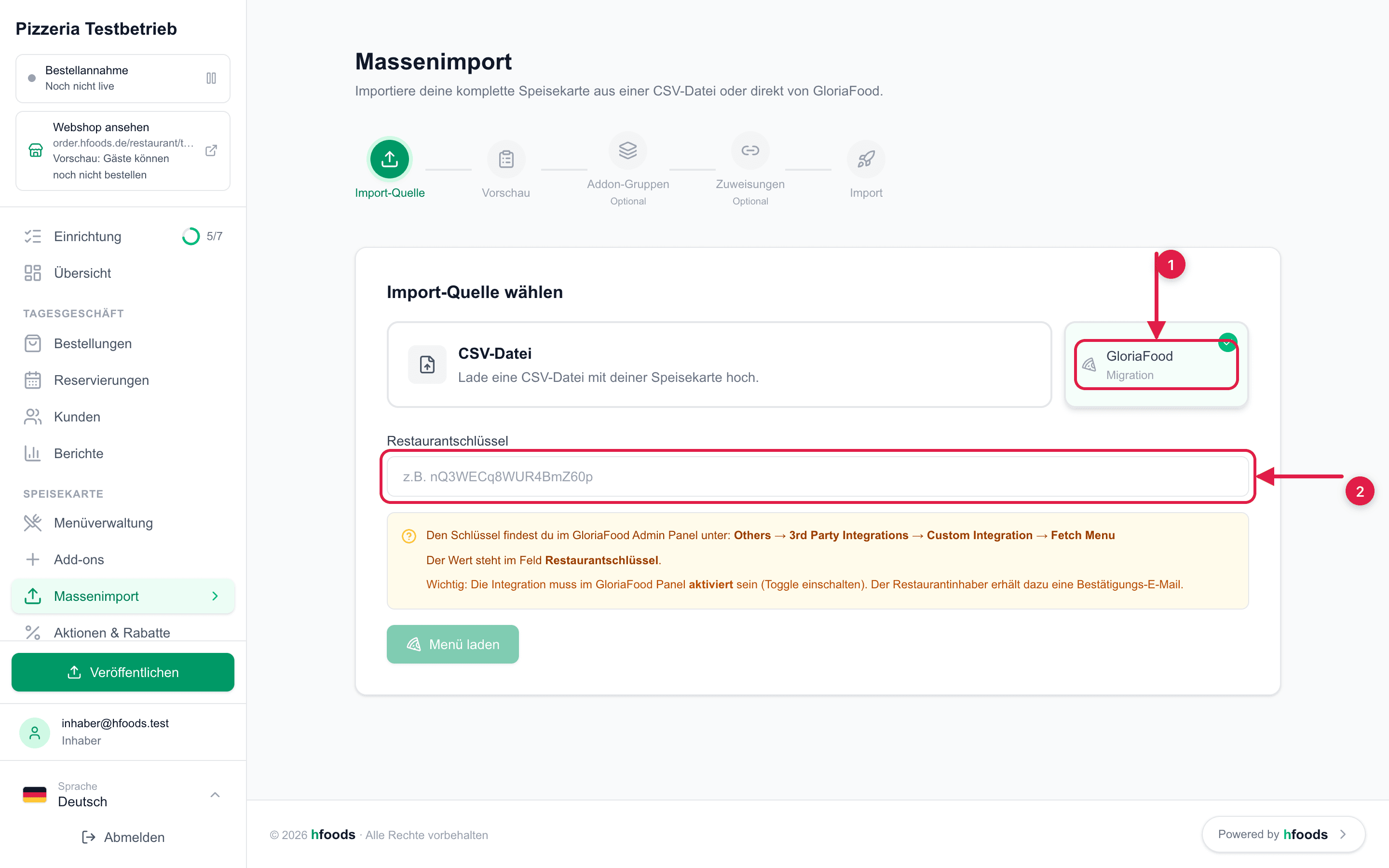
In the sidebar on the left, click Massenimport (bulk import) and under Import-Quelle wählen (choose import source) click GloriaFood. Enter your key under Restaurantschlüssel (restaurant key).
Find the key and load the menu
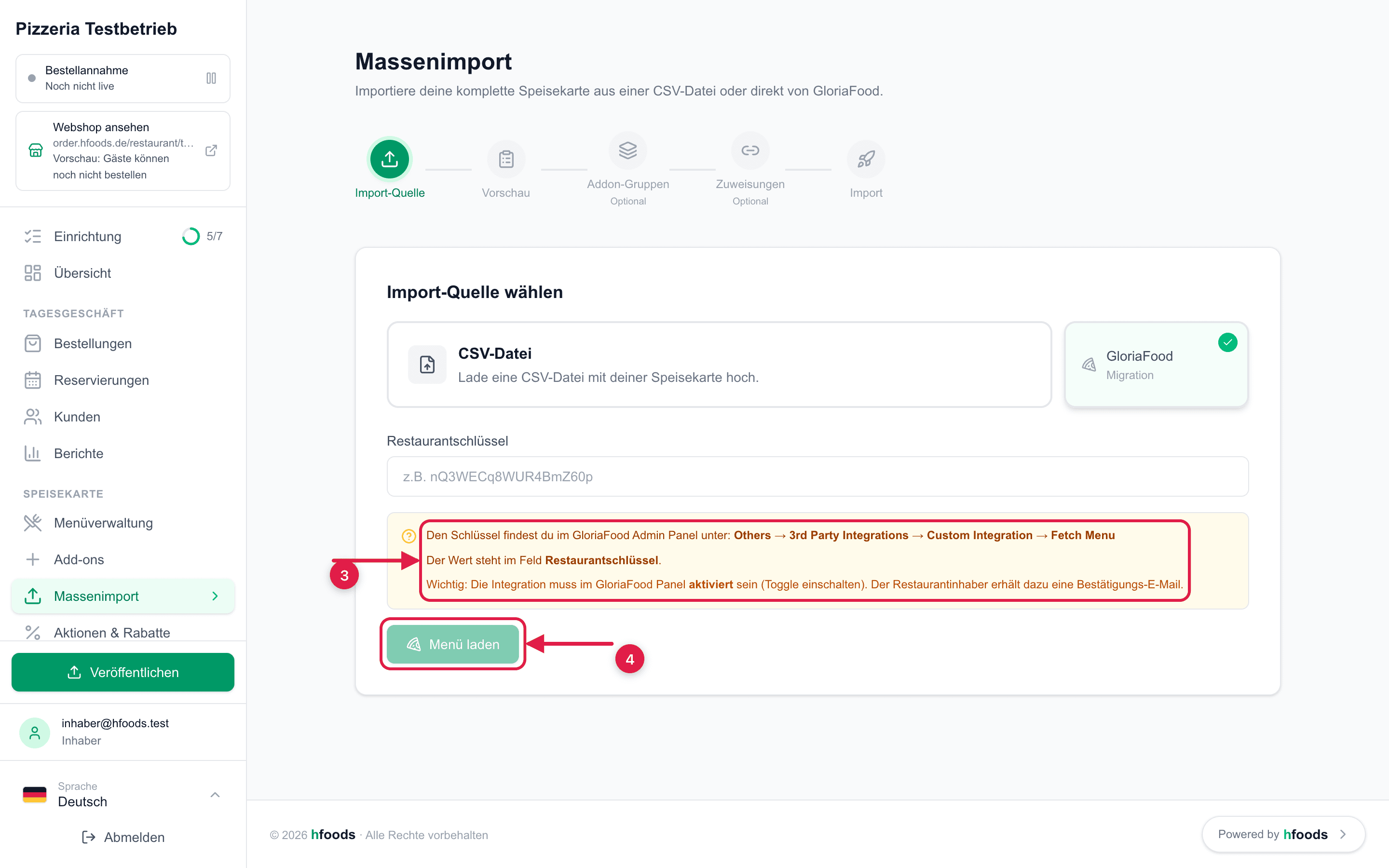
You find the key in the GloriaFood admin panel under Others → 3rd Party Integrations → Custom Integration → Fetch Menu. The value is in the Restaurantschlüssel field. Copy it and paste it in. Then click Menü laden (load menu). After that the preview follows, see Import a menu from a CSV file.
Result
Your GloriaFood menu is loaded and runs through the preview and import.
Frequently asked questions
Why are my category descriptions missing?
The GloriaFood interface does not provide category descriptions. Add them after the import in menu management, see Edit a category.
What does "Das GloriaFood-Menü enthält keine Artikel" mean?
(The GloriaFood menu contains no items.) No items were found under this key. Check the key and whether the integration is activated in GloriaFood.