Finish the import
Let the menu import run, check the result and publish.
What it is for
In the last step, Import, the assistant saves the categories, items and add-on groups in your menu. Then you check the result in menu management and publish.
What changes
- The imported categories, items and add-on groups are in your menu.
- If Bestehende Speisekarte ersetzen (replace existing menu) was switched on, the old menu has been deleted, see Replace the existing menu.
- Guests only see the new menu after Veröffentlichen (publish).
Requirements
You are in bulk import and have clicked Weiter (next) in the Zuweisungen (assignments) step, see Assign add-on groups during import.
Step by step
Read the result and finish
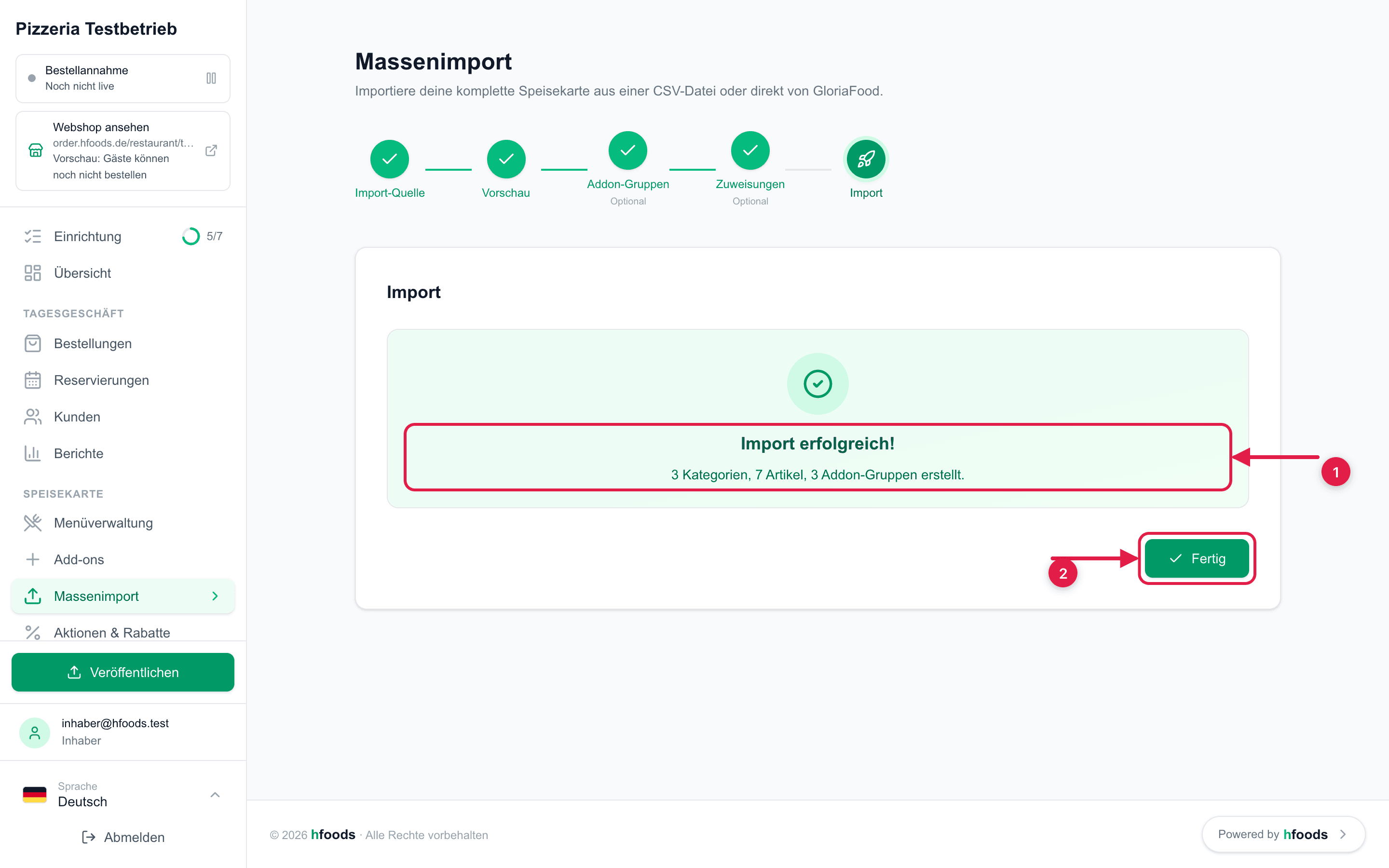
The import starts by itself and shows its progress. When it is done, it says Import erfolgreich! (import successful) with the number of categories, items and add-on groups created, for example "3 Kategorien, 7 Artikel, 3 Addon-Gruppen erstellt." Click Fertig (done).
If it fails, it says Import fehlgeschlagen (import failed) with the reason. Erneut versuchen (try again) starts the import once more.
Check and publish
In the sidebar on the left, open Menüverwaltung (menu management) and look at the imported categories and items. If everything is right, click Veröffentlichen (publish) on the left.
Result
Your menu is imported and visible to guests after publishing.
Tips
- After the import, spot check VAT rates, allergens and prices. Otherwise a typo in the file ends up on the menu.