Replace the existing menu
Decide during import whether the existing menu is deleted and replaced or new items are added.
What it is for
During bulk import you decide what happens to your existing menu. Either it is completely replaced by the imported one, or the imported categories and items are added to the existing menu.
What changes
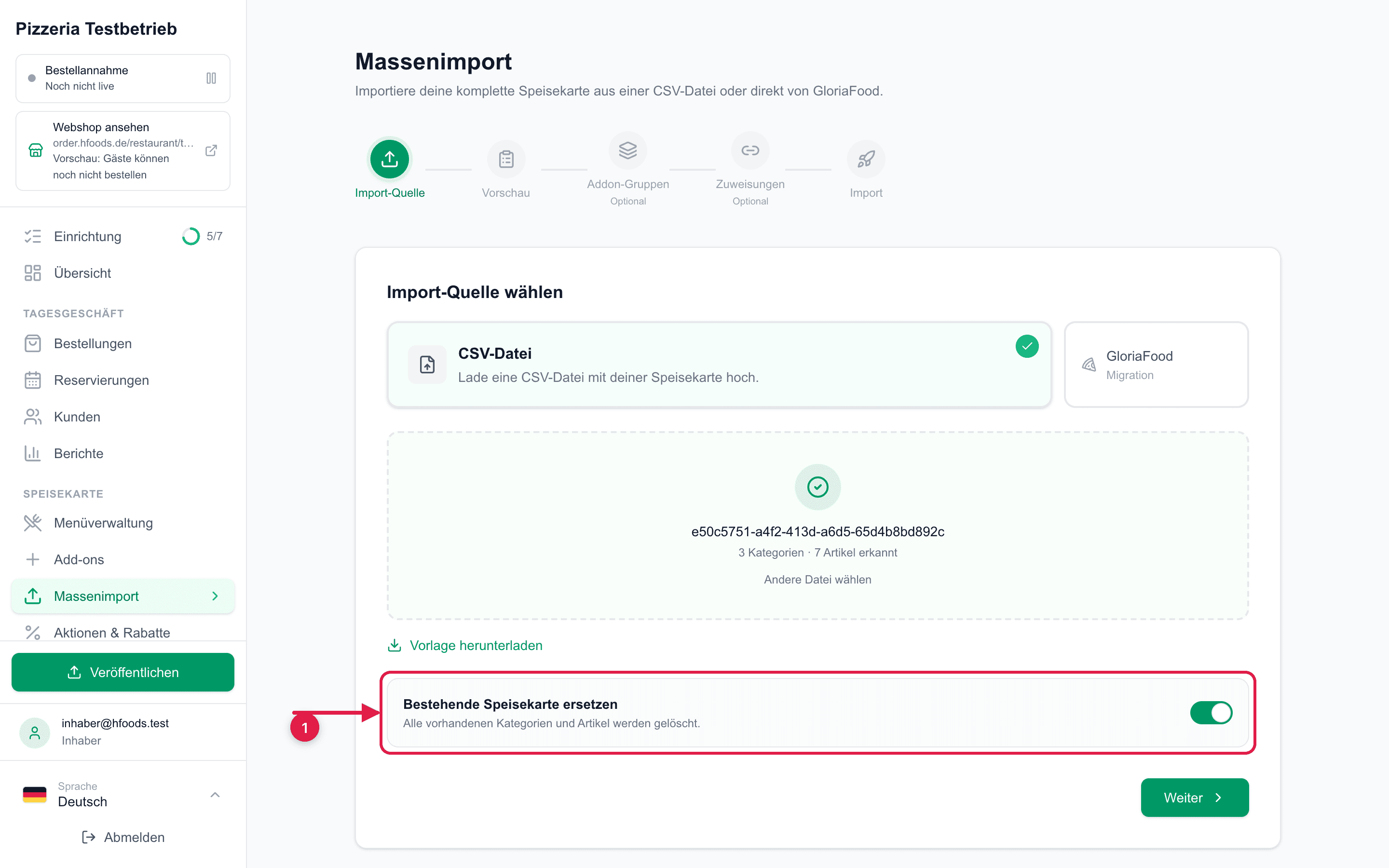
- Switched on: "Alle vorhandenen Kategorien und Artikel werden gelöscht." (all existing categories and items are deleted). In addition, all existing add-on groups under Add-ons are deleted too. Afterwards only the imported menu remains.
- Switched off: "Neue Artikel werden zur bestehenden Karte hinzugefügt." (new items are added to the existing menu). Your existing menu stays and the imported one is added.
Requirements
You are signed in to the admin area as the owner and have uploaded a file in bulk import, see Import a menu from a CSV file.
Replace is the default
The Bestehende Speisekarte ersetzen (replace existing menu) switch is on when you open bulk import. The import starts without a further question as soon as you reach the last step. If you want to keep your existing menu, switch it off first. Deleted categories, items and add-on groups cannot be restored. Make a copy first with Speisekarte exportieren (export menu).
Step by step
Check the switch
After uploading the file, Bestehende Speisekarte ersetzen with a switch appears below the file field. The sentence below it tells you what will happen. Switch it off if the imported menu should be added to the existing one. Leave it on if the imported menu should fully replace the old one, for example when moving from another system.
Result
The import treats your existing menu the way you chose.
Frequently asked questions
Are my add-on groups deleted too when replacing?
Yes. When replacing, all existing add-on groups are deleted as well as categories and items, even though the note in the assistant only mentions categories and items. Include the groups you want to keep in the CSV file or create them again afterwards.