Set up WinOrder
Create access details for WinOrder and enter them in WinOrder so online orders are transferred automatically.
What it is for
WinOrder is a cash register system for delivery services. With the connection, WinOrder fetches your online orders automatically, and you then handle them in WinOrder.
What changes
- hfoods creates a user name and a password for the connection. They are shown only once.
- The message reads WinOrder wurde erfolgreich eingerichtet (WinOrder set up successfully), and WinOrder shows Aktiv (active).
- From then on WinOrder fetches your orders at the set polling interval.
Requirements
You are signed in to the admin area as the owner and use the WinOrder cash register system. Automatic acceptance on the terminal is off.
Not together with automatic acceptance
WinOrder and automatic acceptance on the terminal cannot be used at the same time, otherwise the terminal accepts orders before WinOrder can fetch them. While automatic acceptance is on, WinOrder cannot be set up.
Step by step
Choose set up
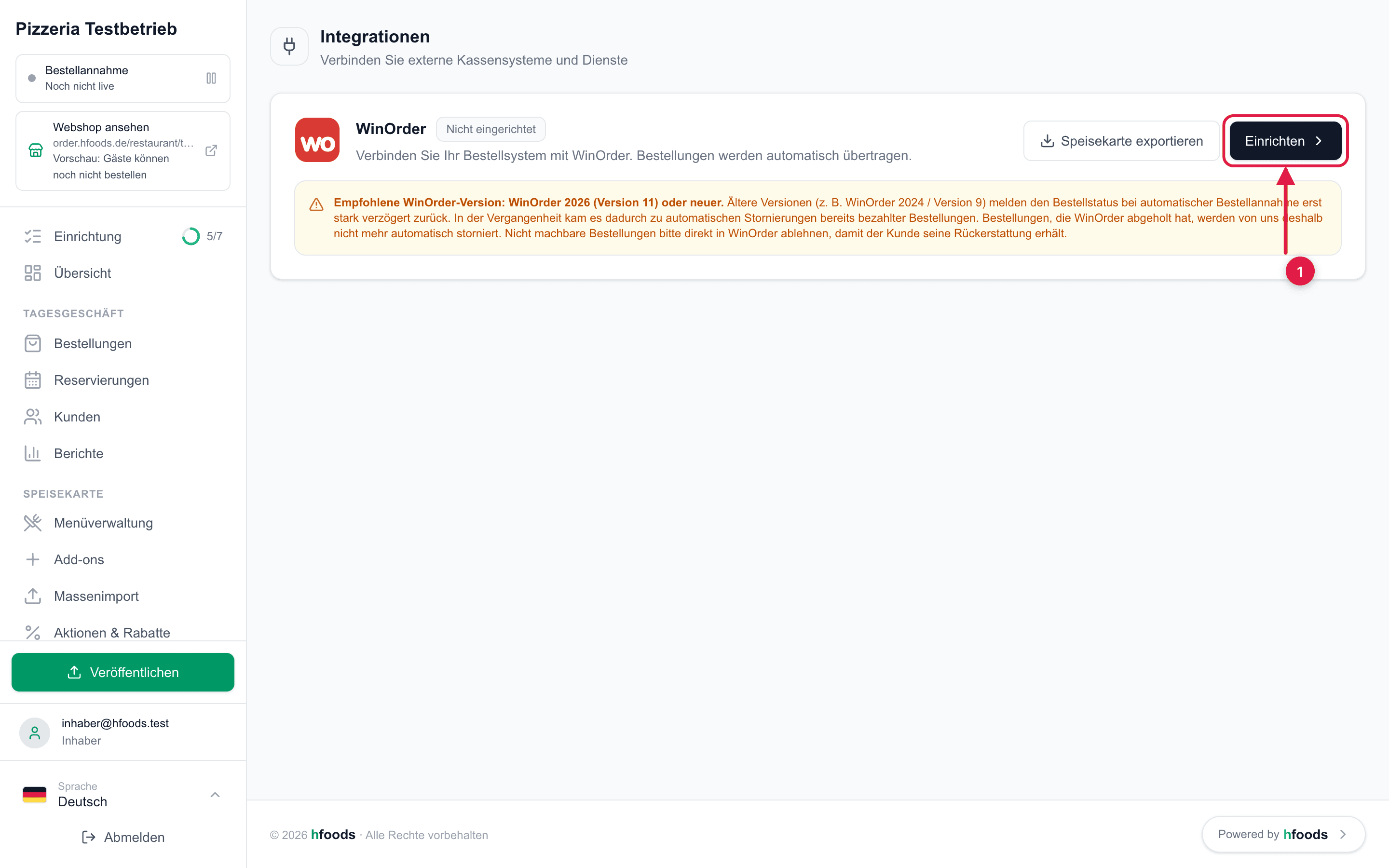
In the sidebar on the left, click Integrationen (integrations). WinOrder shows Nicht eingerichtet (not set up). Click Einrichten (set up).
Confirm WinOrder
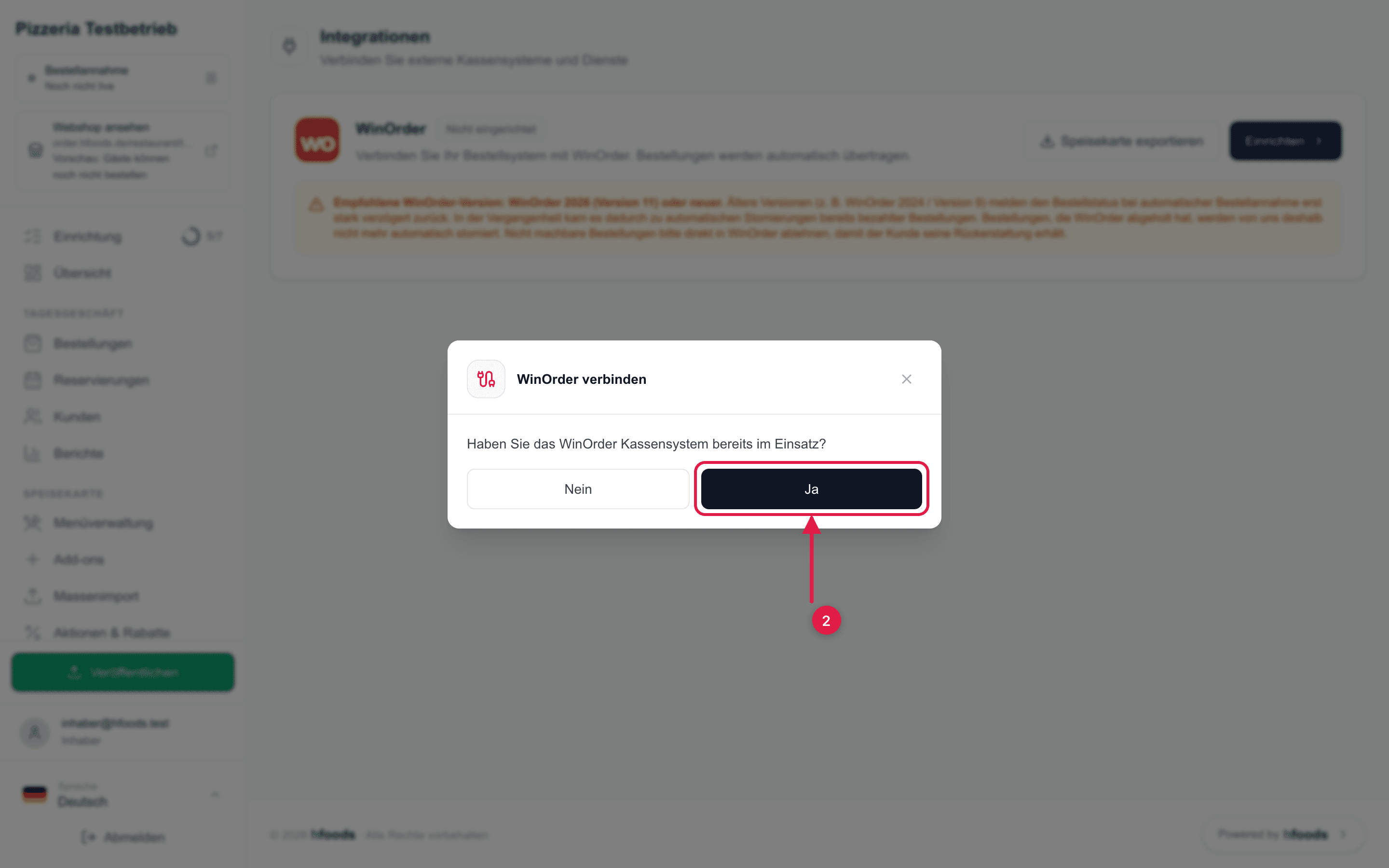
The window asks Haben Sie das WinOrder Kassensystem bereits im Einsatz? (do you already use the WinOrder cash register system?). Click Ja (yes). With Nein (no) you learn that you need WinOrder and get to the WinOrder website.
Create access details
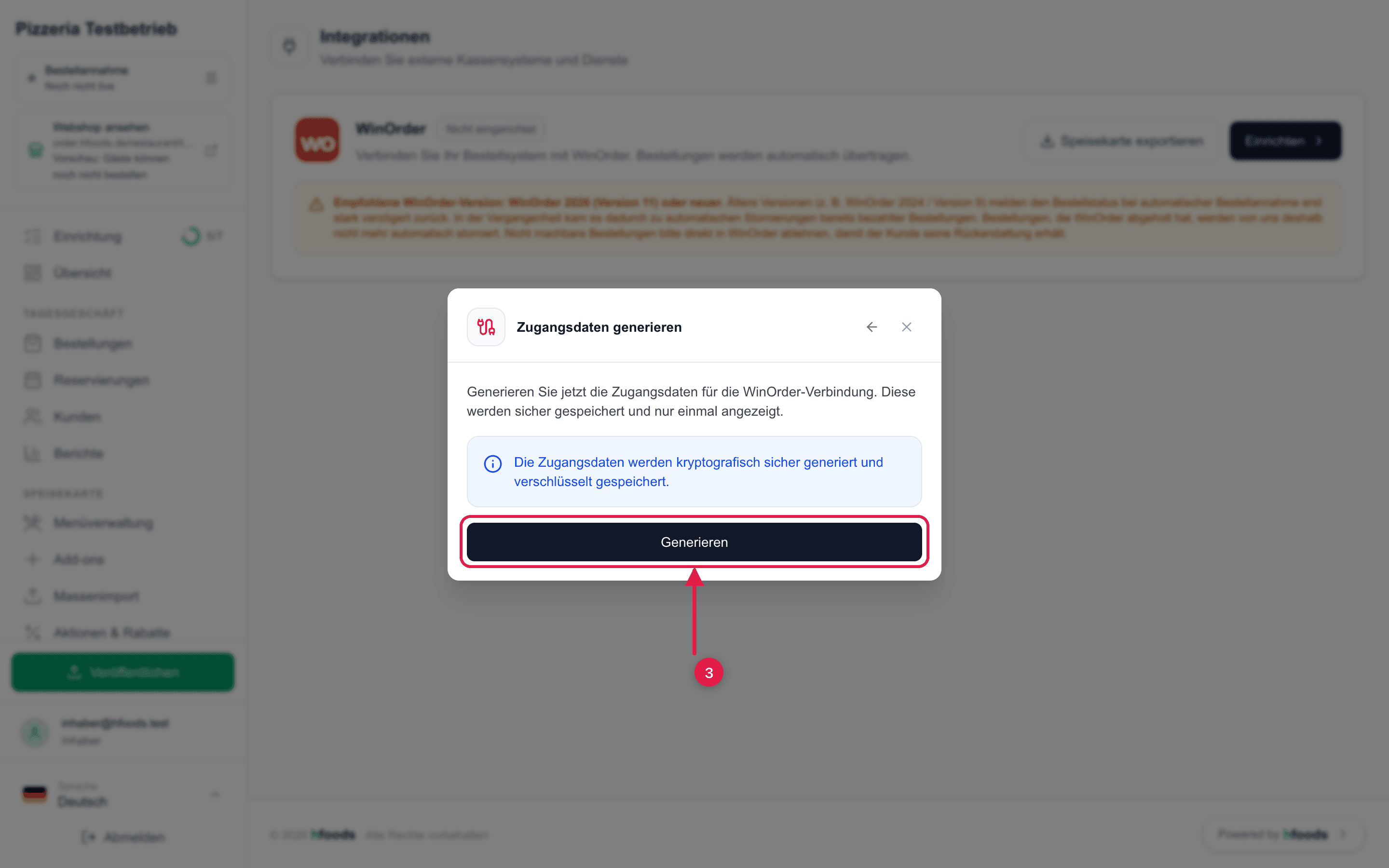
In the Zugangsdaten generieren (generate access details) window click Generieren (generate).
Enter them in WinOrder
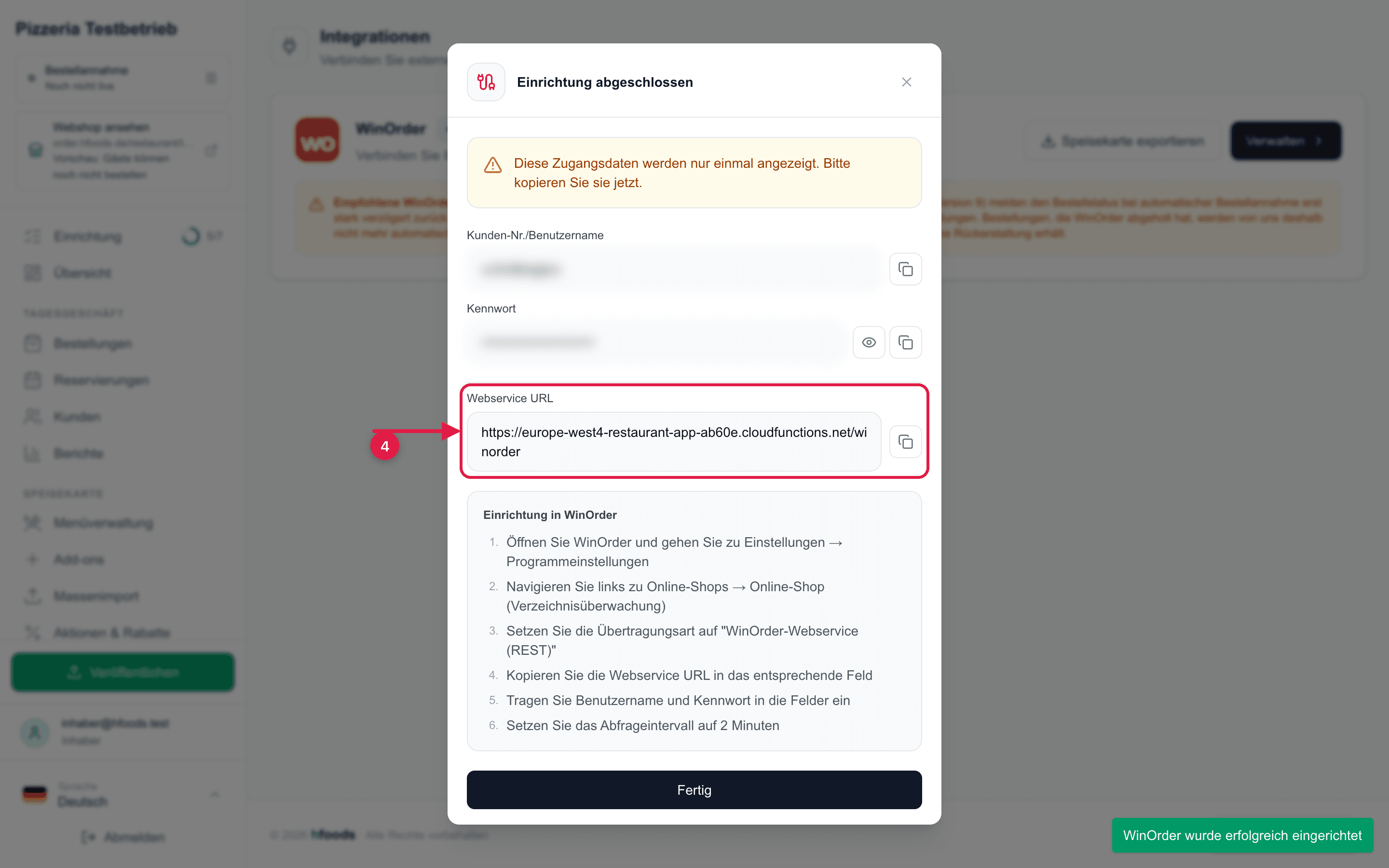
The Einrichtung abgeschlossen (setup complete) window shows Kunden-Nr./Benutzername (customer no./user name), Kennwort (password) and Webservice URL, each with a copy button. Copy them now, they are shown only once. Then follow the Einrichtung in WinOrder (setup in WinOrder) instructions: in WinOrder under Einstellungen, Programmeinstellungen, on the left Online-Shops, Online-Shop (Verzeichnisüberwachung), choose the transfer type "WinOrder-Webservice (REST)", enter the webservice URL, user name and password and set the polling interval to 2 minutes. Then click Fertig (done).
Result
WinOrder is connected and fetches your online orders.
Recommended WinOrder version
WinOrder 2026 (version 11) or newer is recommended. Older versions report the order status back only with a long delay when accepting automatically. Orders that WinOrder has fetched are therefore no longer cancelled automatically. Reject orders you cannot fulfil directly in WinOrder so the guest receives their refund.