Edit a category
Change the name, description, VAT rate or banner image of an existing category.
What it is for
You can change a category's details at any time: a better name, a new description, another banner image or another default VAT rate. The items of the category stay as they are.
What changes
- The web shop and the app show the new name and description above the category.
- A new banner image replaces the old one. With Banner entfernen (remove banner) the category shows no image at all.
- A new VAT rate is at first only suggested for new items. If existing items have a different rate, the admin area asks after saving whether you want to apply it, see Apply the category VAT rate to items.
- Guests only see the change after you click Veröffentlichen (publish).
Requirements
You are signed in to the admin area as the owner and have opened the category page, see Open a category.
Step by step
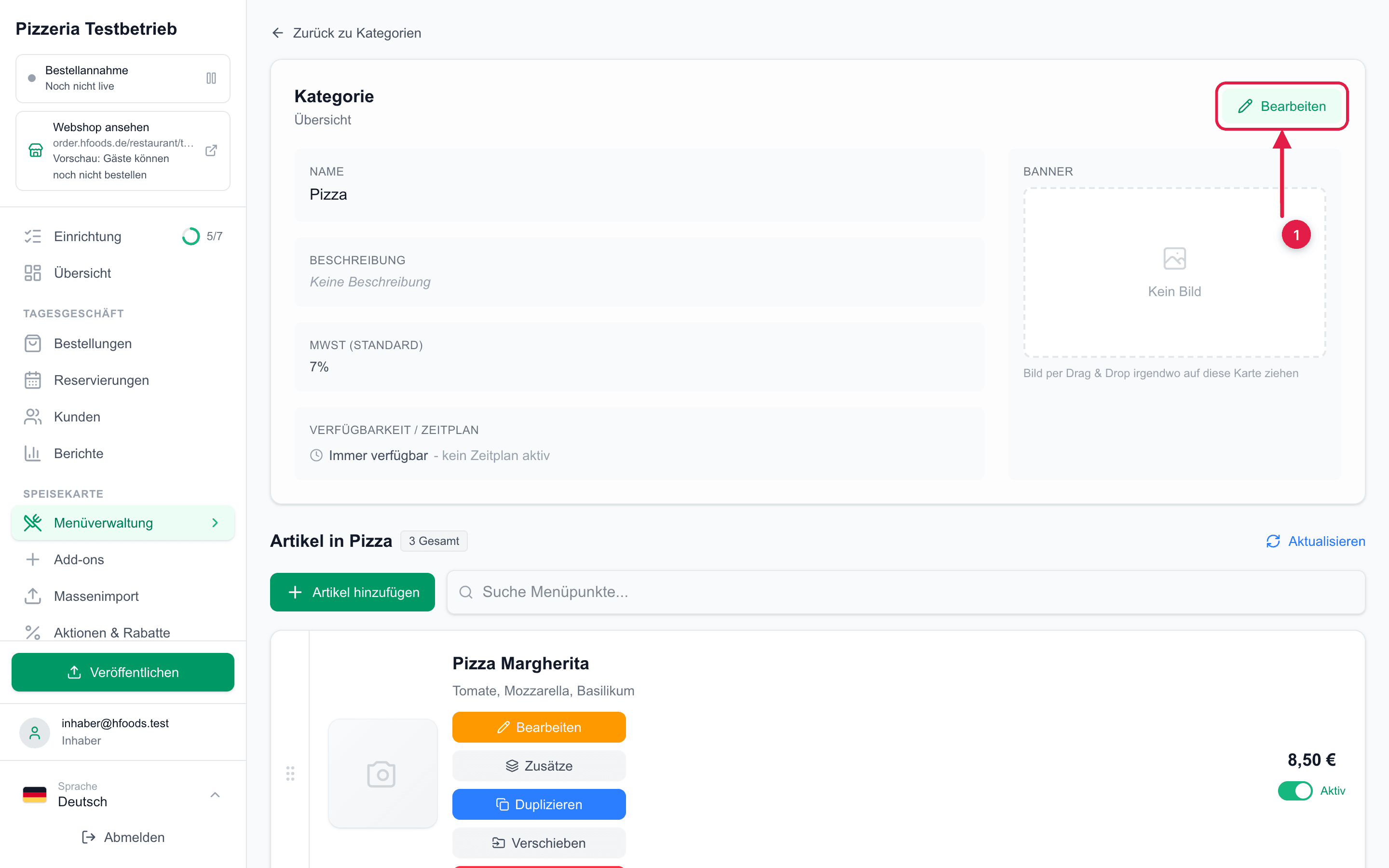
Choose Bearbeiten
On the Kategorie (category) card, click Bearbeiten (edit) at the top right. The details turn into input fields.
Change the details and save
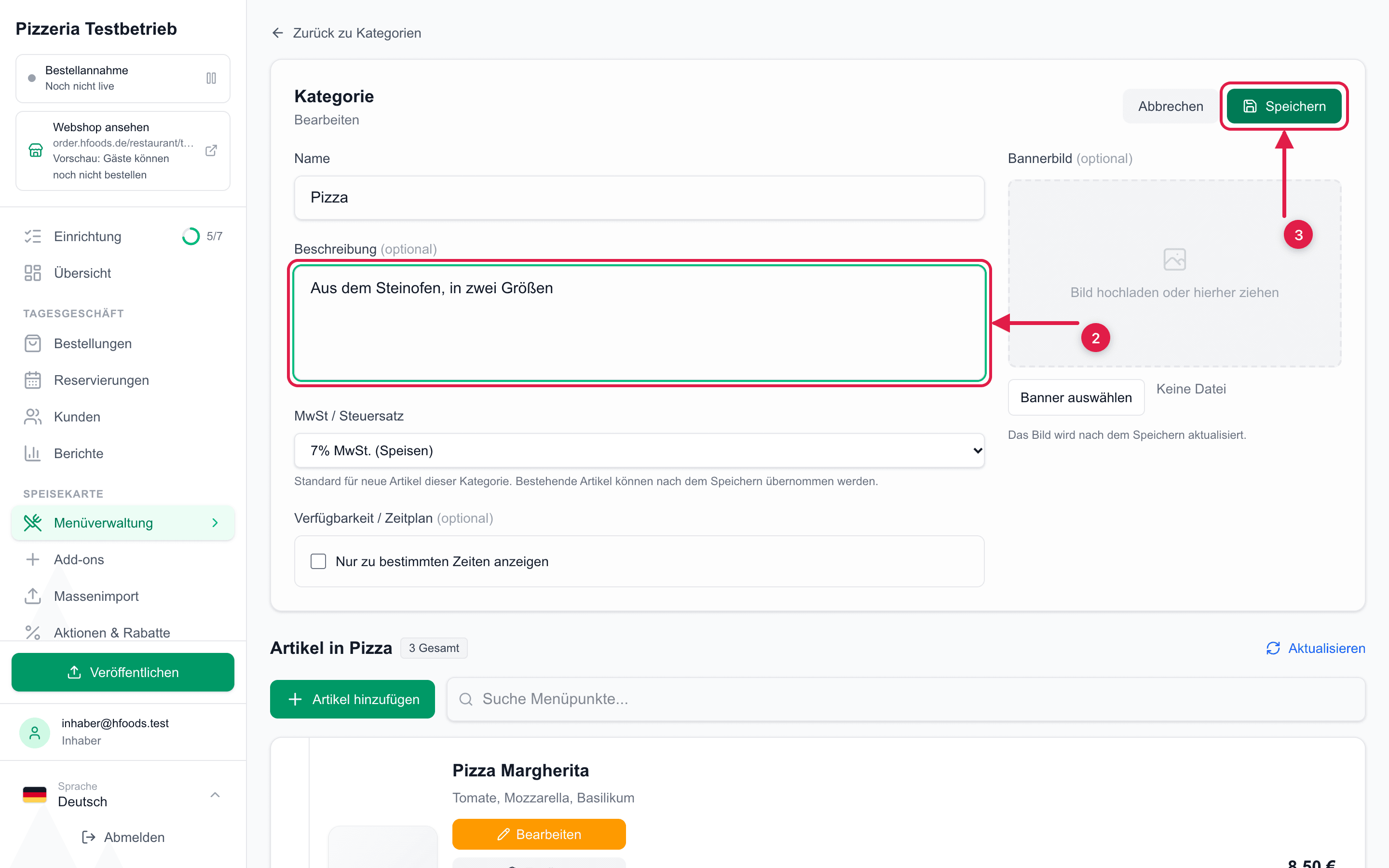
Change what you want to change:
- Name: this is what the section is called in the web shop and the app.
- Beschreibung (optional) (description): a short sentence below the name, in the picture for example "Aus dem Steinofen, in zwei Größen" (from the stone oven, in two sizes).
- MwSt / Steuersatz (VAT rate): the default for new items in this category.
- Verfügbarkeit / Zeitplan (optional) (availability and schedule): times at which the category is shown, see Set a schedule for a category.
- Bannerbild (optional) (banner image): with Banner auswählen (choose banner) or Banner ersetzen (replace banner) you pick a new image, or you drag it into the field. The image is only updated after saving.
Then click Speichern (save) at the top right. The message Kategorie „Name“ wurde gespeichert (category saved) confirms this. Abbrechen (cancel) discards your changes.
Publish
Click Veröffentlichen (publish) on the left so the web shop and the app take over the change.
Result
The Kategorie card shows the new details. After publishing, guests see them in the web shop and the app.
Tips
- Keep the description short. One sentence that makes guests curious works better than a long list.
- Wide landscape images in a 3:1 ratio suit banners best, for example 1200 × 400 pixels.
- Work through several changes calmly and publish once at the end.
Frequently asked questions
Do I lose items when I rename a category?
No. The items stay in the category; only the name changes.
I changed the VAT rate, but my items still have the old one. Why?
The category's VAT rate is a suggestion for new items. Existing items only change if you agree in the Steuersatz auf Artikel anwenden? (apply VAT rate to items?) dialog after saving, see Apply the category VAT rate to items.
Why don't guests see the change yet?
The change is only taken over after Veröffentlichen (publish). The web shop also refreshes the menu by itself within one hour at the latest.