Order terminalOrders
Accept a scheduled order
Accept a pre-order for a later time.
What it is for
The guest places a pre-order for a specific time. Here you do not choose minutes but confirm the requested time.
What changes
- The order shows Geplant: um … Uhr (scheduled at … o'clock) instead of Schnellstmöglich.
- The Geplante Bestellung (scheduled order) window asks Geplante Bestellung um … Uhr bestätigen? (confirm scheduled order at …?), with the date for another day.
- In the list it then shows Akzeptiert • Geplant with the time.
Requirements
The order terminal is connected with your restaurant. A pre-order has arrived. Pre-orders are switched on in the admin area, see Allow scheduled orders.
Step by step
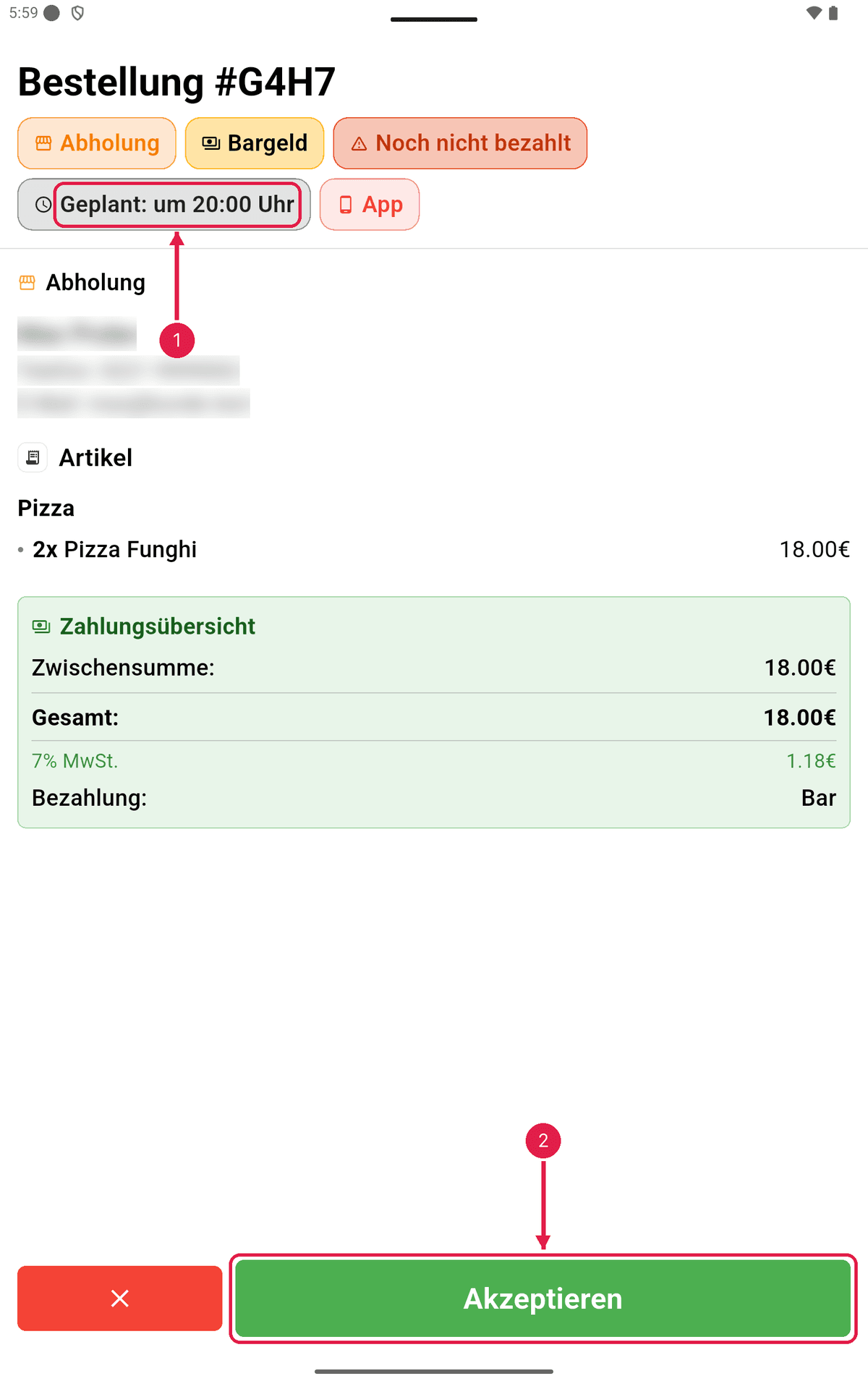
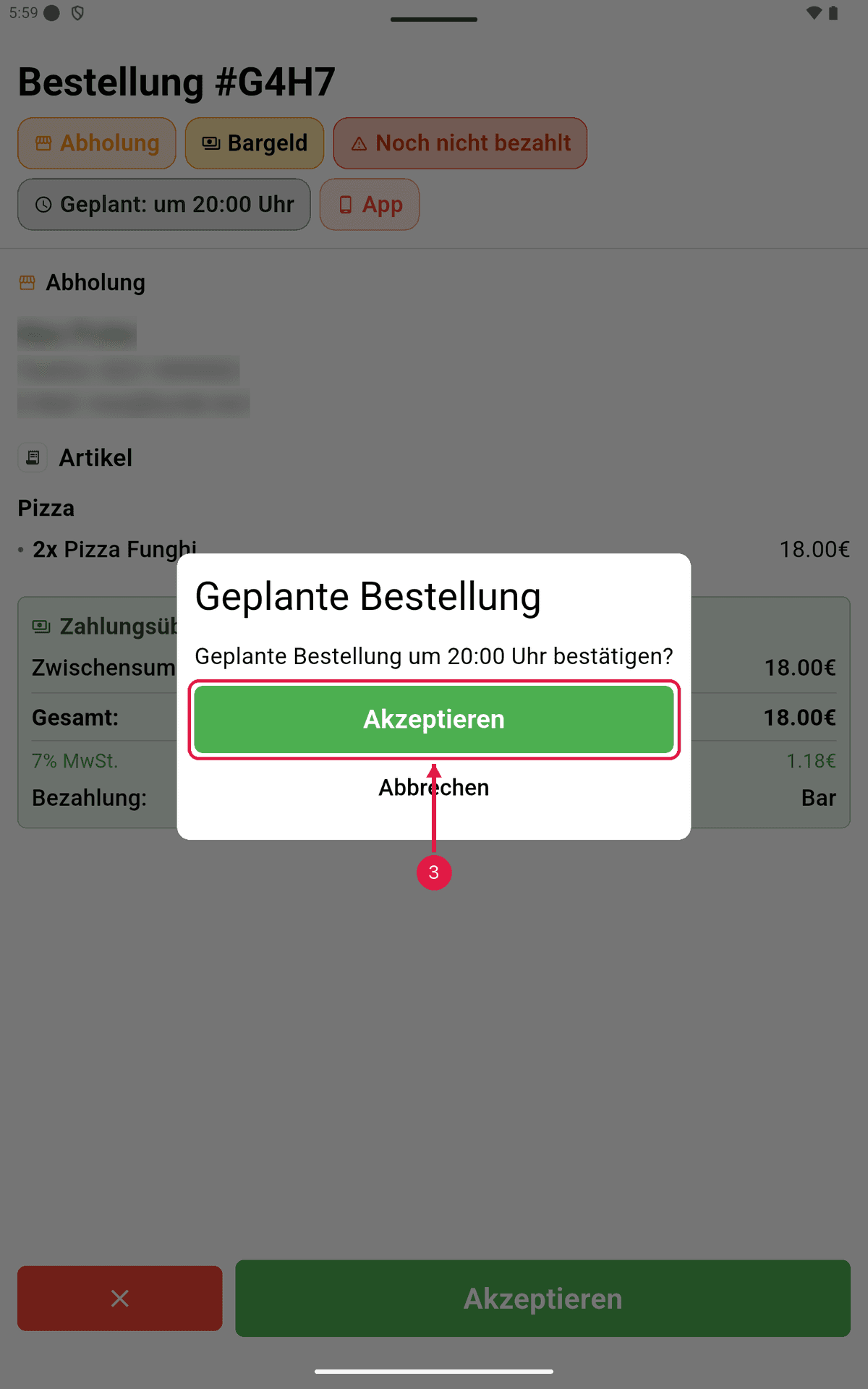
Result
The pre-order is accepted and will be ready at the requested time.