Set logo and colours
Set the logo, icon and colours of your shop so guests recognise your business.
What it is for
Guests recognise your business by its logo. Without a logo the shop looks interchangeable. Under Logo und Farben (logo and colours) you upload your logo and an icon and choose the colours your shop appears in.
What changes
- Logo: appears in the header of the shop and in the app. The message Das Logo ist gespeichert. (logo saved) confirms the upload.
- Icon: appears in the browser tab and as the app icon on the home screen when someone saves your shop there. The message reads Das Icon ist gespeichert. (icon saved).
- Colours: the Hauptfarbe (main colour) colours buttons and highlights in the shop. The message Die Farben sind gespeichert. (colours saved) confirms saving. The web shop shows the new colours straight away.
- Hintergrundfarbe auf alle Flächen anwenden (use the background colour everywhere): with this switch, cards, basket, pop-ups and footer in the web shop take on a shade of your background colour instead of white. Without it, the background colour only fills the page and the cards stay white.
- The shop picks the colour of text and icons itself so they stay easy to read on your colours. On light colours such as orange or light green it uses dark text instead of white.
- The web shop takes over the logo and icon with Veröffentlichen (publish).
Requirements
- You are signed in to the admin area as the owner, and the area is unlocked.
- You have your logo as an image file, ideally square.
Step by step
Choose logo, icon and colours
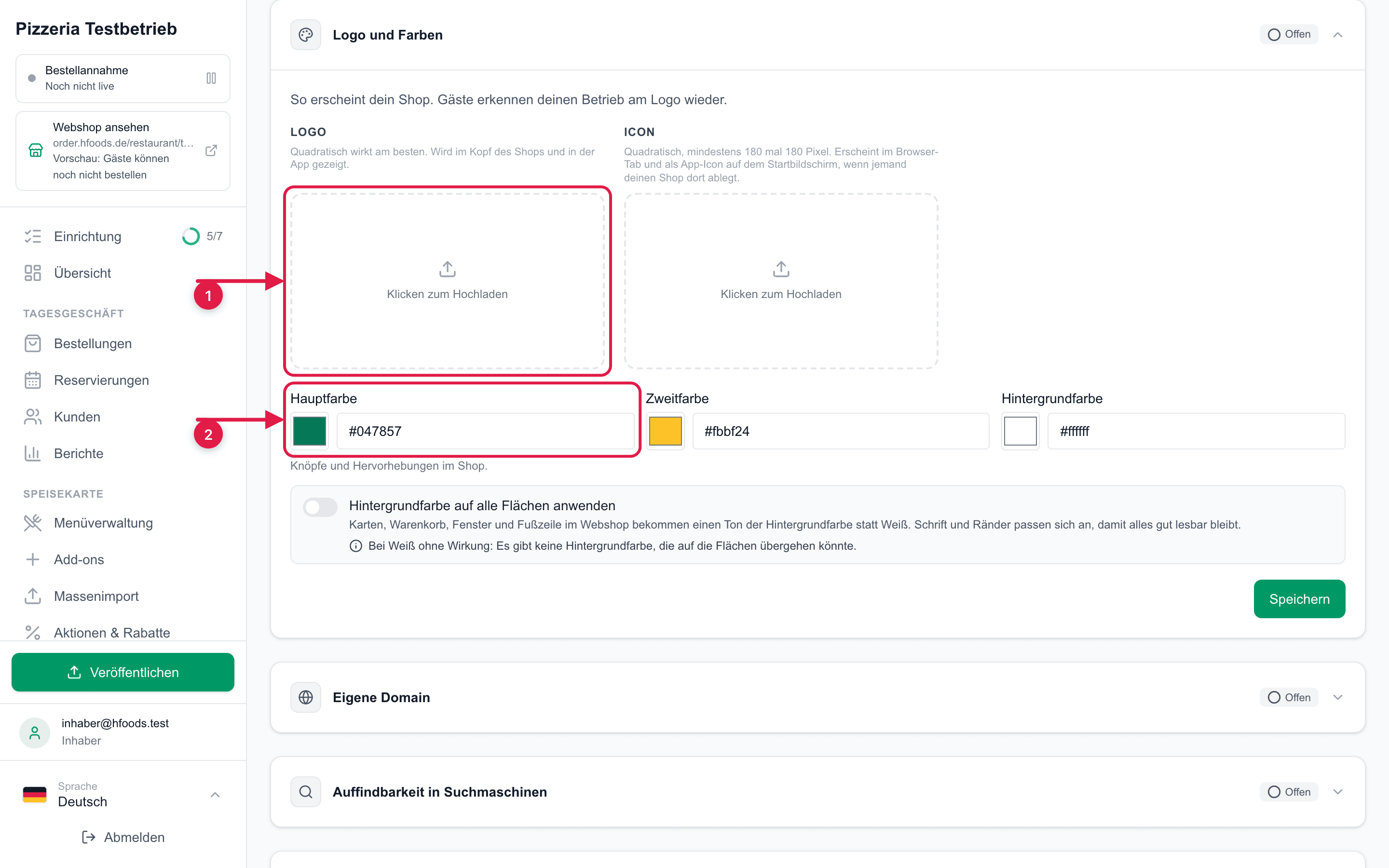
In the sidebar on the left, click Einstellungen (settings) under Shop. In the Aussehen & Auffindbarkeit (look and visibility) group, open the Logo und Farben (logo and colours) card.
- Logo: click the Klicken zum Hochladen (click to upload) field and choose the file. Square works best.
- Icon: in the field to the right of it, the same way. It must be square, at least 180 by 180 pixels.
- Hauptfarbe (main colour), Zweitfarbe (second colour) and Hintergrundfarbe (background colour): click the colour swatch and pick a colour, or enter the colour value directly, for example "#047857".
Use the background colour everywhere (optional)
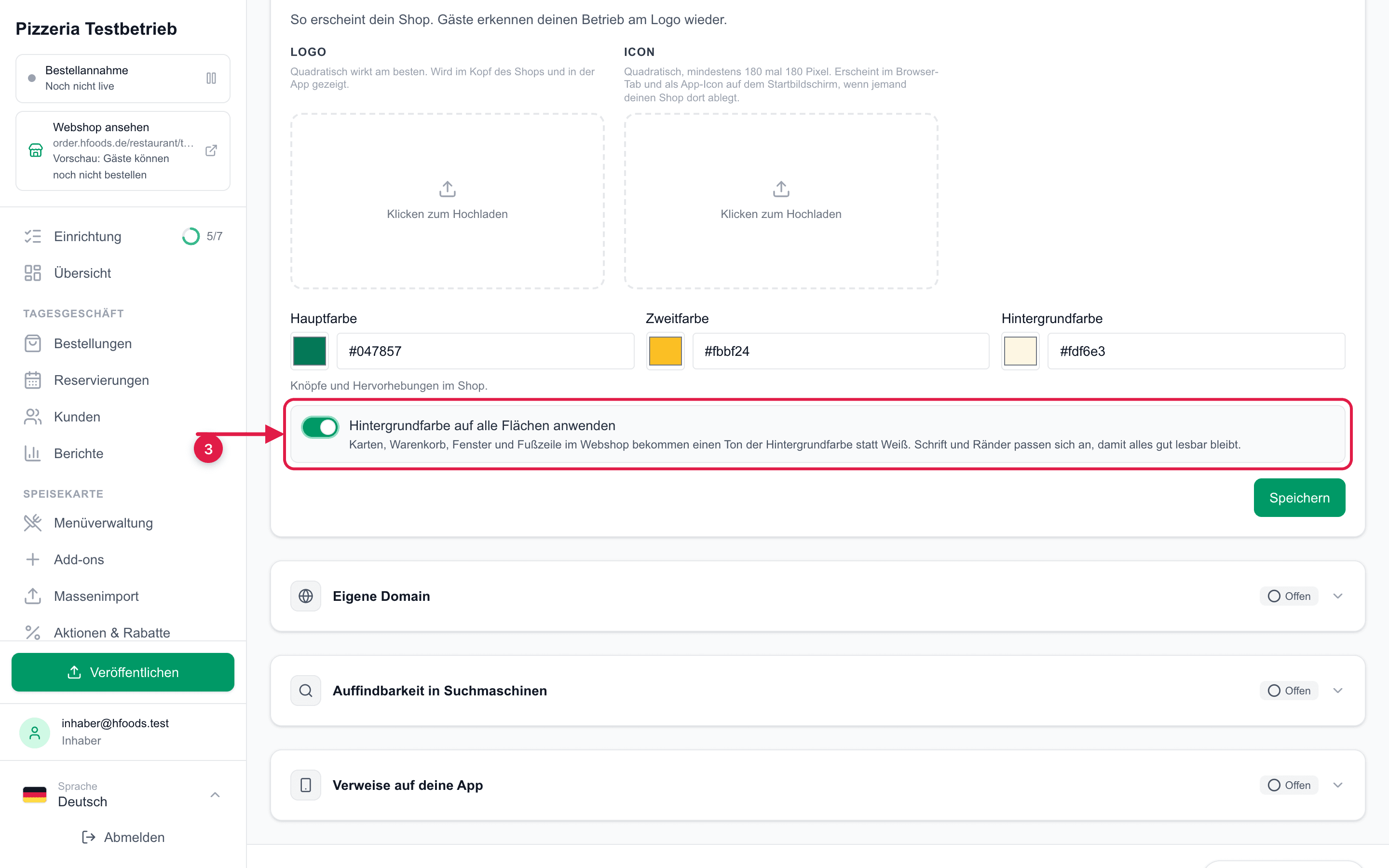
Turn on Hintergrundfarbe auf alle Flächen anwenden (use the background colour everywhere) when cards, basket, pop-ups and footer should carry your background colour as well. If you leave it off, these surfaces stay white and only the page itself takes the colour. This works with any colour, dark ones included: white cards then sit on your dark page, and text directly on the page turns light.
Below the switch you see a recommendation. With a dark background colour the admin recommends switching it on. With white it points out that the switch has no effect there.
Save
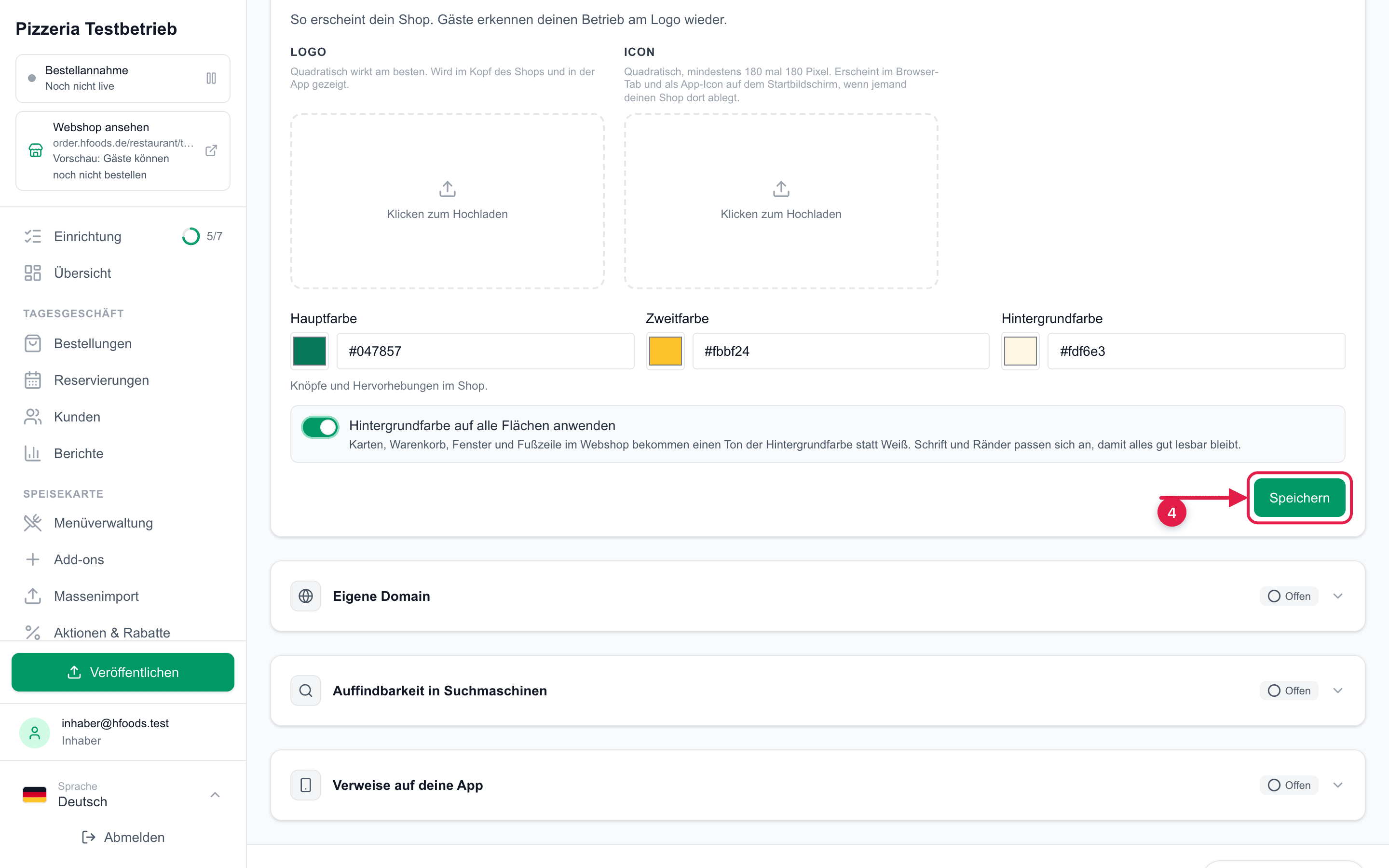
Click Speichern (save) at the bottom of the card. The colours apply to the web shop right away. If you uploaded a new logo or icon, click Veröffentlichen (publish) on the left afterwards.
Result
Your shop appears with your logo and in your colours. The Logo und Farben step in setup is done.
Tips
- As the main colour, pick a strong colour from your logo. If it is too light for white text, the shop automatically uses dark text on buttons.
- A white second colour never disappears: wherever it would sit on white, the shop uses your main colour instead.
- Keep the background light if your menu has many photos. They look best that way.
Frequently asked questions
Should I switch it on with a dark background colour?
We recommend it, as the whole shop then looks all of a piece. You can still leave it off if you prefer white cards on your dark page. Both stay easy to read, the text adapts.
Why does the switch have no effect with white?
With white there is no background colour to carry over to the surfaces. The cards are white anyway.
How do I remove a logo again?
The uploaded logo has a Löschen (delete) button. The message Das Logo ist entfernt. (logo removed) confirms this. The icon works the same way.