Set up PayPal for your web shop
Enter the credentials of your own PayPal app so guests can pay with PayPal in your web shop and app.
What it is for
With PayPal, your guests pay through their PayPal account right when they order in your web shop or app. The money goes straight to your own PayPal business account. hfoods is not in between and keeps nothing from your PayPal payments.
For hfoods to create a payment at PayPal on your behalf, it needs two details from your PayPal account: the client ID and the secret. You get both by creating a so called app at PayPal. That sounds more technical than it is: at PayPal, an app is just a named pair of keys, and you don't have to write any code. Setting it up takes about ten minutes.
You enter the credentials yourself in the admin area. hfoods checks them with PayPal right away and only saves them if they are valid. That way you notice a typo immediately and not only when a guest tries to pay.
What changes
- Once you switch PayPal on for Lieferung (delivery) or Abholung (pickup) and save, your guests see PayPal at checkout in the web shop and in the app.
- You see the payments, the payouts to your bank account and your PayPal balance in your PayPal account.
- If you cancel a PayPal order that was already paid, hfoods refunds the guest using the same credentials.
- PayPal bills its fees for receiving payments directly to you, based on PayPal's price list.
Requirements
- You are signed in to the admin area as the owner. Staff members can't enter the credentials.
- Entering payment credentials is enabled for your business. If you don't see the PayPal einrichten (set up PayPal) section in the PayPal tile, it isn't enabled yet. Get in touch with us. Businesses looked after by a partner set up PayPal through their partner.
- You have a PayPal business account. A personal account isn't enough, but you can upgrade it (step 1).
- Your PayPal account is verified, meaning your bank account and details are confirmed. You can check this in your PayPal account.
Step by step
Have a business account ready
If you already have a PayPal business account, go straight to step 2.
If you only have a personal account, upgrade it: sign in on paypal.com, open the settings and, under the account settings, choose the option to upgrade to a business account (on the German site: Auf Geschäftskonto umwandeln). PayPal then asks for details about your business. The upgrade only works on the website, not in the PayPal app on your phone.
Open the PayPal tile
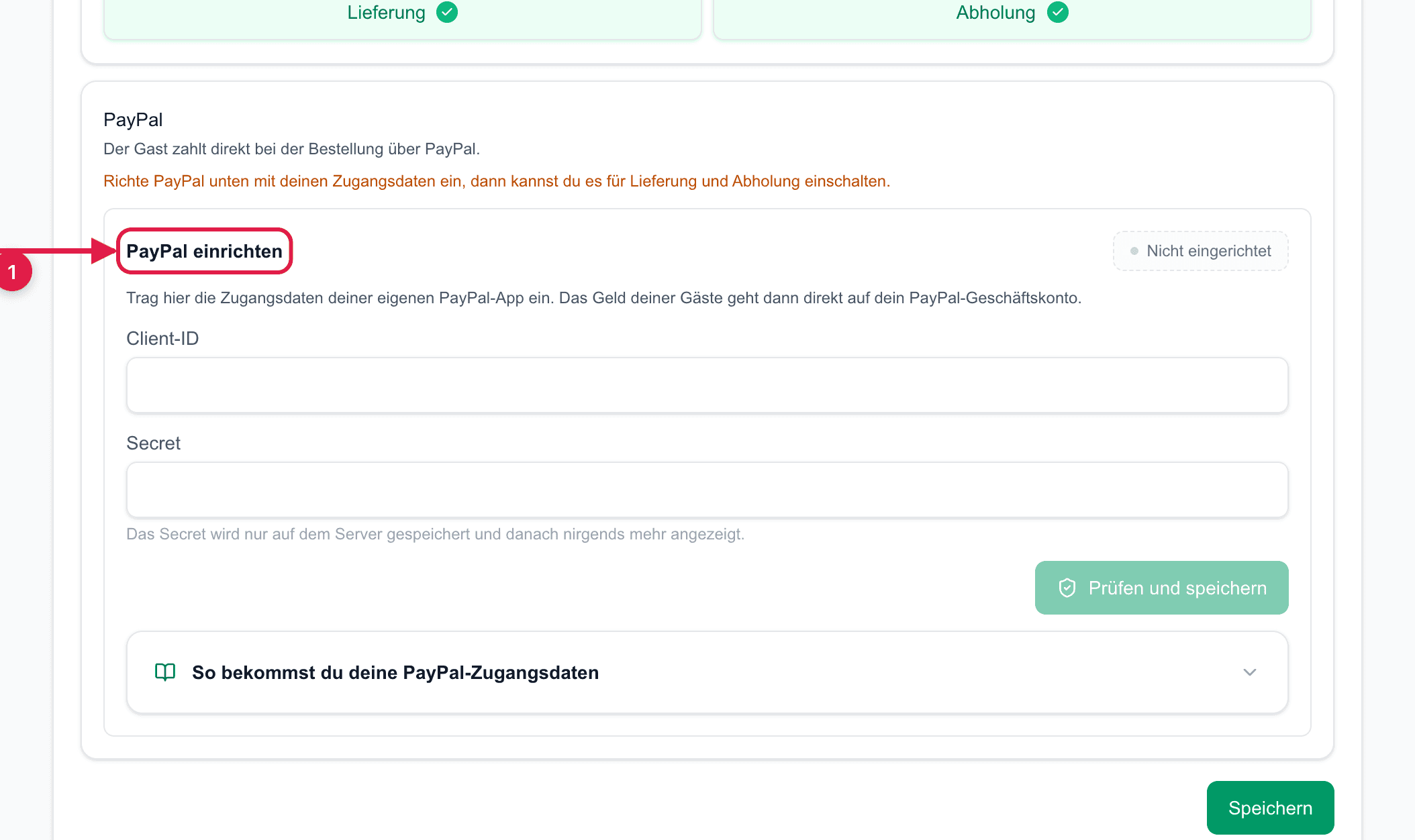
Click Mein Auftritt (my presence) on the left and open the Zahlungsarten der Gäste (guest payment methods) card. Further down is the PayPal tile with the PayPal einrichten (set up PayPal) section. In the setup assistant, you find it in the Zahlungsarten (payment methods) step.
At the top right, the section shows how far PayPal is set up. At first it says Nicht eingerichtet (not set up).
Open the short guide
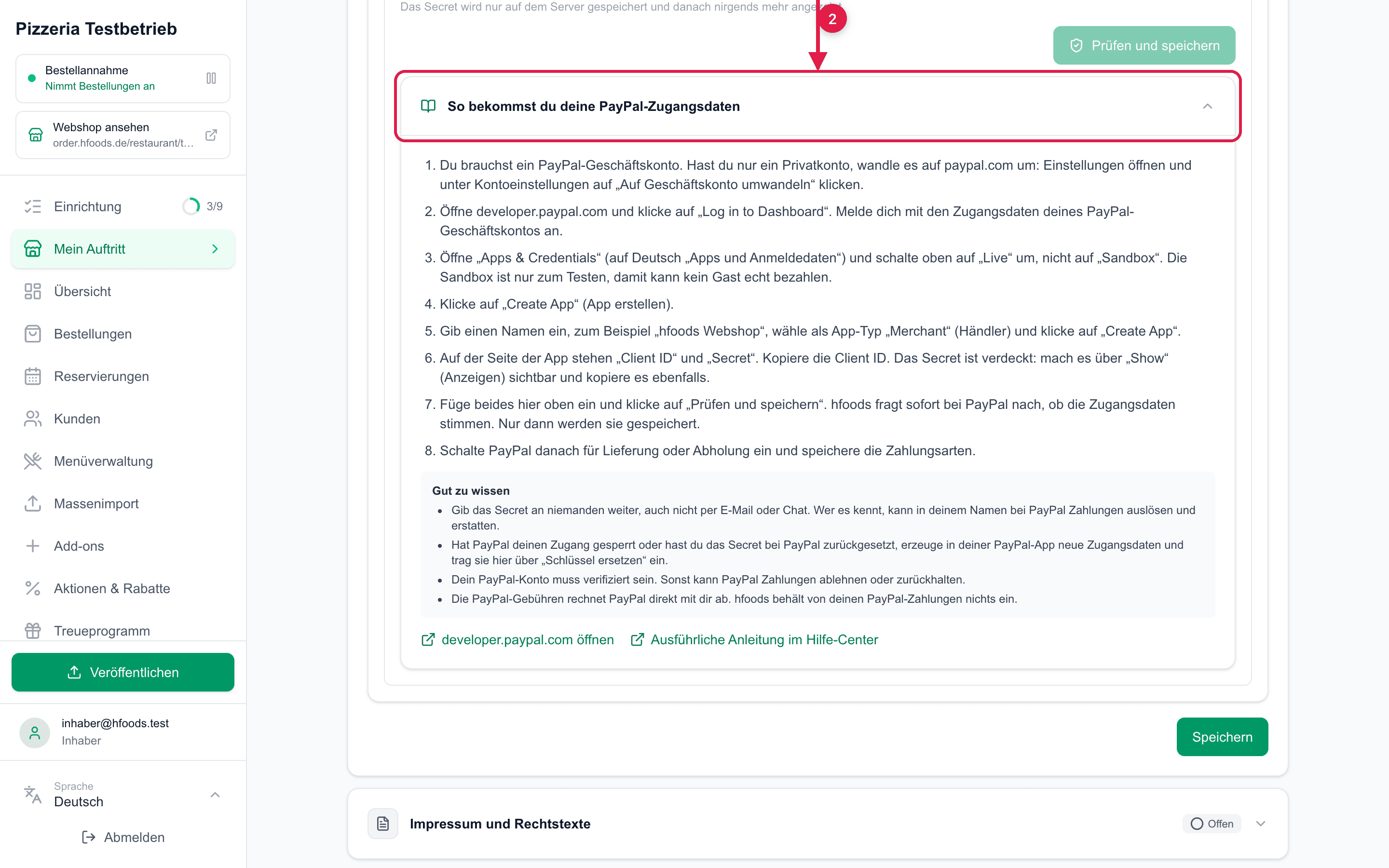
Below the fields is So bekommst du deine PayPal-Zugangsdaten (how to get your PayPal credentials). One click opens a short version of this guide so you can keep it open next to PayPal. Below it, two links take you straight to developer.paypal.com and here to the help center.
Sign in to PayPal Developer
Open developer.paypal.com in a new tab and click Log in to Dashboard. Sign in with your PayPal business account, using the same email address and password as on paypal.com. You don't need a separate developer account.
Switch to Live
Open Apps & Credentials. At the top of the page you can switch between Sandbox and Live. Switch to Live.
The sandbox is PayPal's playground for testing. With sandbox keys, no guest can make a real payment. hfoods recognises such keys and doesn't accept them.
Create an app
Click Create App. Enter a name you will recognise later, for example hfoods Webshop. Choose Merchant as the app type, not Platform, and click Create App again.
If you already have a live app that you only use for hfoods, you can use its credentials instead. A separate app just for hfoods has one advantage, though: you can renew its keys without affecting other services.
Copy the client ID and secret
PayPal opens the page of your new app. It shows the Client ID and the Secret. Copy the client ID first. The secret is hidden: click Show to reveal it and copy it as well. Copy the full string each time, without spaces before or after.
Enter and check
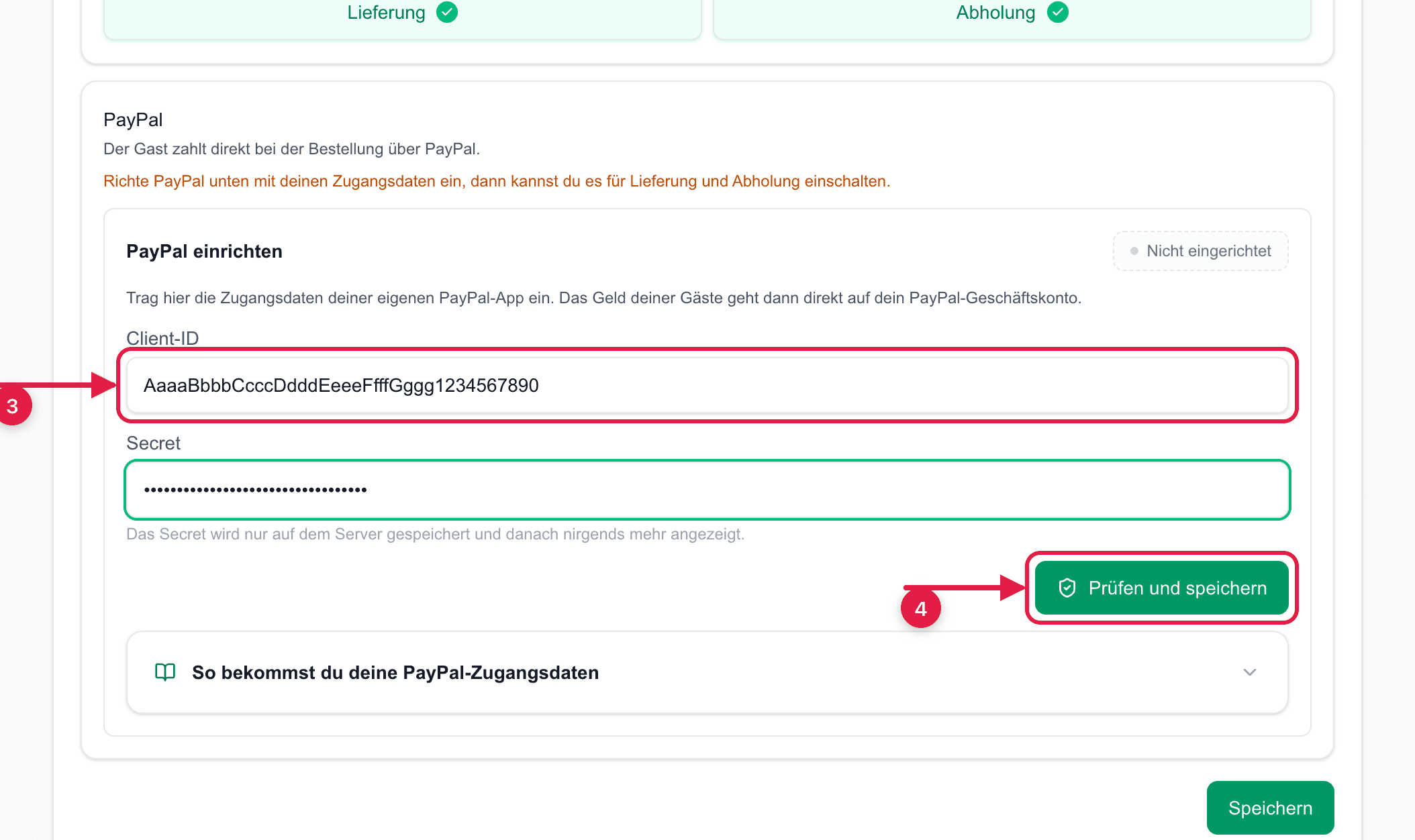
Go back to the admin area. Paste the client ID into the Client-ID field and the secret into the Secret field. The secret appears as dots. Click Prüfen und speichern (check and save).
hfoods now asks PayPal whether the two belong together. This takes a few seconds, and meanwhile the button shows Wird bei PayPal geprüft (checking with PayPal).
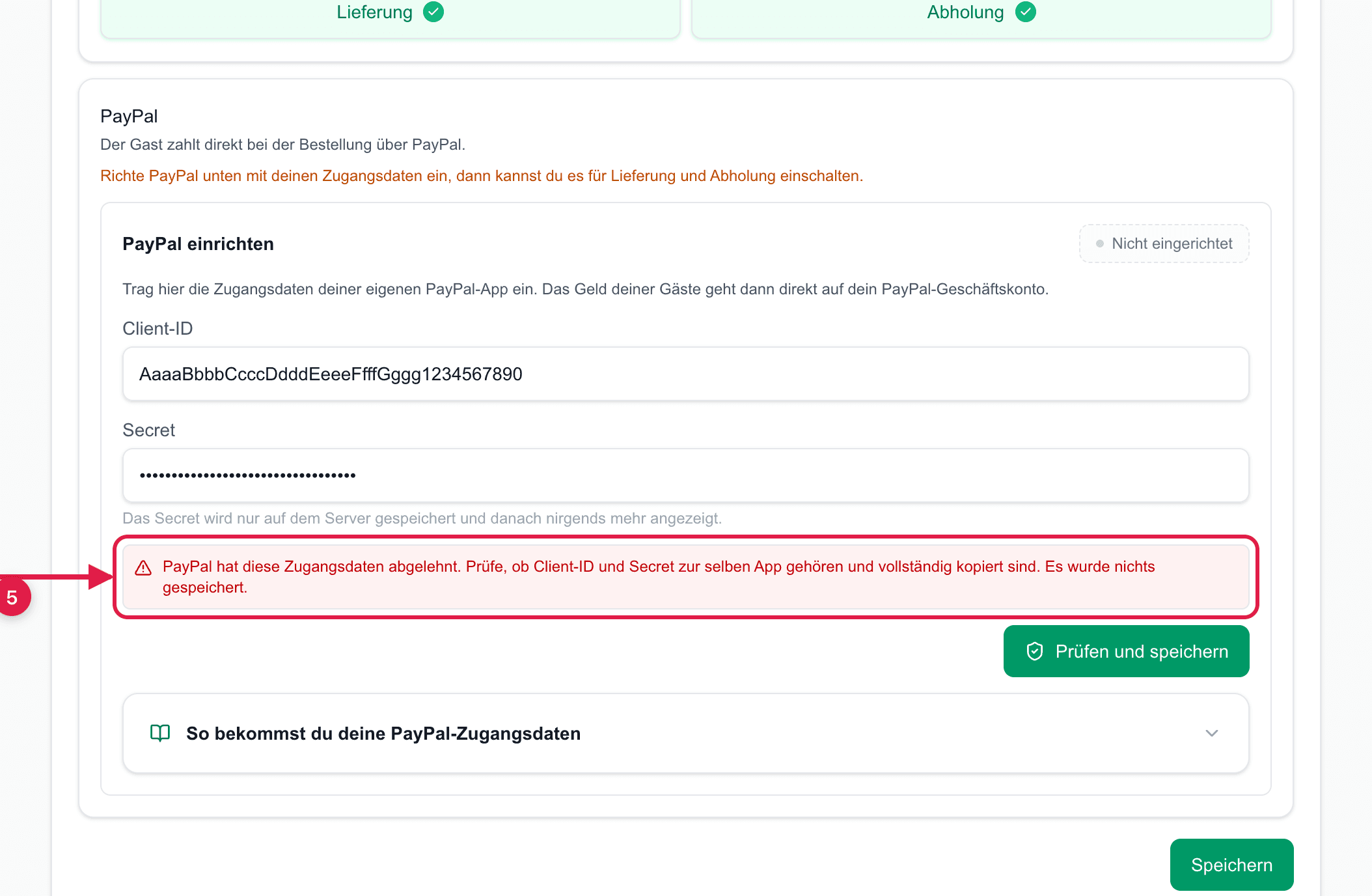
If PayPal rejects the details, a red message tells you what is wrong. In that case nothing is saved. What the messages mean is explained further down under If something doesn't work.
Switch PayPal on for your guests
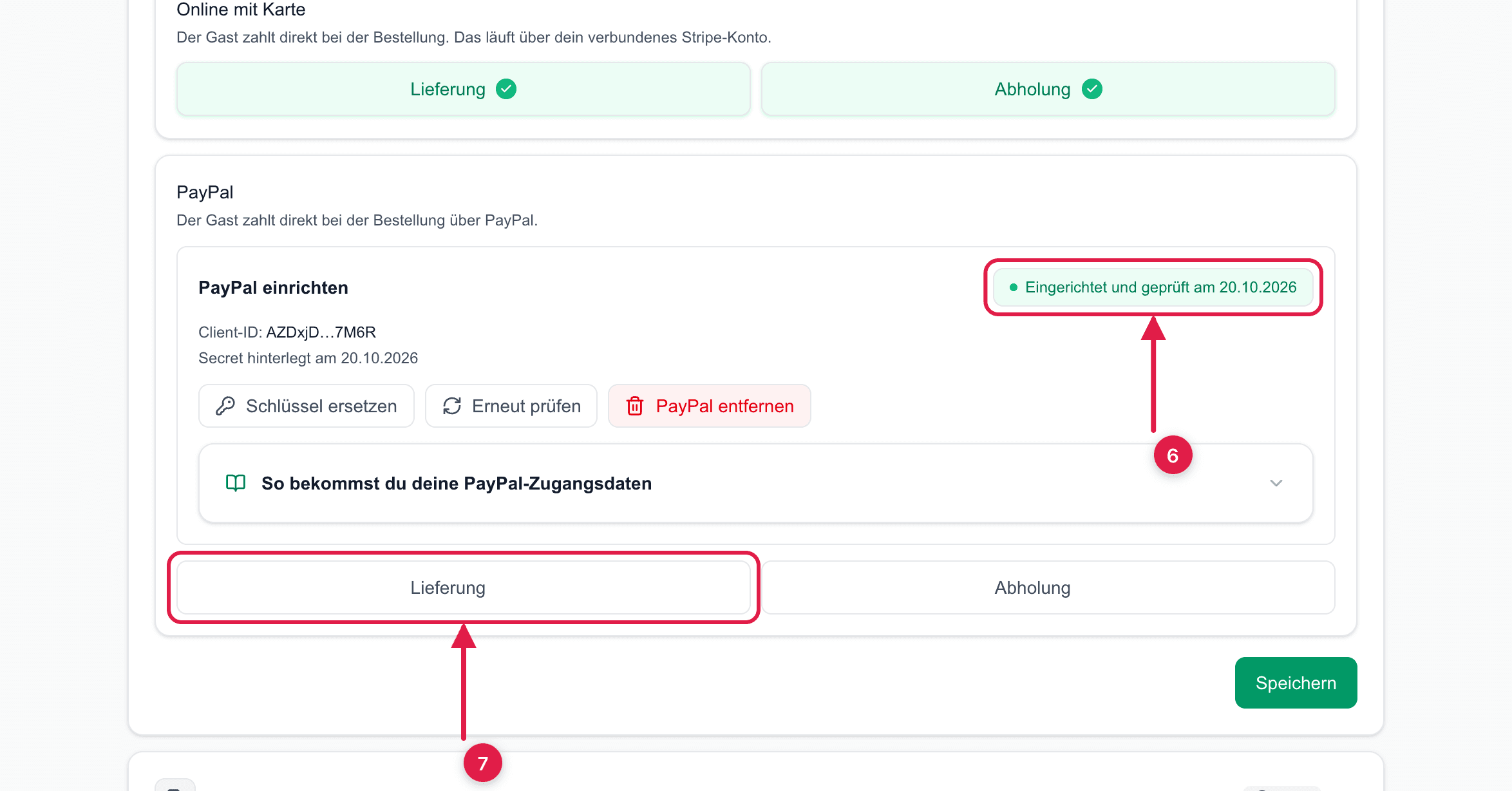
Once PayPal has confirmed the credentials, the section shows Eingerichtet und geprüft am (set up and verified on) with the date, below it the beginning of your client ID and Secret hinterlegt am (secret saved on). hfoods never shows the secret itself again, not even to you.
Now switch PayPal on in the same tile for Lieferung (delivery), Abholung (pickup) or both. Click Speichern (save) at the bottom of the card and then Veröffentlichen (publish) on the left.
Result
Your guests can pay with PayPal in the web shop and in the app. The money arrives in your PayPal business account.
Managing the credentials later
Once PayPal is set up, the PayPal einrichten section has three buttons:
- Erneut prüfen (check again) asks PayPal once more using the saved credentials. This is handy if you changed something at PayPal and want to know whether everything still works.
- Schlüssel ersetzen (replace keys) opens the client ID and secret fields again. The new credentials are checked before they replace the old ones. If the check fails, the old ones stay in place.
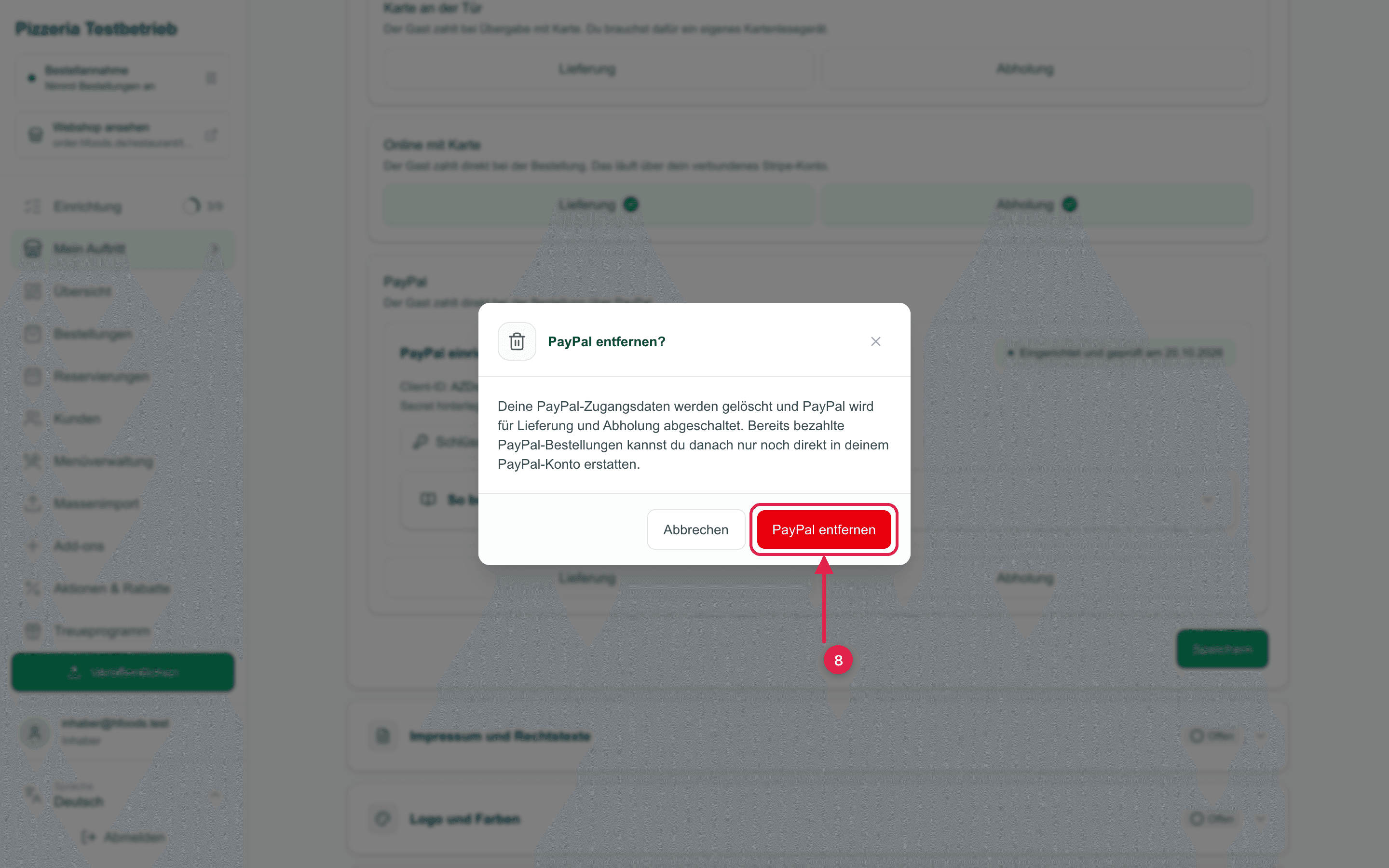
- PayPal entfernen (remove PayPal) deletes the credentials and switches PayPal off for delivery and pickup. hfoods asks you to confirm first.
After removing PayPal, hfoods can no longer refund PayPal orders that were already paid. You can then only refund them directly in your PayPal account. So don't remove PayPal while cancellations may still come up.
If something doesn't work
"PayPal hat diese Zugangsdaten abgelehnt." (PayPal rejected these credentials)
The client ID and secret don't match or are incomplete. Common causes:
- A character at the start or end was lost when copying.
- The client ID and secret come from two different apps.
- The secret has been renewed at PayPal in the meantime and you copied the old one.
Open the app at PayPal again and copy both values once more.
"Das sind Testschlüssel aus der PayPal-Sandbox." (these are sandbox test keys)
You copied the credentials from the sandbox. In Apps & Credentials, switch to Live at the top. If there is no app there yet, create one as in step 6. Live apps and sandbox apps have different keys, even if they have the same name.
"PayPal ist gerade nicht erreichbar." or "PayPal meldet gerade eine Störung." (PayPal unreachable or reporting a problem)
This has nothing to do with your credentials. Nothing was saved. Try again in a few minutes.
"Gerade bezahlt ein Gast mit PayPal." (a guest is paying with PayPal right now)
While a guest is paying with PayPal, you can't remove PayPal or switch to a different PayPal app. hfoods still needs the current credentials to complete that payment safely. Try again in an hour.
The section shows "Prüfung fehlgeschlagen am" (check failed on)
At the last check, PayPal rejected the saved credentials. As long as that is the case, guests can't pay with PayPal. Typical reasons: the app was deleted at PayPal, the secret was renewed, or PayPal has restricted your access. Create new credentials at PayPal and enter them with Schlüssel ersetzen (replace keys).
PayPal has blocked or restricted my access
You sort this out directly with PayPal, hfoods can't lift it. Usually PayPal asks for missing details or documents, which you see after signing in on paypal.com. Once that is done, check in the admin area with Erneut prüfen (check again). If PayPal reset the app or the secret in the process, enter the new credentials with Schlüssel ersetzen (replace keys).
I shared the secret by mistake
Create a new secret in your app at PayPal or create a new app, and enter the new credentials right away with Schlüssel ersetzen (replace keys). Then delete the old secret or the old app at PayPal so it no longer works.
Tips
- Never share the secret with anyone, not by email or chat either. Anyone who has it can trigger payments and refunds at PayPal in your name. hfoods only keeps it on the server.
- Create a separate app at PayPal just for hfoods. Then you always know which keys are used for what.
- If your PayPal account isn't verified, PayPal may decline or hold payments. Check this in your PayPal account before you switch PayPal on for your guests.
Frequently asked questions
What does PayPal cost?
hfoods charges nothing for it. PayPal bills its fees for receiving payments directly to you, based on PayPal's merchant price list.
Can I offer PayPal and online card payment at the same time?
Yes. You switch both payment methods on independently in the Zahlungsarten der Gäste (guest payment methods) card, separately for delivery and pickup.
Does hfoods see my PayPal password?
No. You only enter your password at PayPal. hfoods only receives the client ID and secret of the app you created for it.
I don't see the set up PayPal section. What now?
Then entering payment credentials isn't enabled for your business, or you aren't signed in as the owner. Contact us at info@highfoods.de and we will set up PayPal with you.