Add links to your own destinations
Link to destinations outside the shop on the landing page, such as the menu as a PDF or a review page.
What it is for
In the Links section you link to destinations outside the shop, for example the menu as a PDF, a catering enquiry or a review page. Each link opens in a new tab.
What changes
- A heading appears above the links, for example "Mehr von uns".
- Each link has a label and an address.
- With Social-Media-Kanaele mit anzeigen (also show social media channels) your social media channels appear as well. Only those with a link in the restaurant settings appear.
- If the label is missing, it says Ohne Beschriftung wird der Link nicht angezeigt. (without a label the link is not shown). If the address does not look like a web address, the page points this out: it needs a dot, for example example.de, and may only start with http:// or https://.
Requirements
You are signed in to the admin area as the owner, and your landing page is switched on, see Switch on the landing page.
Step by step
Show the section
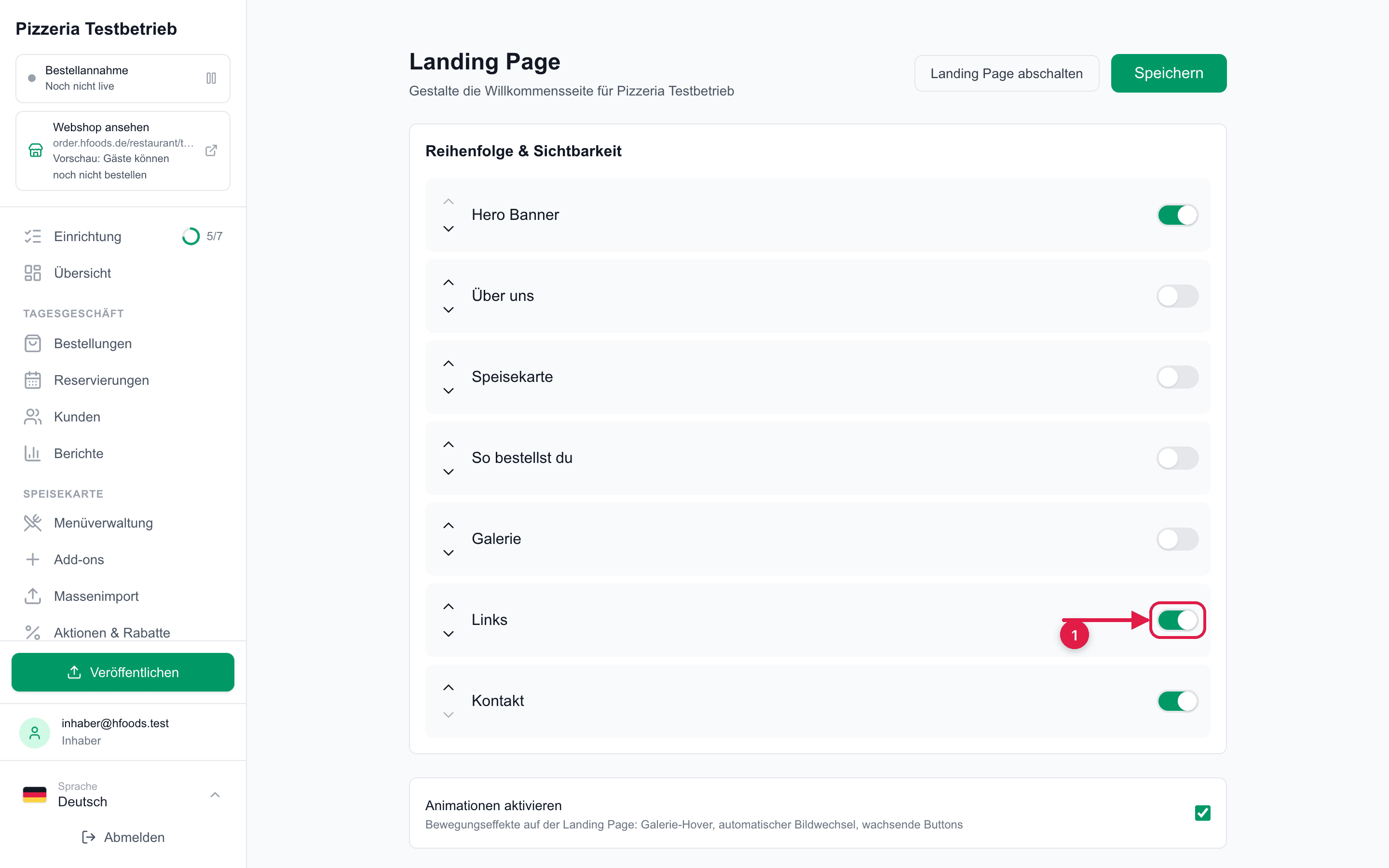
In the sidebar on the left, click Landing Page. In the Reihenfolge & Sichtbarkeit (order and visibility) list, flip the switch next to Links. Green means: the section is visible.
Add a link
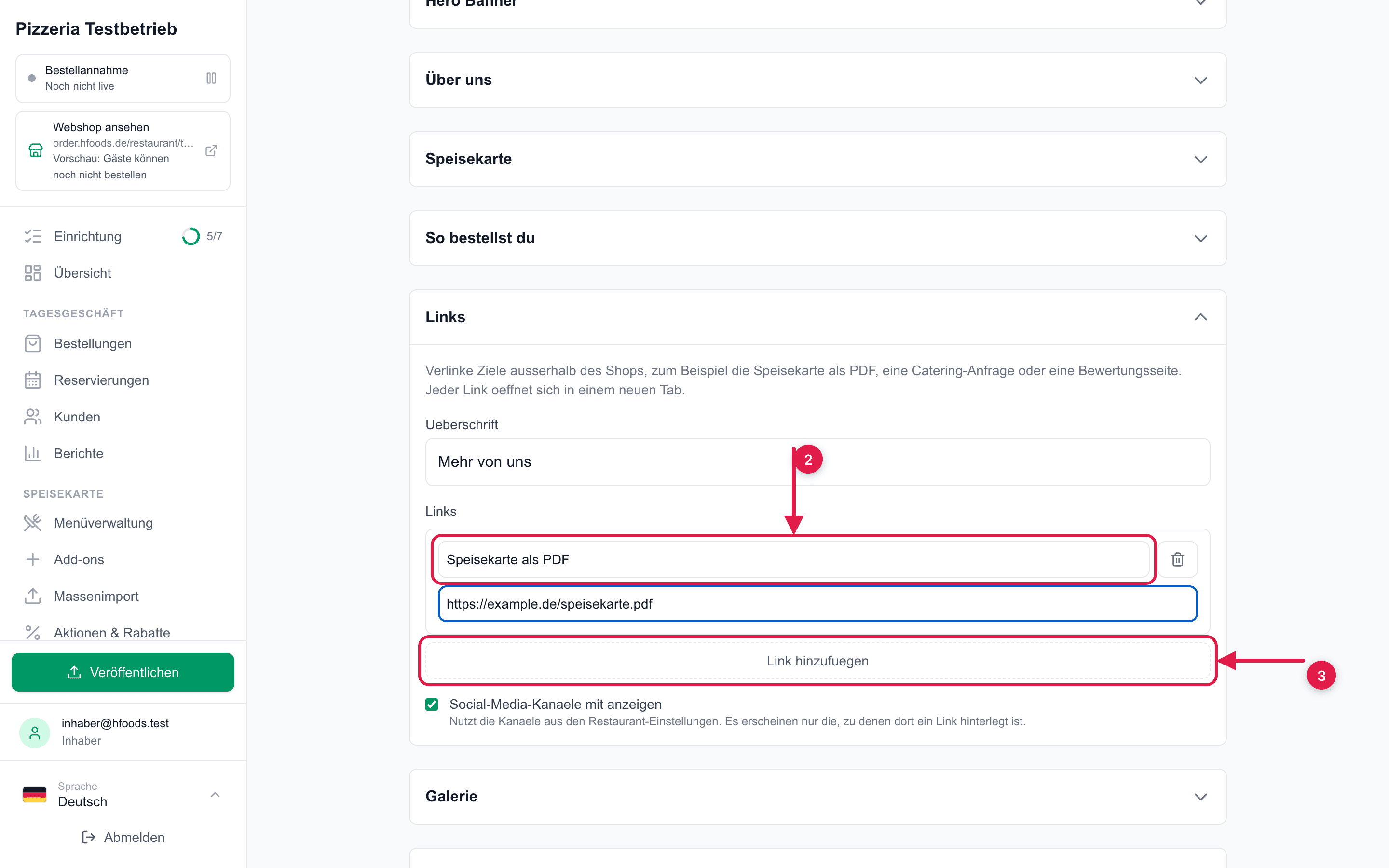
Click Links. Enter the Ueberschrift (heading) and click Link hinzufuegen (add link). Enter the label, for example "Speisekarte als PDF", and the address below it. The bin removes a link. Click Speichern (save) at the top and then Veröffentlichen (publish) on the left so the web shop and the app show the new state.
Result
Your landing page shows the links. Incomplete links are discarded when saving.