Design the header and logo
Decide where the logo sits on the landing page and what the header looks like.
What it is for
Under Kopfleiste & Logo (header and logo) you decide where and how your logo appears on the landing page and which background the header at the top has.
What changes
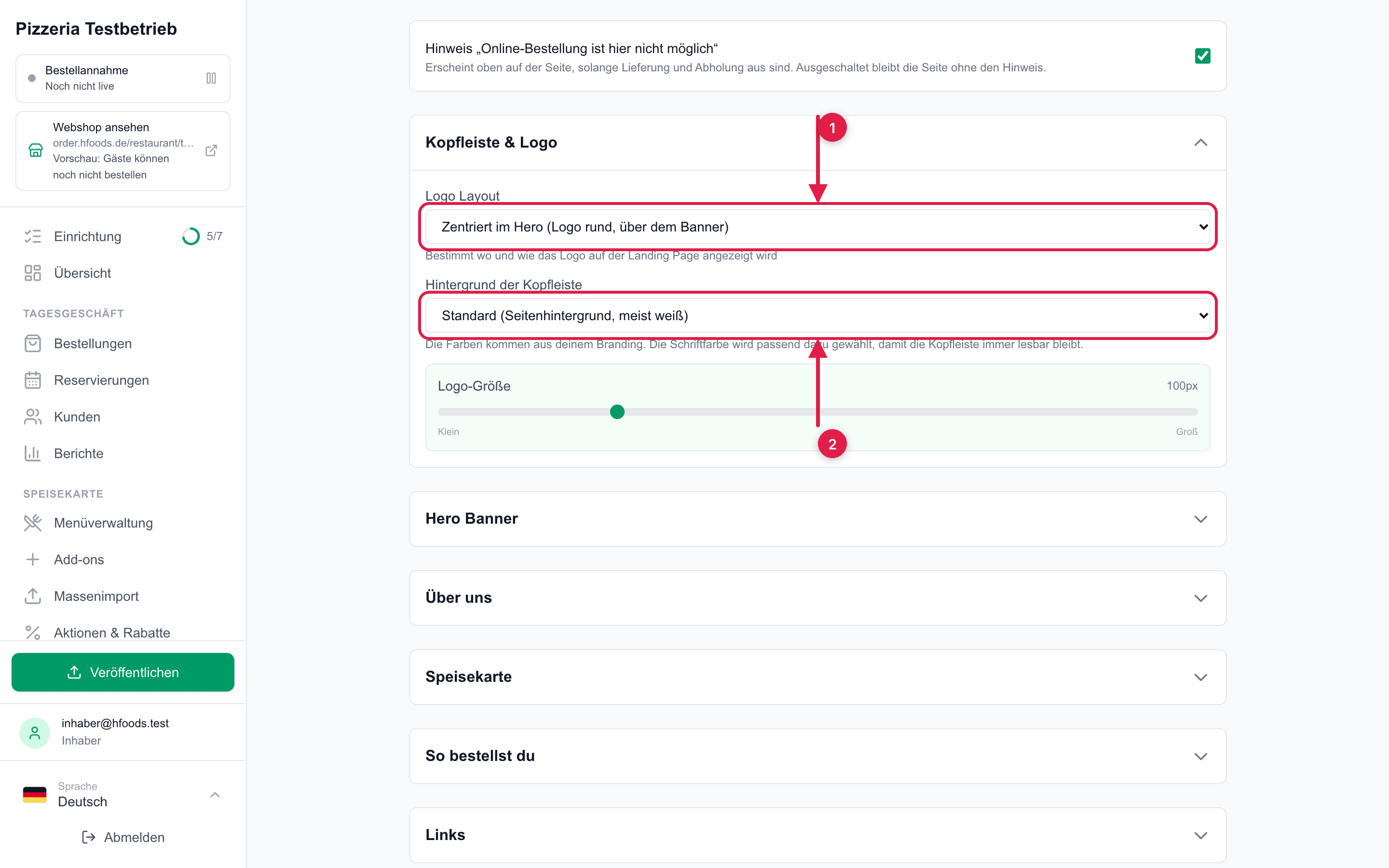
- Logo Layout: Zentriert im Hero (Logo rund, über dem Banner) (centred in the hero, round logo above the banner) or Navbar (Logo im Header oben) (logo in the header at the top).
- Hintergrund der Kopfleiste (header background): Standard (Seitenhintergrund, meist weiß) (page background, usually white), Primärfarbe (primary colour) or Akzentfarbe (Sekundärfarbe) (accent colour). The colours come from your branding, the text colour is chosen to match so the header stays readable.
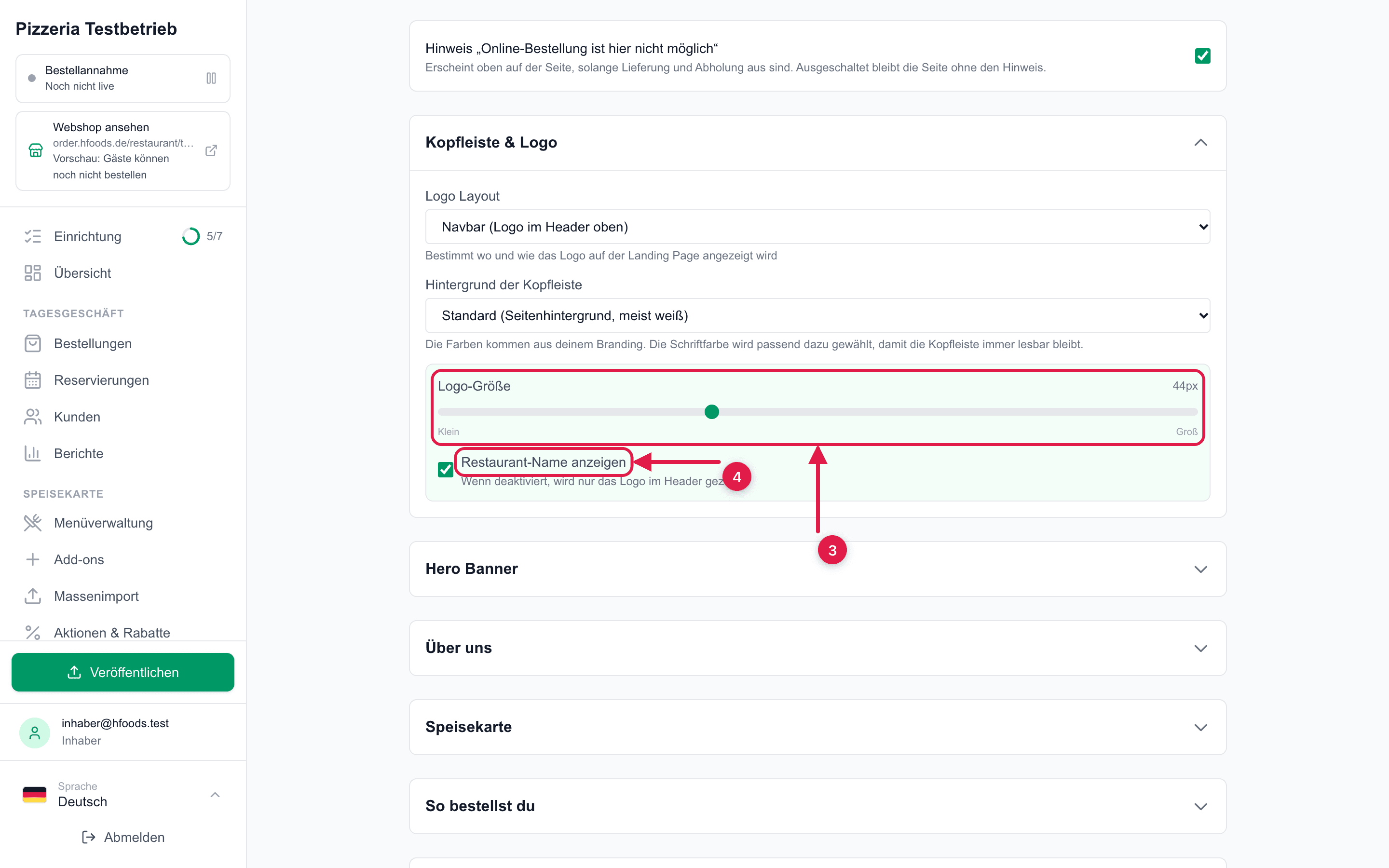
- Logo-Größe (logo size): a slider from Klein (small) to Groß (large).
- With Navbar you can also show the name next to the logo. Without the tick only the logo is in the header.
Requirements
You are signed in to the admin area as the owner, and your landing page is switched on, see Switch on the landing page. You have set your logo under Set logo and colours.
Step by step
Choose layout and background
In the sidebar on the left, click Landing Page and then Kopfleiste & Logo. Choose Logo Layout and Hintergrund der Kopfleiste.
Set size and name
Set the size with the Logo-Größe slider. With Navbar the tick decides whether the name appears next to the logo. Click Speichern (save) at the top and then Veröffentlichen (publish) on the left so the web shop and the app show the new state.
Result
The logo and header appear the way you set them.