Set the landing page buttons
Set the landing page buttons: menu, reservation and phone, with text and order.
What it is for
Under Buttons you decide which buttons the landing page shows, with which text and in which order. The most important one leads to the menu.
What changes
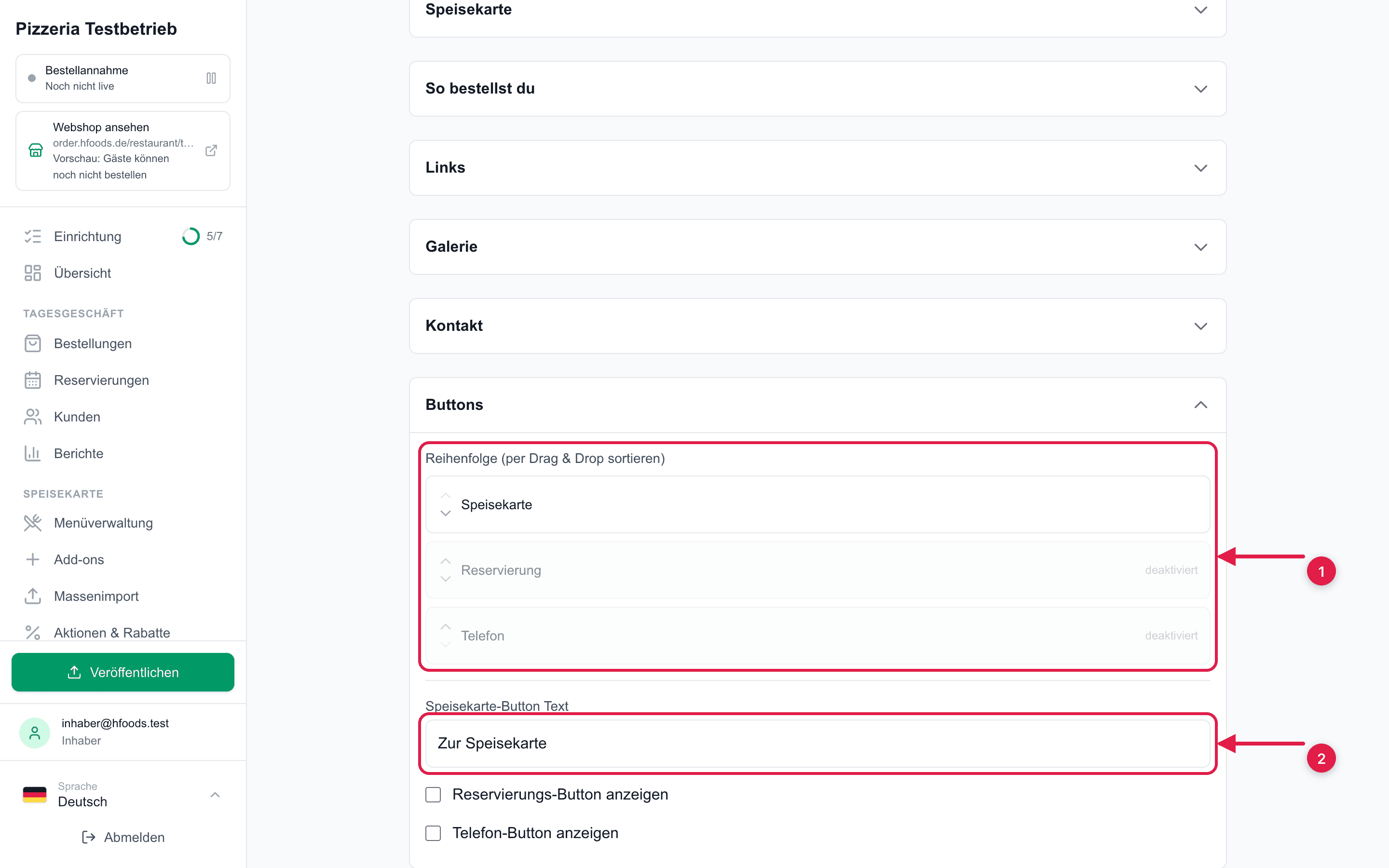
- Speisekarte-Button Text (menu button text): the text of the button to the menu, "Zur Speisekarte" if left empty.
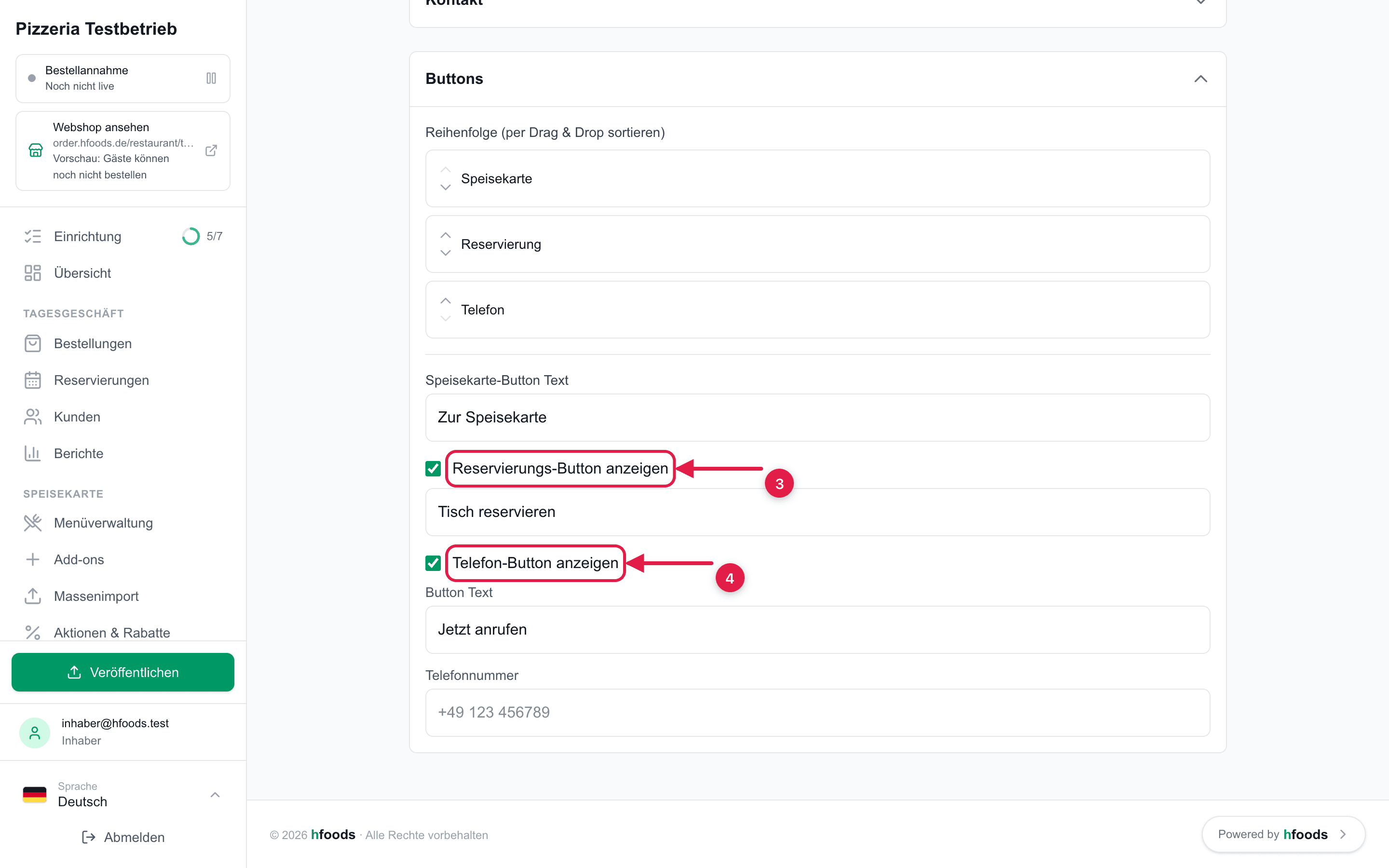
- Reservierungs-Button anzeigen (show reservation button): an extra button for table reservations, with its own text, "Tisch reservieren" if left empty.
- Telefon-Button anzeigen (show phone button): a button to call, with Button Text ("Jetzt anrufen" if left empty) and Telefonnummer (phone number).
- Reihenfolge (per Drag & Drop sortieren) (order, sort by drag and drop): drag the buttons into the order you want. Buttons that are not shown are marked deaktiviert (deactivated).
Requirements
You are signed in to the admin area as the owner, and your landing page is switched on, see Switch on the landing page.
Step by step
Order and text
In the sidebar on the left, click Landing Page and then Buttons. Drag the buttons under Reihenfolge (per Drag & Drop sortieren) into the order you want. Enter the Speisekarte-Button Text.
Show more buttons
Tick Reservierungs-Button anzeigen and Telefon-Button anzeigen and enter the texts and the Telefonnummer. Click Speichern (save) at the top and then Veröffentlichen (publish) on the left so the web shop and the app show the new state.
Result
The landing page shows your buttons in your order.