Set the receipt switches
Decide whether the receipt prints the logo, larger text, category headings, add-on groups, the size prefix, a QR code for the driver and the VAT.
What it is for
Under Bon-Druck (receipt printing) you set how the order terminal prints your receipts. The Bon-Einstellungen (receipt settings) are seven switches. On the right a preview shows at once what the receipt looks like.
What changes
- Logo drucken (print logo): the restaurant logo at the top of the receipt.
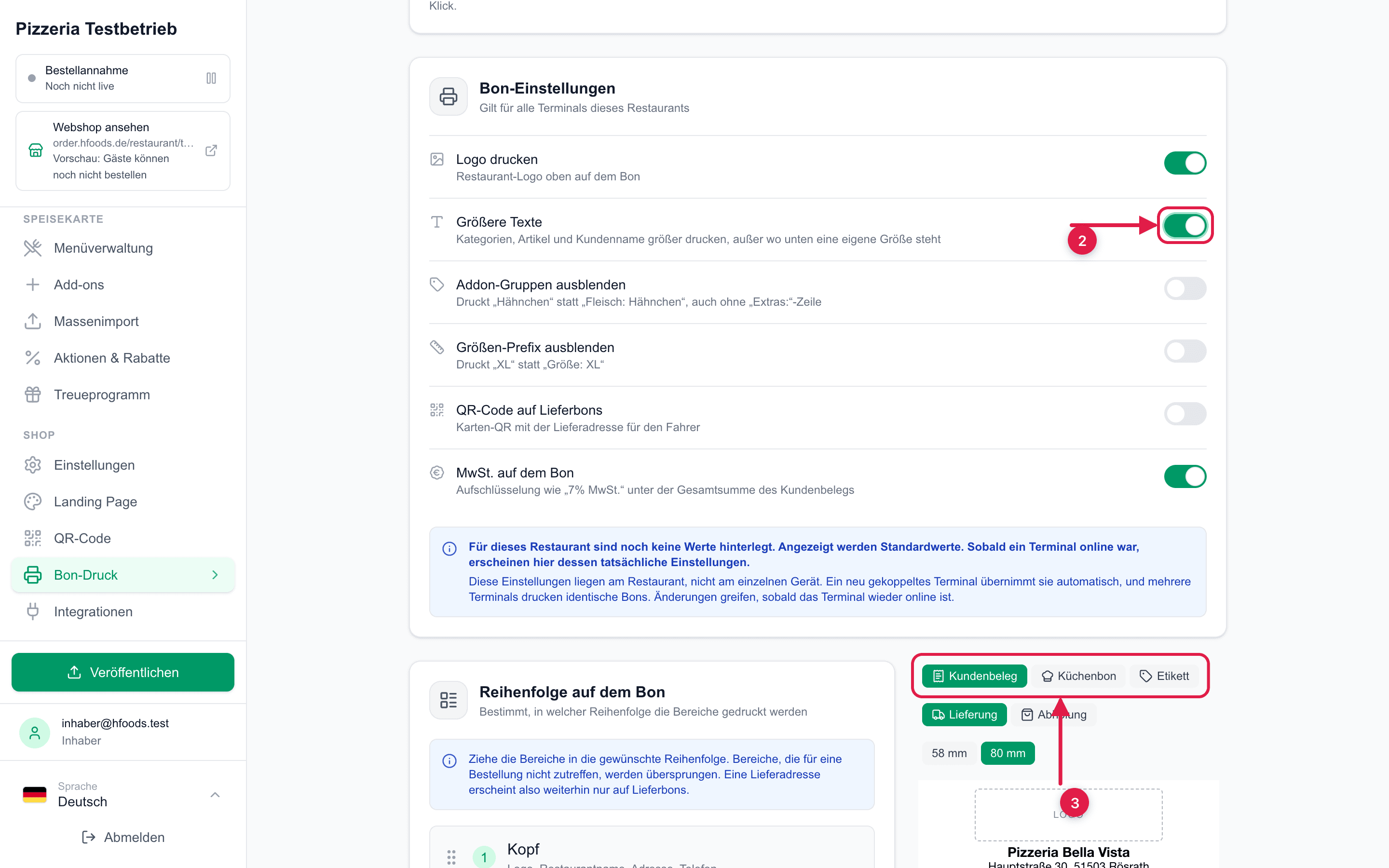
- Größere Texte (larger text): print categories, items and the customer name larger, except where Schriftgrößen (font sizes) has its own size.
- Kategorien als Überschriften drucken (print categories as headings): prints "Pizza", "Getränke" (drinks) and so on above the items, on the customer receipt and the kitchen ticket. When switched off, all items are listed directly one below the other without headings, in the same order. On by default. Terminals follow the switch from version 1.4.2.
- Addon-Gruppen ausblenden (hide add-on groups): prints "Hähnchen" instead of "Fleisch: Hähnchen", also without an "Extras:" line.
- Größen-Prefix ausblenden (hide size prefix): prints "XL" instead of "Größe: XL".
- QR-Code auf Lieferbons (QR code on delivery receipts): a map QR code with the delivery address for the driver.
- MwSt. auf dem Bon (VAT on the receipt): a breakdown like "7% MwSt." below the total of the customer receipt. Applies only to the receipt, not to the order details or the report.
Above the preview you choose Kundenbeleg (customer receipt), Küchenbon (kitchen ticket) or Etikett (bag label), Lieferung (delivery) or Abholung (pickup) and the paper width 58 mm or 80 mm. The preview uses a sample order.
Requirements
You are signed in to the admin area as the owner. You use the hfoods order terminal with a receipt printer.
Step by step
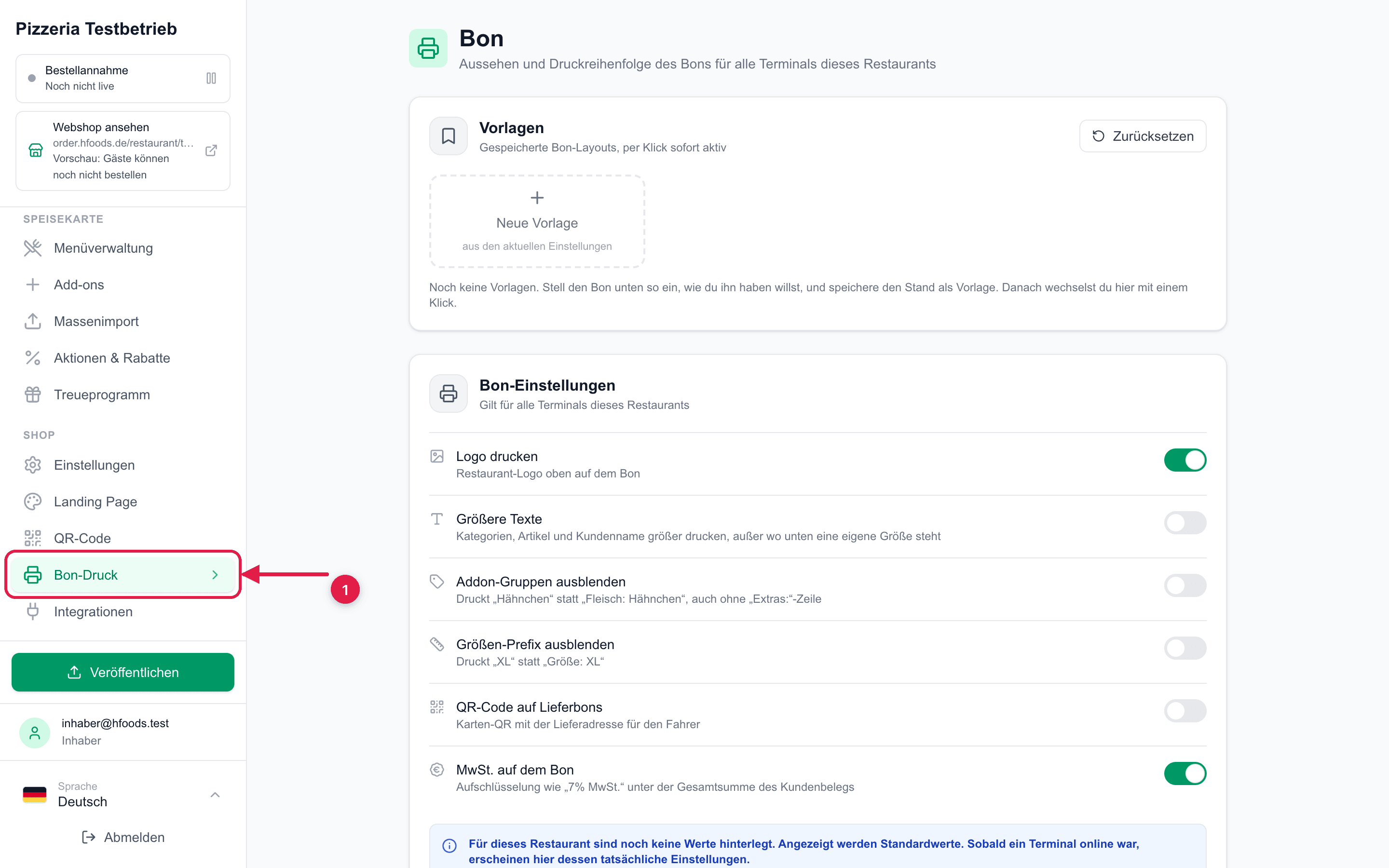
Open receipt printing
In the sidebar on the left, click Bon-Druck (receipt printing). The Bon page shows the templates at the top and the settings below.
Set the switches
Under Bon-Einstellungen flip the switches you want and check the result in the preview. Click Speichern (save) at the bottom, see Save the receipt settings.
Result
After saving, all terminals print the receipt with these settings.
Applies to all terminals
The settings belong to the restaurant, not to a single device. A newly paired terminal takes them over automatically, and several terminals print identical receipts. Changes take effect as soon as the terminal is online again.
No values yet?
If it says Für dieses Restaurant sind noch keine Werte hinterlegt (no values stored for this restaurant yet), the page shows default values. As soon as a terminal has been online, its actual settings appear.
Frequently asked questions
Why is MwSt. auf dem Bon greyed out?
Then VAT is switched off for the whole order terminal. The switch shows the note Am Bestell-Terminal ist die MwSt. ausgeschaltet (VAT is switched off on the order terminal) and the link In den Einstellungen ändern (change in the settings). There you switch it back on, see Set where VAT is shown. Your value for the receipt stays saved and applies again as soon as the terminal shows VAT.