Create a promotion from a template
Create a promotion such as "10 % off the cart" or "free delivery" from a template and make it visible to guests.
What it is for
With promotions you reward guests: a percentage off the cart, a fixed amount, free delivery, free items, "buy one, get one free", lunch offers or meal bundles. Every promotion starts with a template. Then you go through three steps: Inhalt (content, what guests see), Effekt (effect, what the promotion does) and Regeln (rules, when it applies).
What changes
- The promotion appears in the list under Aktionen (promotions). The message reads "Aktion angelegt und für Kunden sichtbar." (created and visible to customers) or, if it is still switched off, "Aktion angelegt. Schalte sie ein, wenn sie laufen soll." (created, switch it on when it should run).
- When switched on, it appears in the web shop and the app as a card in the menu and is calculated automatically when ordering.
- You do not need to publish; the admin area hands over promotions when you save.
Requirements
You are signed in to the admin area as the owner, see Sign in.
Step by step
Start a new promotion
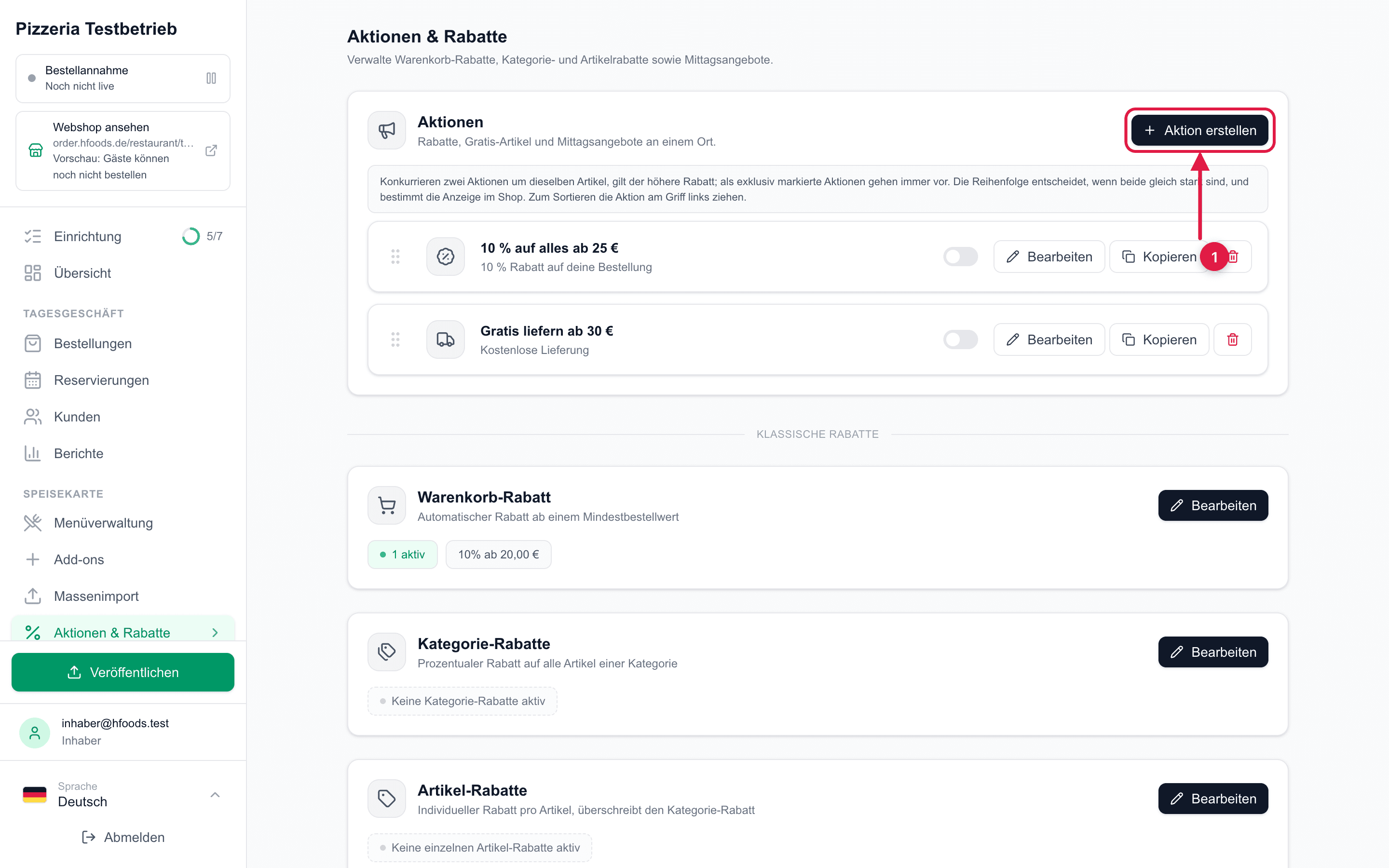
In the sidebar on the left, click Aktionen & Rabatte (promotions and discounts) and then Aktion erstellen (create promotion) at the top right.
Choose a template
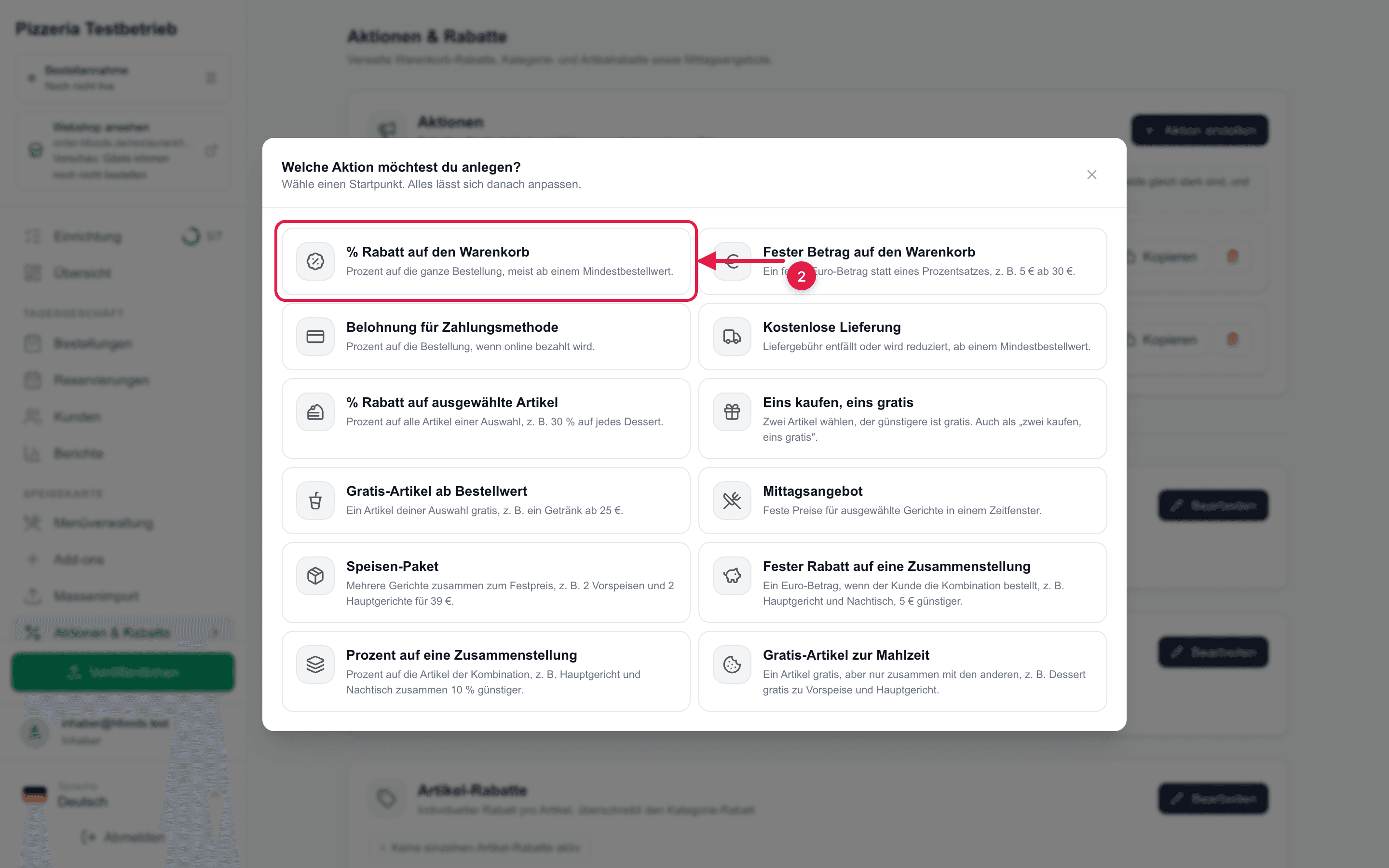
The Welche Aktion möchtest du anlegen? (which promotion do you want to create?) window shows all templates with a short explanation, for example % Rabatt auf den Warenkorb (% off the cart), Fester Betrag auf den Warenkorb (fixed amount off the cart), Belohnung für Zahlungsmethode (reward for payment method), Kostenlose Lieferung (free delivery), % Rabatt auf ausgewählte Artikel (% off selected items), Eins kaufen, eins gratis (buy one, get one free), Gratis-Artikel ab Bestellwert (free item from an order value), Mittagsangebot (lunch offer), Speisen-Paket (meal bundle) and offers for combinations. Choose the template that fits. Everything can be adjusted afterwards.
Set the content
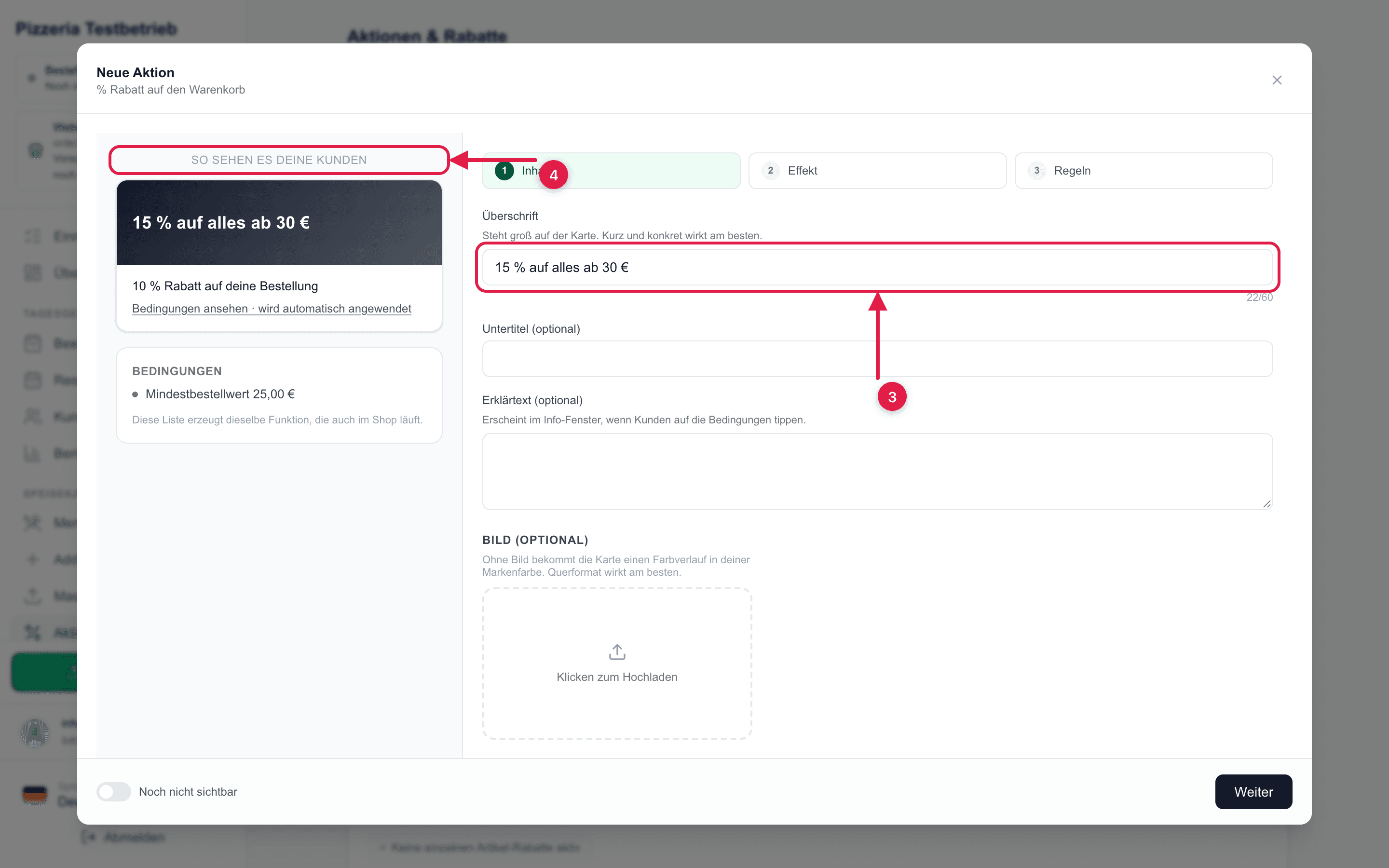
In the Inhalt step you enter what guests read:
- Überschrift (headline): shown large on the card, for example "15 % auf alles ab 30 €". Short and concrete works best.
- Untertitel (optional) (subtitle) and Erklärtext (optional) (explanation): the explanation appears when guests tap the conditions.
- Bild (optional) (image): without an image the card gets a gradient in your brand colour.
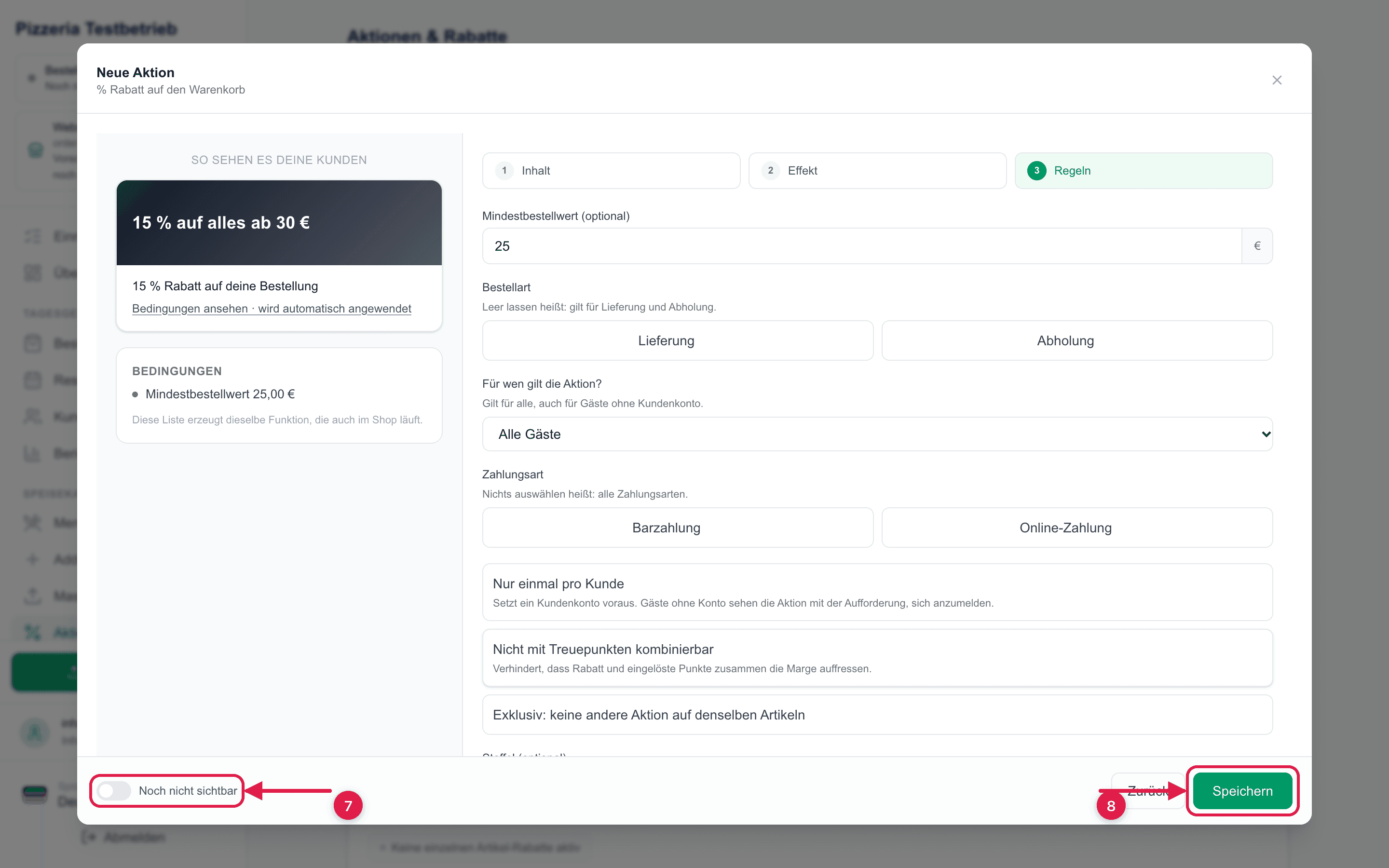
On the left under So sehen es deine Kunden (how your customers see it) you see the card as it appears in the shop, with the conditions below it.
Set the effect
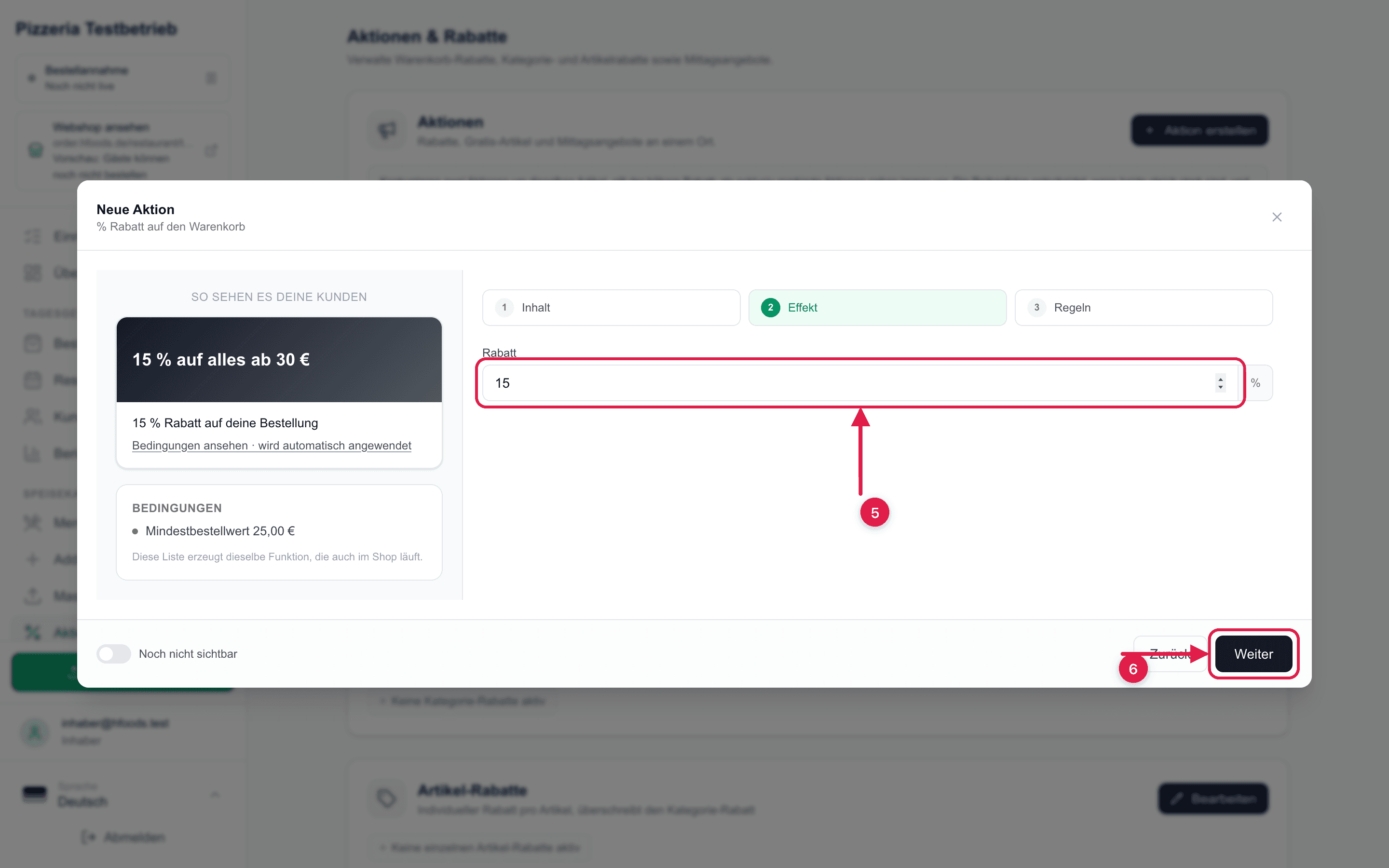
In the Effekt step you set what the promotion does, with this template the Rabatt (discount) in percent, for example 15. Click Weiter (next).
Check the rules, make it visible and save
In the Regeln step you set the minimum order value, order type, target group and period, see Set the rules and schedule of a promotion. The switch at the bottom left makes the promotion visible. If it says Noch nicht sichtbar (not visible yet), it is saved but does not run yet. Click Speichern (save).
Result
The promotion is in the list. When switched on, it applies immediately in the web shop and the app.
Tips
- Create a promotion invisible first, check the preview and then switch it on.
- If several promotions run, read the notes on their order, see Sort promotions.
Frequently asked questions
Where do guests see the promotion?
In the web shop and the app as a card in the menu. The discount is calculated automatically when ordering if the conditions are met.