Set a schedule for a category
Offer a category only on certain weekdays and at certain times, for example breakfast until 11 am.
What it is for
Some parts of your menu are only available at certain times: breakfast in the morning, lunch dishes on weekdays, a late night menu at the weekend. With a schedule you set on which weekdays and between which times a category can be ordered. Outside these times it is either hidden completely or stays visible but cannot be ordered.
What changes
- The web shop and the app check, when showing the menu, whether a time window of the category is open right now.
- Inside the time window the category can be ordered as usual. Guests also see the hint Verfügbar (available) followed by days and time, for example "Verfügbar Täglich · 08:00 - 11:00 Uhr" (available daily, 08:00 to 11:00).
- Outside the time window your choice under Außerhalb der Zeiten (outside the times) applies: the category disappears, or it stays with the hint Aktuell nicht verfügbar (currently not available) and the next time, and its items cannot be ordered.
- On the category page the schedule is shown under Verfügbarkeit / Zeitplan (availability and schedule). Without a schedule it says Immer verfügbar (always available).
- Guests only notice this after you click Veröffentlichen (publish).
Requirements
You are signed in to the admin area as the owner and have opened the category page, see Open a category.
Step by step
Turn on the schedule
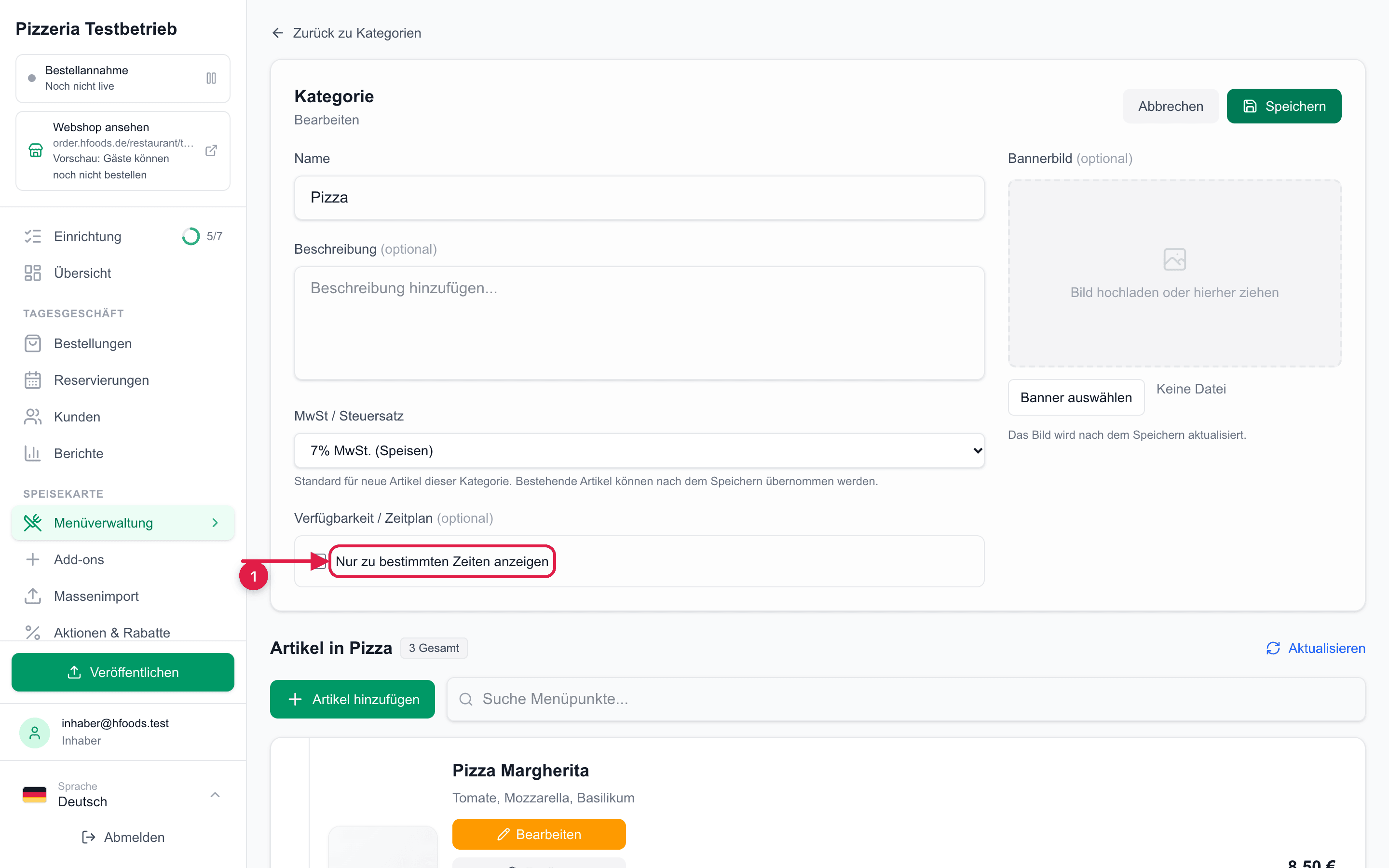
On the Kategorie (category) card, click Bearbeiten (edit) at the top right. Under Verfügbarkeit / Zeitplan (optional), tick Nur zu bestimmten Zeiten anzeigen (only show at certain times). The schedule settings appear below.
Set days, time and behaviour
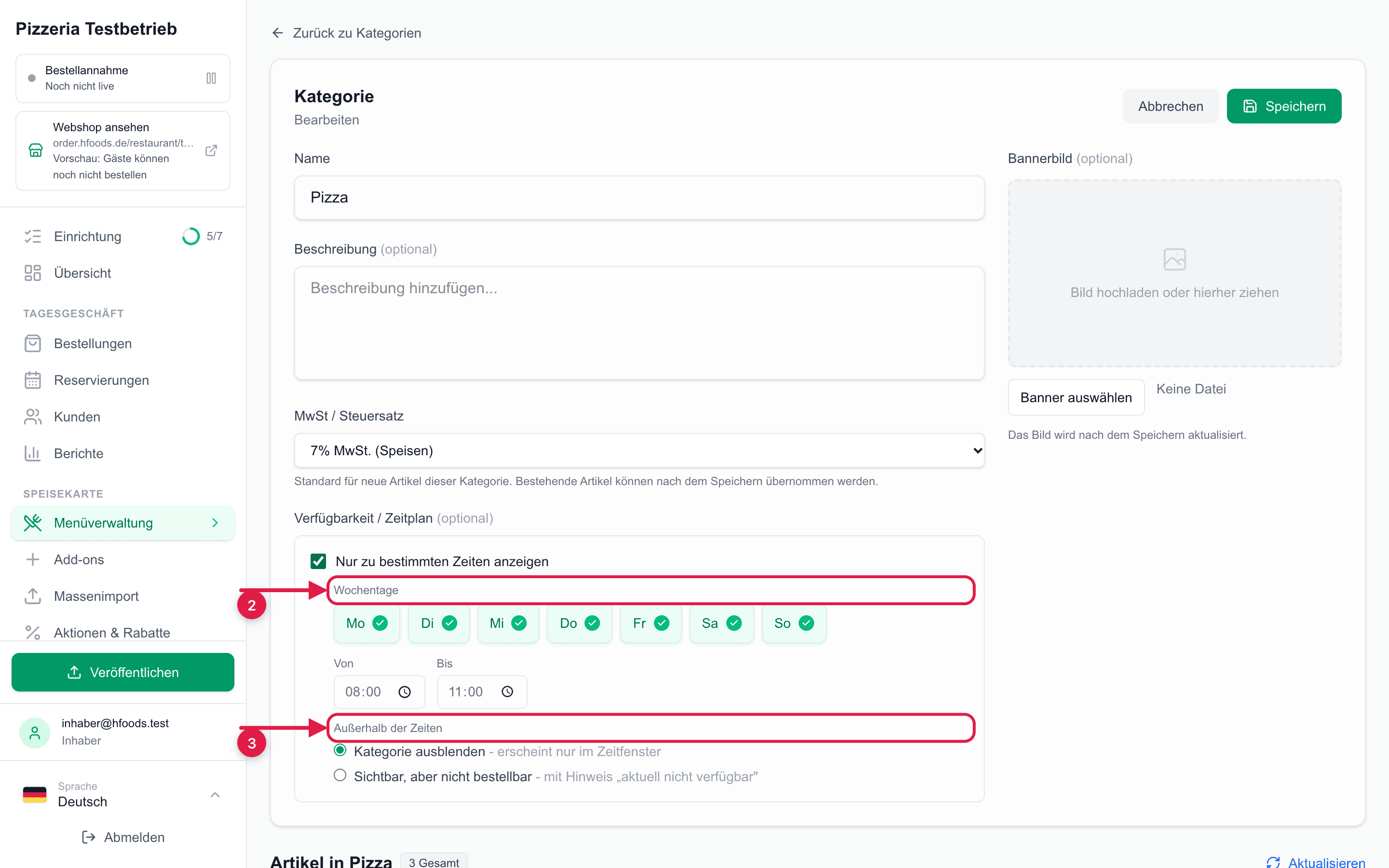
- Wochentage (weekdays): choose the days on which the category is offered. Clicking Mo to So (Monday to Sunday) turns a day on or off. At first all seven days are selected.
- Von (from) and Bis (until): start and end of the time window, for example 08:00 to 11:00. The category can be ordered from the start time until just before the end time.
- Außerhalb der Zeiten (outside the times): what guests see outside the time window.
- Kategorie ausblenden (hide category): the category only appears inside the time window and cannot be seen otherwise.
- Sichtbar, aber nicht bestellbar (visible but not orderable): the category stays with the hint "aktuell nicht verfügbar" (currently not available). Guests then know it exists at other times.
Save and publish
Click Speichern (save) at the top right. The card now shows your schedule under Verfügbarkeit / Zeitplan. Then click Veröffentlichen (publish) on the left so the web shop and the app take it over.
Result
The category appears in the web shop and the app only at the chosen times, or it is marked as not available outside them.
Tips
- Across midnight: if Bis (until) is earlier than Von (from), for example 22:00 to 02:00, the time window runs across midnight. The part after midnight belongs to the day on which the window started. If Friday is selected, the category applies from Friday 22:00 to Saturday 02:00.
- Whole day: if Von and Bis are the same, the category applies all day on the selected days. This is how you offer something only on certain weekdays, without a time.
- Choose Sichtbar, aber nicht bestellbar if guests should know about your offer, for example breakfast. Choose Kategorie ausblenden if the menu should stay short outside the time.
Frequently asked questions
What happens if I choose no weekday?
The admin area then shows Bitte mindestens einen Wochentag wählen. (please choose at least one weekday). Without a weekday the schedule has no effect, and the category is always visible.
Which clock does the schedule follow?
The time on the device the guest orders with. For guests in your time zone this is your local time.
How do I turn the schedule off again?
Click Bearbeiten (edit), untick Nur zu bestimmten Zeiten anzeigen, save and publish. The card then says Immer verfügbar (always available) again.
Can a category have several time windows?
No. A category has one time window, which applies the same way on all selected days. If you need different times, create separate categories for them.