Create an item with sizes
Create an item in several sizes with its own price per size, for example a small and a large pizza.
What it is for
Many dishes and drinks come in several sizes: pizza in 26 and 32 cm, drinks in 0.3 and 0.5 l. Instead of creating a separate item for each size, you give one item several sizes. Each size has its own name, price and VAT rate. Guests choose the size when ordering.
What changes
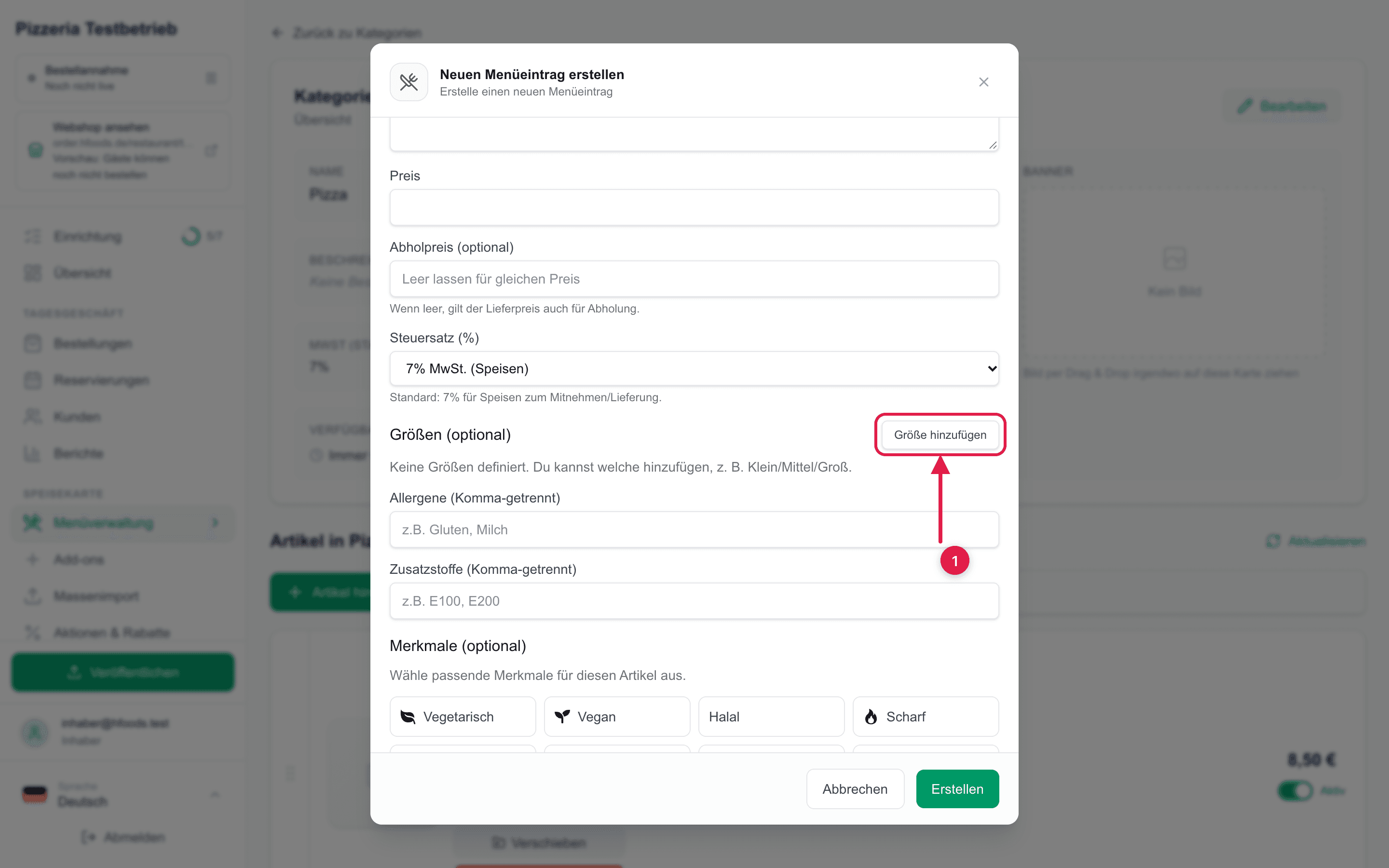
- As soon as you add a size, the item's Preis (price) and Abholpreis (pickup price) fields disappear. The prices are then only set on the sizes.
- The item list shows the lowest price with "ab" (from) in front, for example "ab 9,50 €".
- Guests choose one of the sizes in the web shop and the app; the price follows the size.
- Guests only see the item after you click Veröffentlichen (publish).
Requirements
You are signed in to the admin area as the owner and have opened the category page, see Open a category. How to create an item in general is described in Create an item.
Step by step
Start the item and add a size
Click Artikel hinzufügen (add item) and enter Name and Beschreibung (description). Then, in the Größen (optional) (sizes) section, click Größe hinzufügen (add size). Each click adds another size, so for two sizes you click twice.
Fill in the sizes
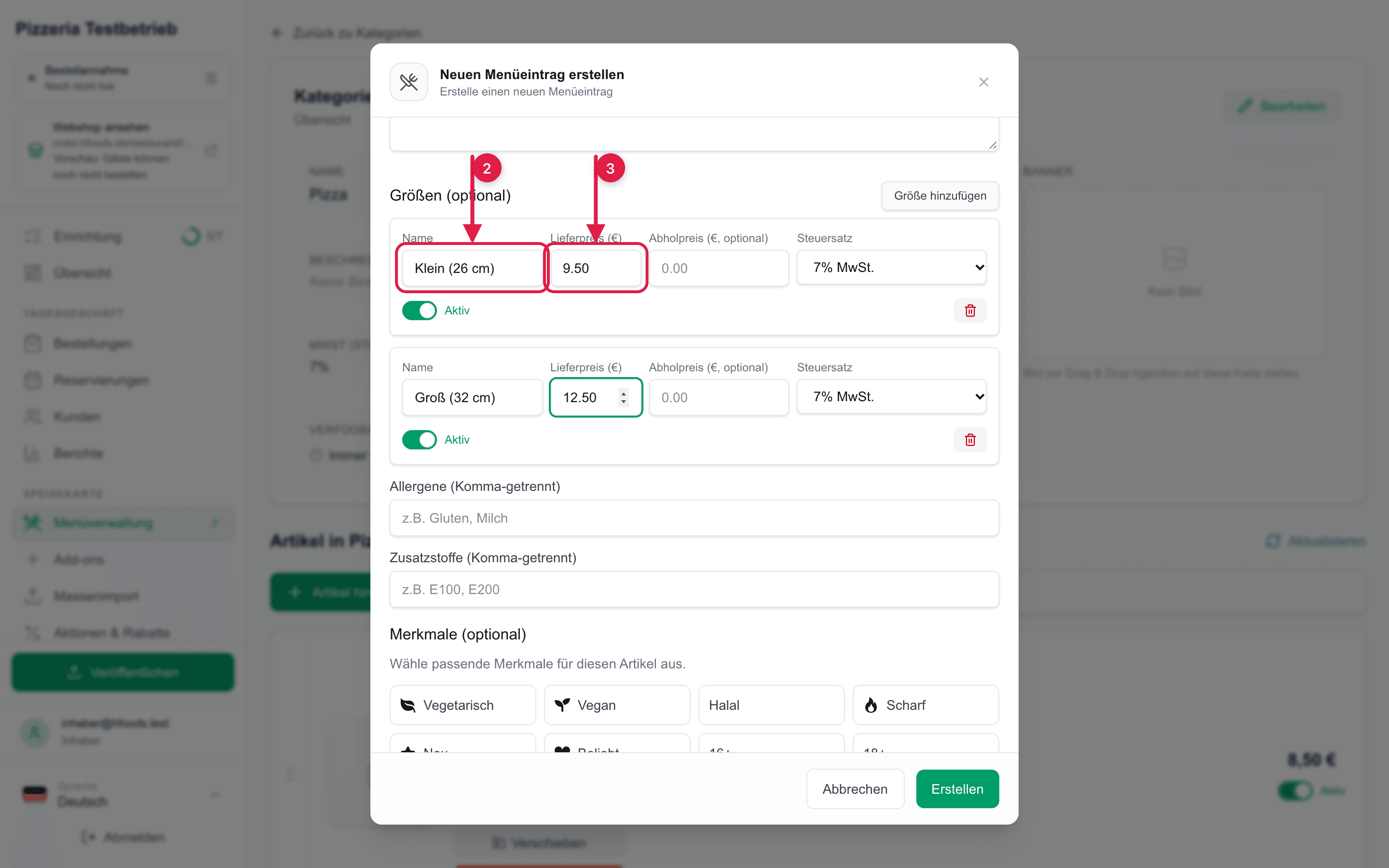
Each size has its own row with these fields:
- Name: the label guests see, for example "Klein (26 cm)" or "Groß (32 cm)". A size in centimetres or litres helps guests compare.
- Lieferpreis (€) (delivery price): the price of this size, for example 9.50.
- Abholpreis (€, optional) (pickup price): a different price for pickup. Empty means the same price as for delivery.
- Steuersatz (VAT rate): the category's default is preset. Each size can have its own rate.
- The Aktiv (active) switch below the row sets whether the size can be ordered.
- The bin on the right (Größe entfernen, remove size) deletes a size again.
Fill in the other details as for any item and click Erstellen (create).
Publish
Click Veröffentlichen (publish) on the left so the web shop and the app take over the item with its sizes.
Result
The item appears in the list with "ab" and the lowest price. Guests choose one of the sizes when ordering.
Tips
- Create the sizes from small to large. They appear in that order in the dialog.
- You can add or change sizes later with Bearbeiten (edit) on the item, see Edit an item.
Frequently asked questions
Where has the "Preis" field gone?
For items with sizes, each size has its own price. The general price field is then hidden. If you remove all sizes, it appears again.
Can I take a size off sale for a while?
Yes. Switch off Aktiv (active) on the size instead of deleting it.
Why don't guests see the sizes yet?
The change is only taken over after Veröffentlichen (publish). The web shop also refreshes the menu by itself within one hour at the latest.