Create an item
Add a new item with name, description and price to a category of your menu.
What it is for
Items are the dishes and drinks guests order, for example "Pizza Tonno" or "Apfelschorle 0,5 l". Every item belongs to exactly one category. You create it directly on that category's page, with name, description and price. Further details such as an image, allergens or labels are optional and can be added at any time.
What changes
- The item appears at the end of its category's item list. The message „Name“ wurde erstellt (created) confirms this.
- After publishing, guests see it in the web shop and the app in this category, with description, price, image and labels.
- A new item is Aktiv (active), so it can be ordered, unless you switch this off while creating it.
- Guests only see it after you click Veröffentlichen (publish).
Requirements
- You are signed in to the admin area as the owner, see Sign in.
- The category exists, see Create a category, and you have opened its page, see Open a category.
Step by step
Start a new item
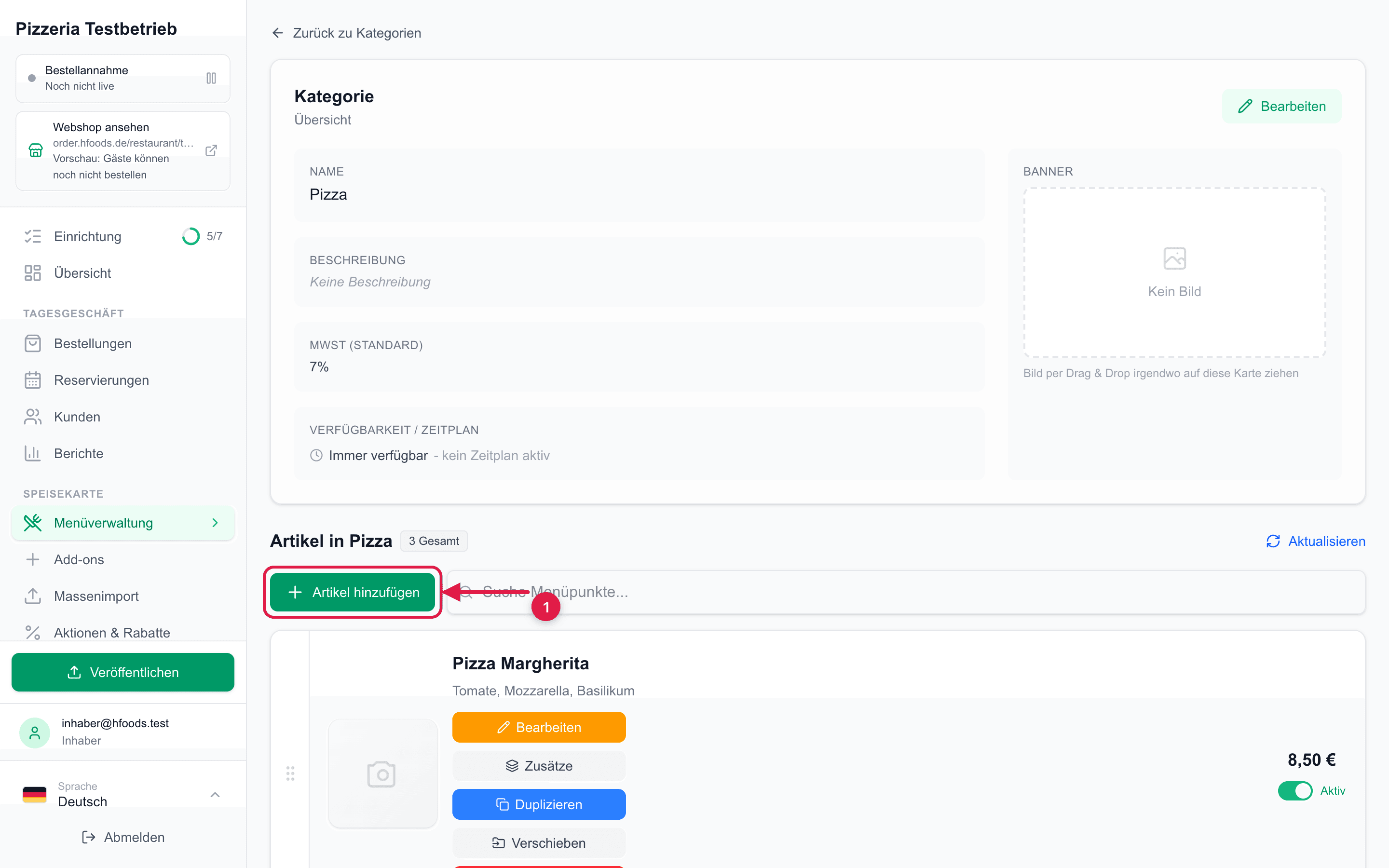
On the category page, above the item list, click Artikel hinzufügen (add item). The Neuen Menüeintrag erstellen (create new menu item) dialog opens. The category you are in is already filled in at the top.
Enter name, description and price
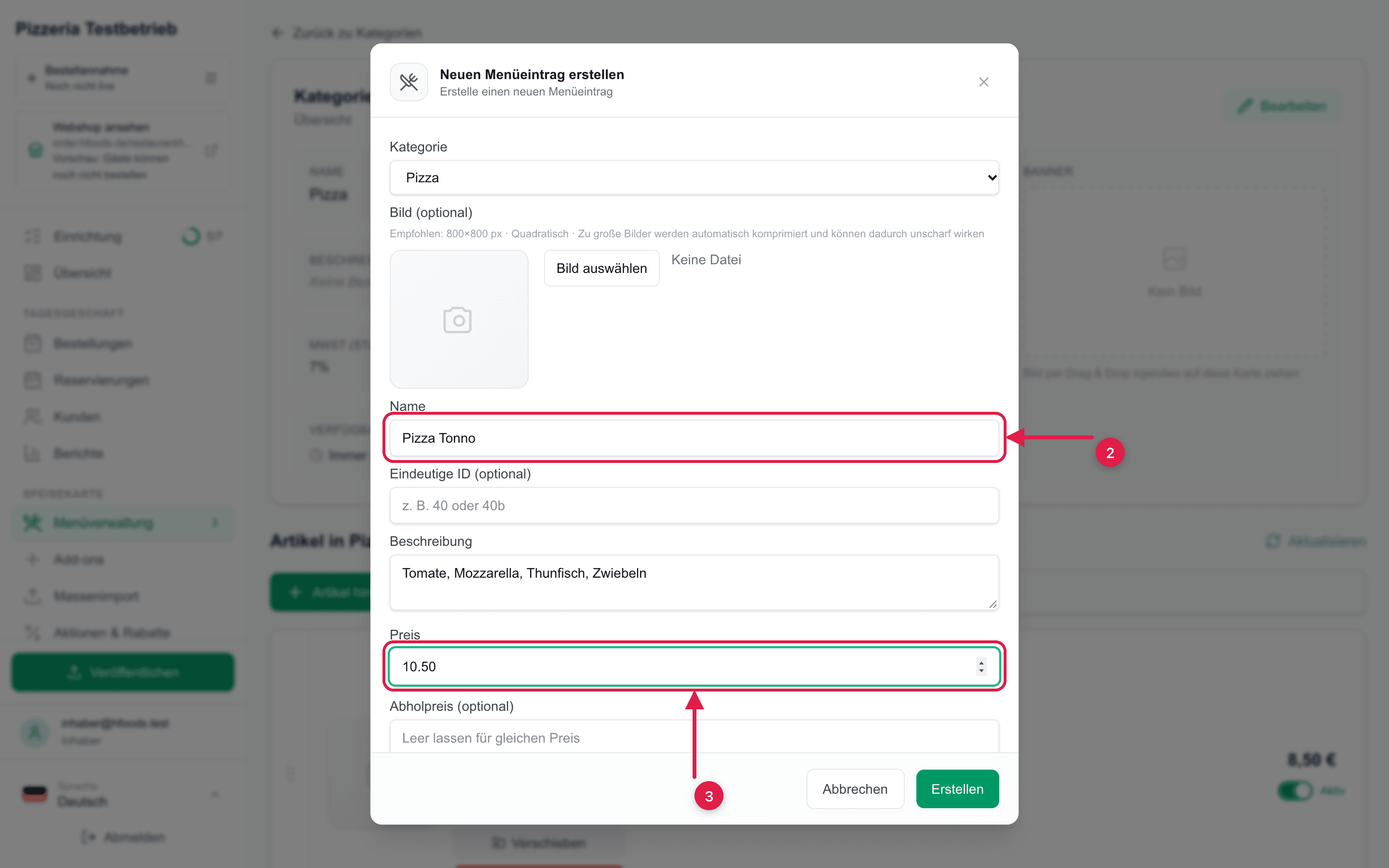
The most important fields:
- Name (required): what the item is called on the menu, for example "Pizza Tonno". Without a name, Erstellen (create) stays disabled.
- Eindeutige ID (optional) (unique ID): your own number, for example the number on your printed menu such as "40" or "40b". The web shop shows it with a hash before the name, like "#40".
- Beschreibung (description): ingredients or a short sentence, for example "Tomate, Mozzarella, Thunfisch, Zwiebeln". Guests read it below the name.
- Preis (price): the price in euros, for example 10.50.
- Abholpreis (optional) (pickup price): a different price when guests collect the order themselves. If the field stays empty, the price also applies to pickup.
- Steuersatz (%) (VAT rate): the category's default VAT rate is preset. Only change it if a different rate applies to this item. When in doubt, check with your tax advisor.
Add further details and create
Further down in the dialog you find optional details:
- Bild (optional) (image): upload a photo with Bild auswählen (choose image). 800 × 800 pixels, square, is recommended. Images that are too large are reduced automatically and may look blurred as a result.
- Größen (optional) (sizes): for items in several sizes, see Create an item with sizes.
- Allergene (Komma-getrennt) (allergens) and Zusatzstoffe (Komma-getrennt) (additives): for example "Gluten, Milch" or "E100, E200", separated by commas.
- Merkmale (optional) (labels): Vegetarisch (vegetarian), Vegan, Halal, Scharf (spicy), Neu (new), Beliebt (popular), 16+ and 18+. They appear as small badges on the item.
- Verfügbarkeit (availability): with the switch on Aktiv (active), guests can order the item. On Inaktiv (inactive) it cannot be ordered.
- Kommentarfeld (comment field): sets whether guests can write a comment on this item when ordering, for example "no onions". Switched on at first.
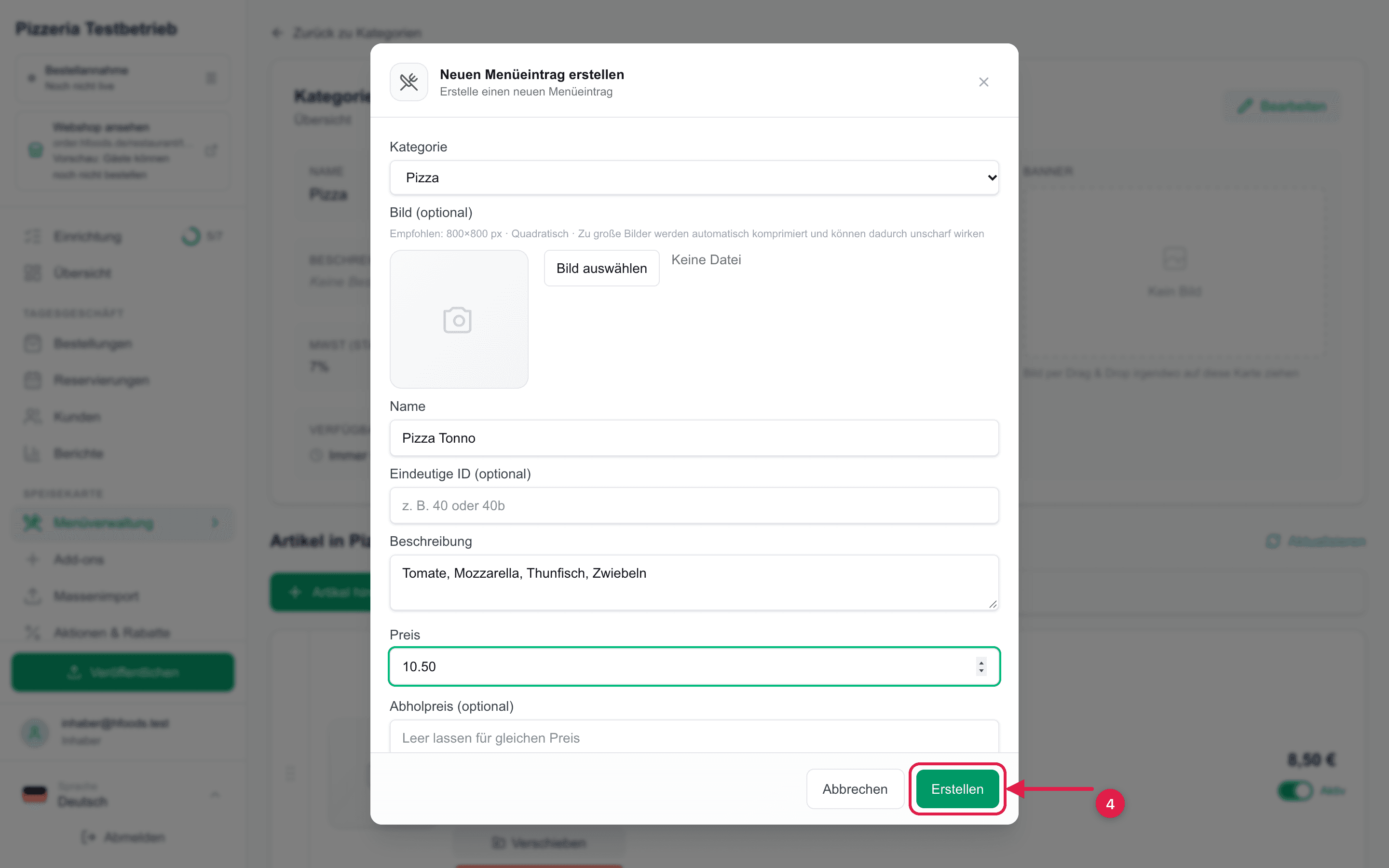
Then click Erstellen (create) at the bottom right.
Check and publish
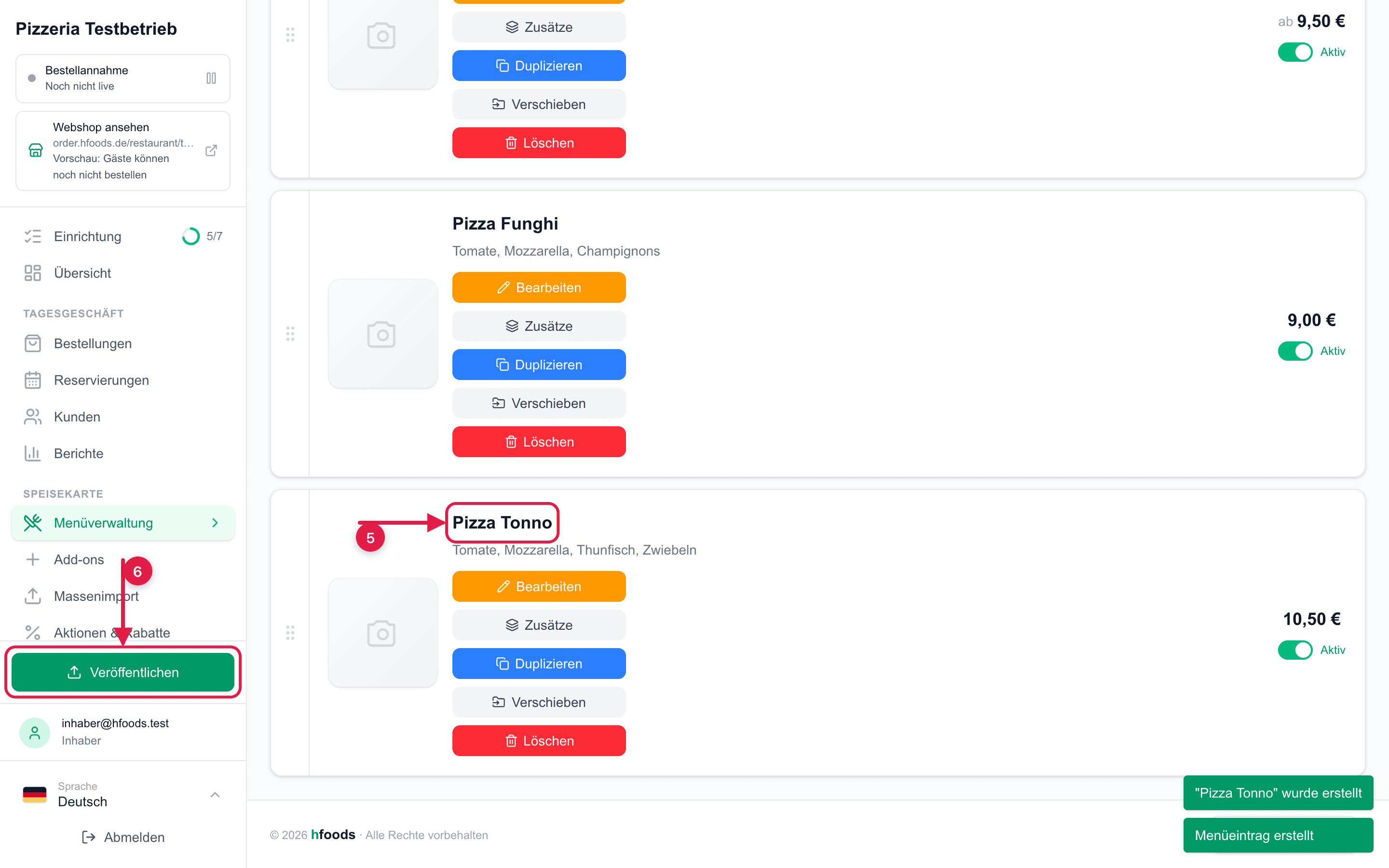
The new item is now at the end of the list, with its price and the Aktiv switch. Click Veröffentlichen (publish) on the left so the web shop and the app take it over.
Result
The item is in its category and can be ordered by guests after publishing. With the buttons on the item you can later edit, duplicate, move or delete it.
Tips
- Put the ingredients in the description. Guests decide faster, and there are fewer questions.
- A good photo sells. Use bright, sharp, square images.
- The fastest way to create many similar items is to duplicate a finished item and only change name and price, see Duplicate an item.
- Create extras such as additional toppings or dressings under Add-ons, not as separate items.
Frequently asked questions
Why is "Erstellen" greyed out?
The name is missing. An item cannot be created without a name.
Which price do guests see for delivery and pickup?
For delivery, Preis (price) applies. For pickup, Abholpreis (optional) applies if you entered one, otherwise Preis as well.
I cannot see the item in the web shop. Why?
The change is only taken over after Veröffentlichen (publish). The web shop also refreshes the menu by itself within one hour at the latest. Also check that the switch on the item is on Aktiv (active).