Delete a category
Remove a category and all items in it from your menu.
What it is for
If you no longer need a section of your menu, for example an old seasonal menu, you delete the whole category. You do this directly on the category's card in menu management.
What changes
- The category disappears from menu management. The message Kategorie „Name“ wurde gelöscht (category deleted) confirms this.
- All items in this category are deleted as well. They cannot be found anywhere afterwards, not even in another category.
- Deleting cannot be undone. If you want the category back later, you have to create it and its items again.
- The category disappears from the web shop and the app as soon as you click Veröffentlichen (publish).
Requirements
You are signed in to the admin area as the owner, see Sign in.
Save items first
If you want to keep individual items, move them to another category before deleting. You do this on the category page with Verschieben (move) on the item. If you only want to hide a category for a while, do not delete it but give it a schedule, see Set a schedule for a category.
Step by step
Choose delete on the card
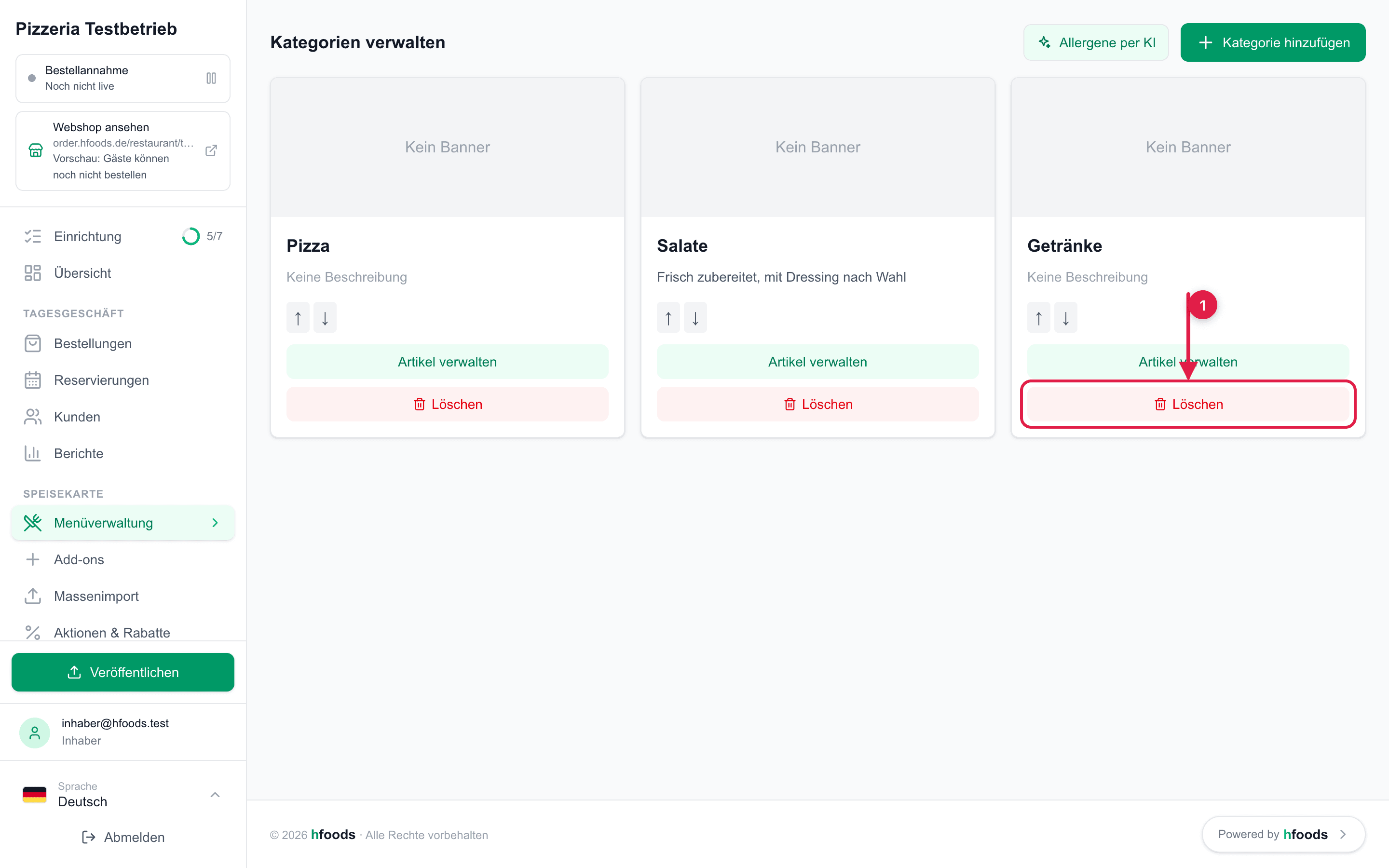
In the sidebar on the left, open Menüverwaltung (menu management). On the card of the category you want to remove, click Löschen (delete) at the bottom. In the picture this is the Getränke (drinks) category. Nothing is deleted yet; a confirmation comes first.
Read and confirm
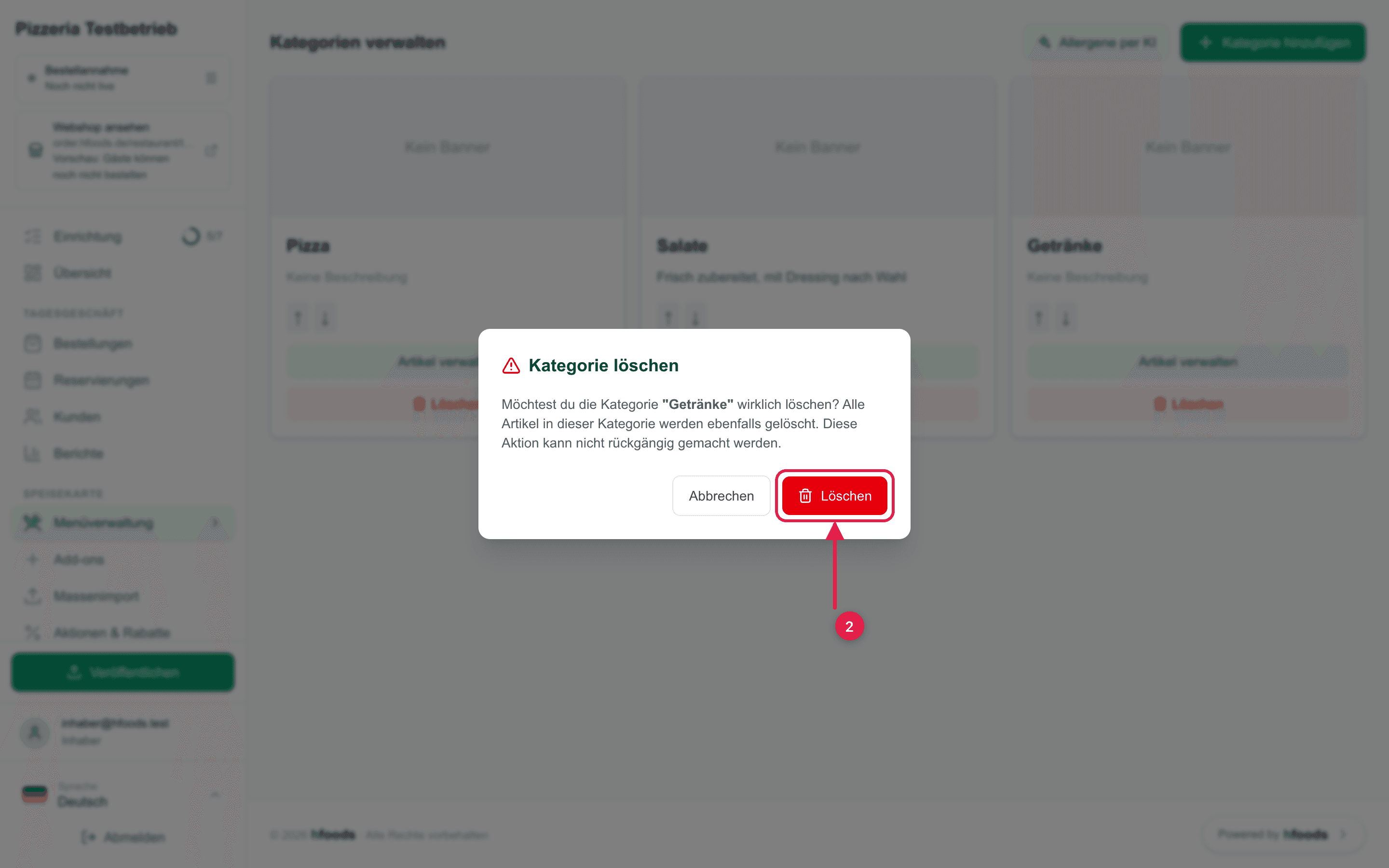
The Kategorie löschen (delete category) dialog names the category and reminds you that all items in it are deleted too. Check the name carefully.
- Löschen (delete) removes the category and all its items for good.
- Abbrechen (cancel) closes the dialog; nothing happens.
Publish
Click Veröffentlichen (publish) on the left. Only then does the category disappear from the web shop and the app as well.
Result
The category and all its items are removed from your menu. The other categories keep their order.
Tips
- When in doubt, delete less rather than more. A schedule or switching off single items can be undone at any time; deleting cannot.
- Before a bigger clean up, make a copy of your menu. You find it on the left under Massenimport (bulk import) with Speisekarte exportieren (export menu).
Frequently asked questions
Can I restore a deleted category?
No. Create the category again and enter the items again, see Create a category.
What happens to the add-on groups assigned to the category?
The add-on groups themselves stay under Add-ons. They just no longer apply to the deleted category.
Why do guests still see the category?
The change is only taken over after Veröffentlichen (publish). The web shop also refreshes the menu by itself within one hour at the latest.