Apply the category VAT rate to items
After changing a category's VAT rate, apply the new rate to its existing items in one step.
What it is for
Every category has a default VAT rate that new items in it get as a suggestion. Each item stores its own rate, though. So when you change the category's rate, existing items keep the old rate at first. To save you opening every item, the admin area offers right after saving to apply the new rate to the items.
What changes
- The selected items get the new VAT rate. For items with sizes, every size gets the new rate.
- Items you deselect keep their previous rate.
- The VAT rates of the add-ons under Add-ons stay unchanged.
- The web shop and the app take over the new rates as soon as you click Veröffentlichen (publish).
Requirements
- You are signed in to the admin area as the owner and have opened the category page, see Open a category.
- The category has at least one item whose rate differs from the new rate. If all items already have the new rate, the question does not appear because there is nothing to apply.
Which VAT rate is right?
Which rate applies to a dish or drink depends on the individual case. When in doubt, check with your tax advisor before you change rates.
Step by step
Change and save the category's VAT rate
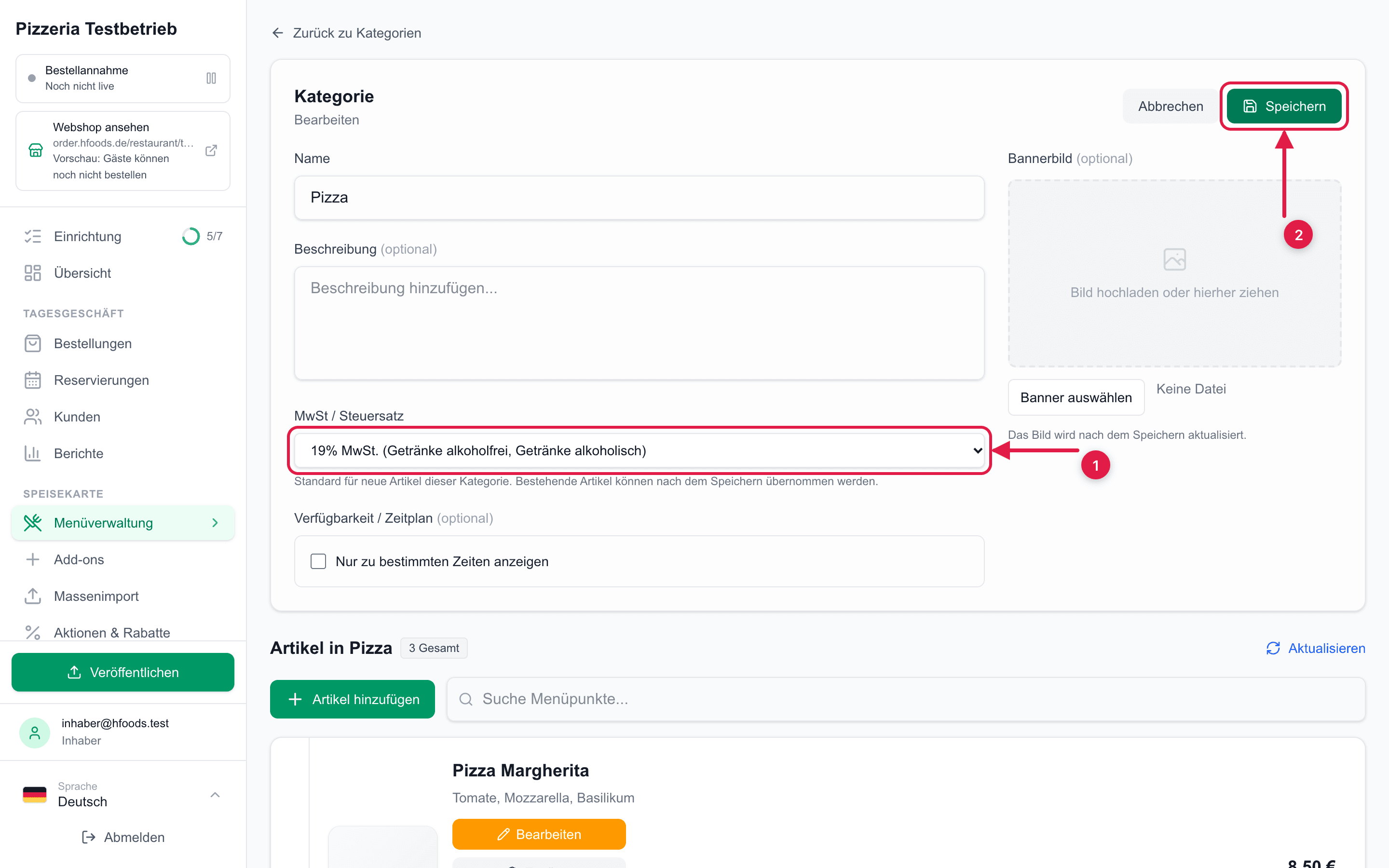
On the Kategorie (category) card, click Bearbeiten (edit) at the top right. Under MwSt / Steuersatz (VAT rate), choose the new rate, in the picture for example 19 %. Then click Speichern (save).
Select the items and apply
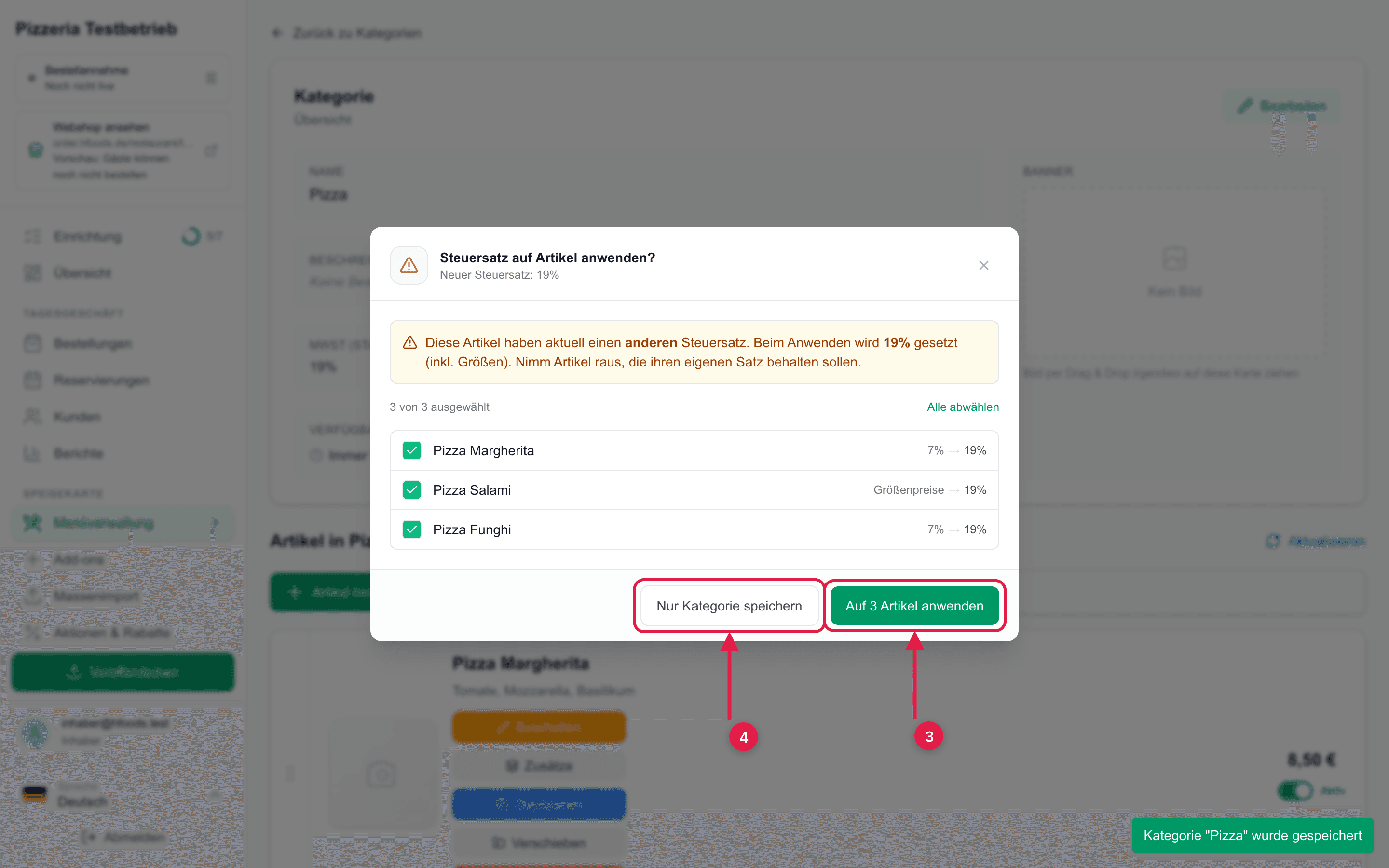
The Steuersatz auf Artikel anwenden? (apply VAT rate to items?) dialog shows the new rate at the top, for example Neuer Steuersatz: 19% (new VAT rate), and below it every item whose rate differs, each with its old and new rate. Items with sizes show Größenpreise (size prices).
- At first all items are selected. Untick every item that should keep its old rate. Alle abwählen (deselect all) and Alle auswählen (select all) help with long lists.
- Auf … Artikel anwenden (apply to … items) applies the new rate to the selected items. The message Steuersatz auf … Artikel angewendet (VAT rate applied to … items) confirms this.
- Nur Kategorie speichern (save category only) closes the dialog. Only the category's default changes; all items keep their rate.
Publish
Click Veröffentlichen (publish) on the left so the web shop and the app take over the new rates.
Result
The category has its new default VAT rate, and the selected items have the same rate. New items in this category also get it as a suggestion.
Tips
- If a category deliberately contains items with another rate, deselect just those in the dialog. Then you do not have to set them back one by one afterwards.
- You change the rate of a single item with Bearbeiten (edit) on the item.
Frequently asked questions
I chose "Nur Kategorie speichern". Can I apply the rate later?
The dialog only appears right after the category's rate has been changed. Later you change the items one by one with Bearbeiten (edit) on the item.
Why does the dialog not appear?
Either you did not change the rate, or all items in the category already have the new rate.