Move an item
Move an item with all its details to another category of your menu.
What it is for
Sometimes an item fits better in another category, for example when you create a new "Vegetarian" category or want to save individual items before deleting a category. With Verschieben (move) you relocate the item without having to create it again.
What changes
- The item disappears from the current category and is placed at the end of the target category. The message „Name“ wurde nach „Kategorie“ verschoben (moved to category) confirms this.
- Add-ons, promotions and lunch offers stay linked to the item, and so does the image.
- The item's VAT rate stays as it is. The target category's default VAT rate only applies to newly created items.
- Guests see the item in the new category as soon as you click Veröffentlichen (publish).
Requirements
- You are signed in to the admin area as the owner and have opened the page of the category the item is in now, see Open a category.
- There is at least one other category. Otherwise the dialog says Es gibt keine zweite Kategorie, in die du den Artikel verschieben könntest. (there is no other category to move the item to).
Step by step
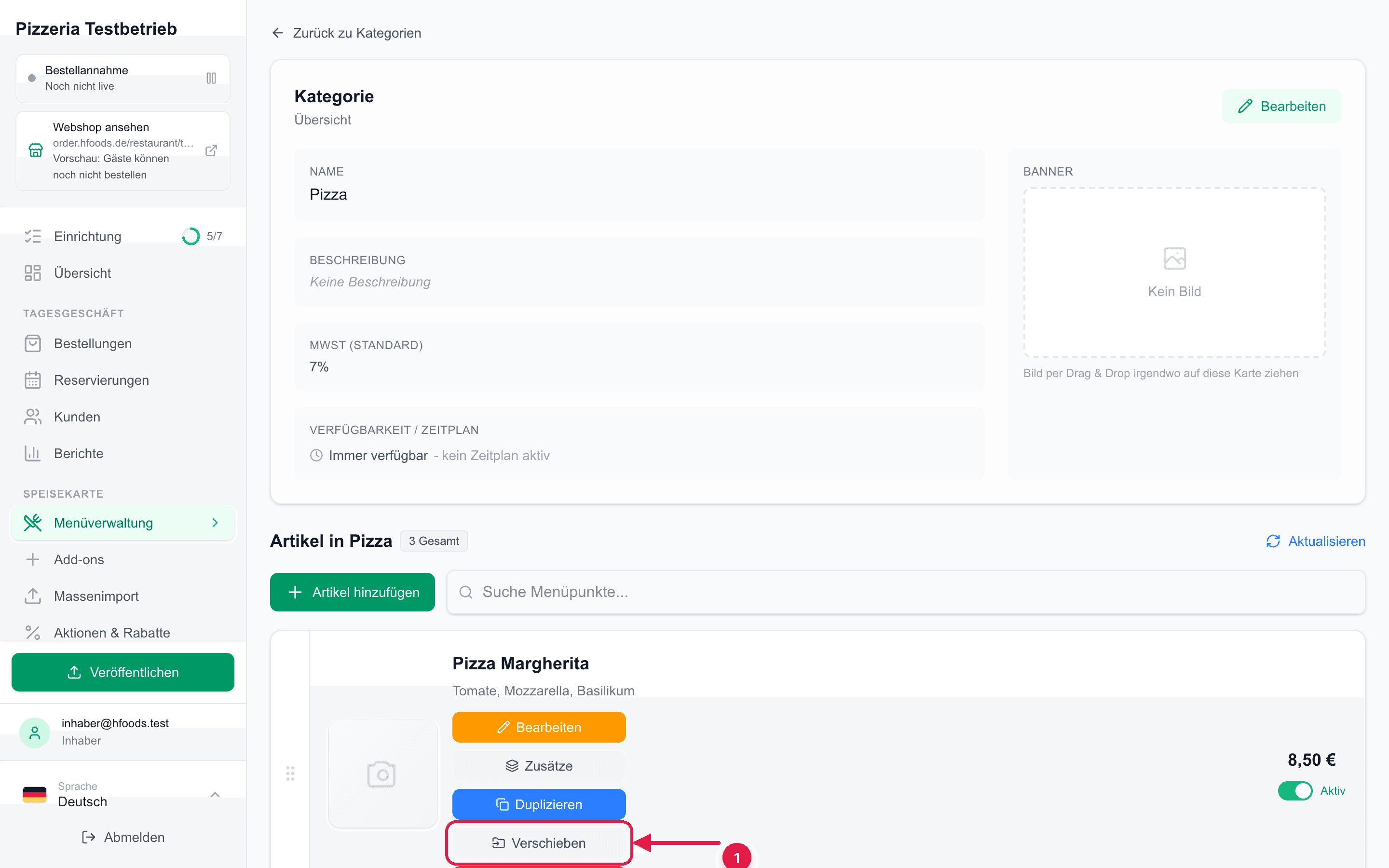
Choose Verschieben on the item
Click Verschieben (move) on the item. The Artikel verschieben (move item) dialog opens, with the item's name below the title.
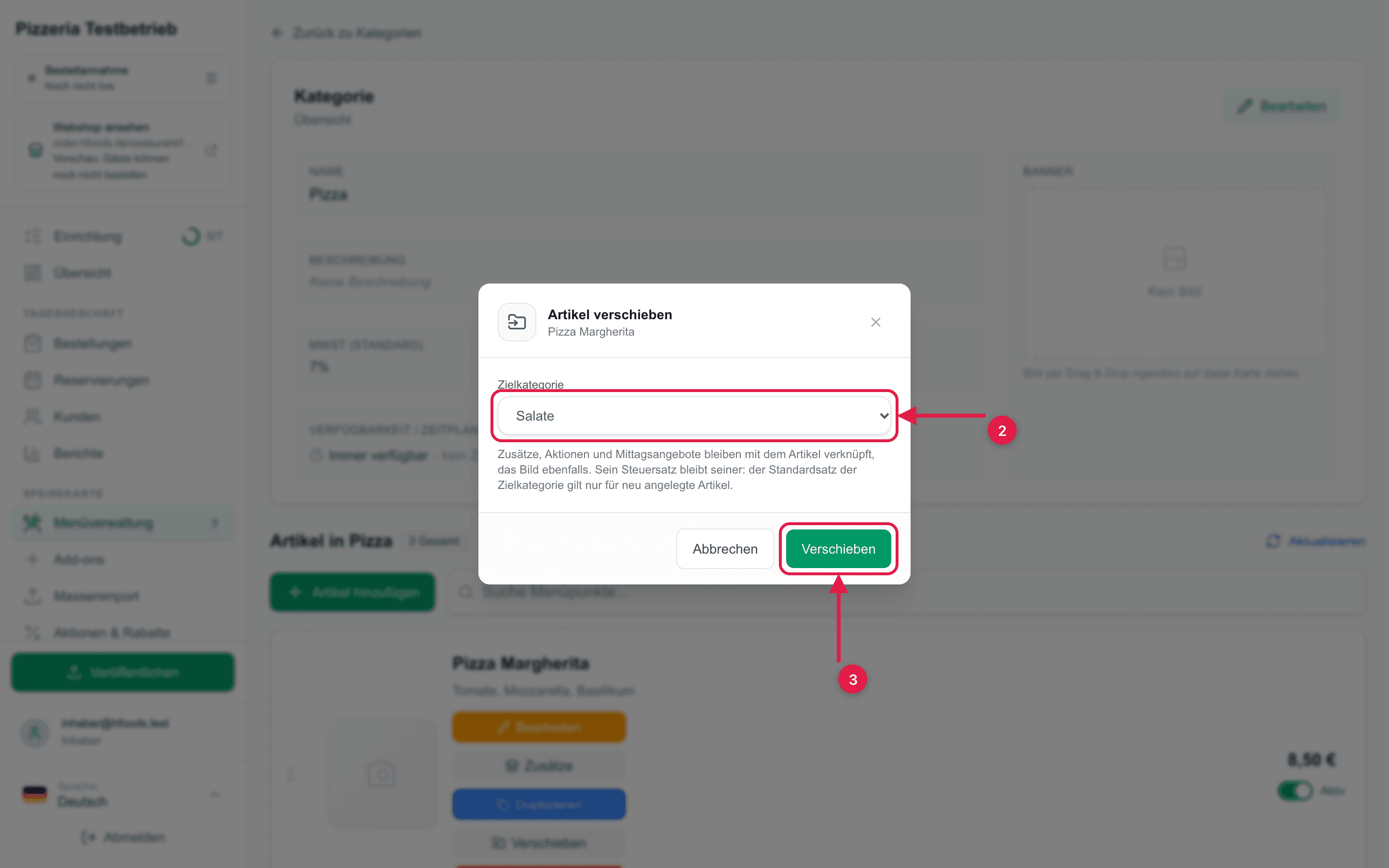
Choose the target category and move
Under Zielkategorie (target category), choose the category the item should go to, in the picture for example Salate (salads). The current category is not offered. Read the note below it; it sums up what moves along with the item. Then click Verschieben (move). As long as no target category is chosen, the button stays disabled.
Publish
Click Veröffentlichen (publish) on the left so the web shop and the app show the item in the new category.
Result
The item is at the end of the target category with all its details. It can no longer be found in the old category.
Tips
- If the item should be higher up in the new category, open the target category and drag it by its handle to the right place, see Sort items.
- If a different VAT rate applies in the new category, check the item's rate with Bearbeiten (edit). It is not adjusted when moving.
- If you want to delete a category, first move the items you want to keep, see Delete a category.
Frequently asked questions
Can I move several items at once?
No, you move each item individually.
Why do guests still see the item in the old category?
The change is only taken over after Veröffentlichen (publish). The web shop also refreshes the menu by itself within one hour at the latest.