Deactivate an item (sold out)
Take an item off sale for a while, until tomorrow, until a date or until you switch it back on.
What it is for
If a dish is sold out, an ingredient is missing or an item is only seasonal, you switch it off for a while. All its details are kept, and you decide when it can be ordered again: by itself tomorrow morning, after a certain date, or only when you switch it back on yourself. This is the right way for anything that is only missing for a time. Deleting is for items you no longer offer at all.
What changes
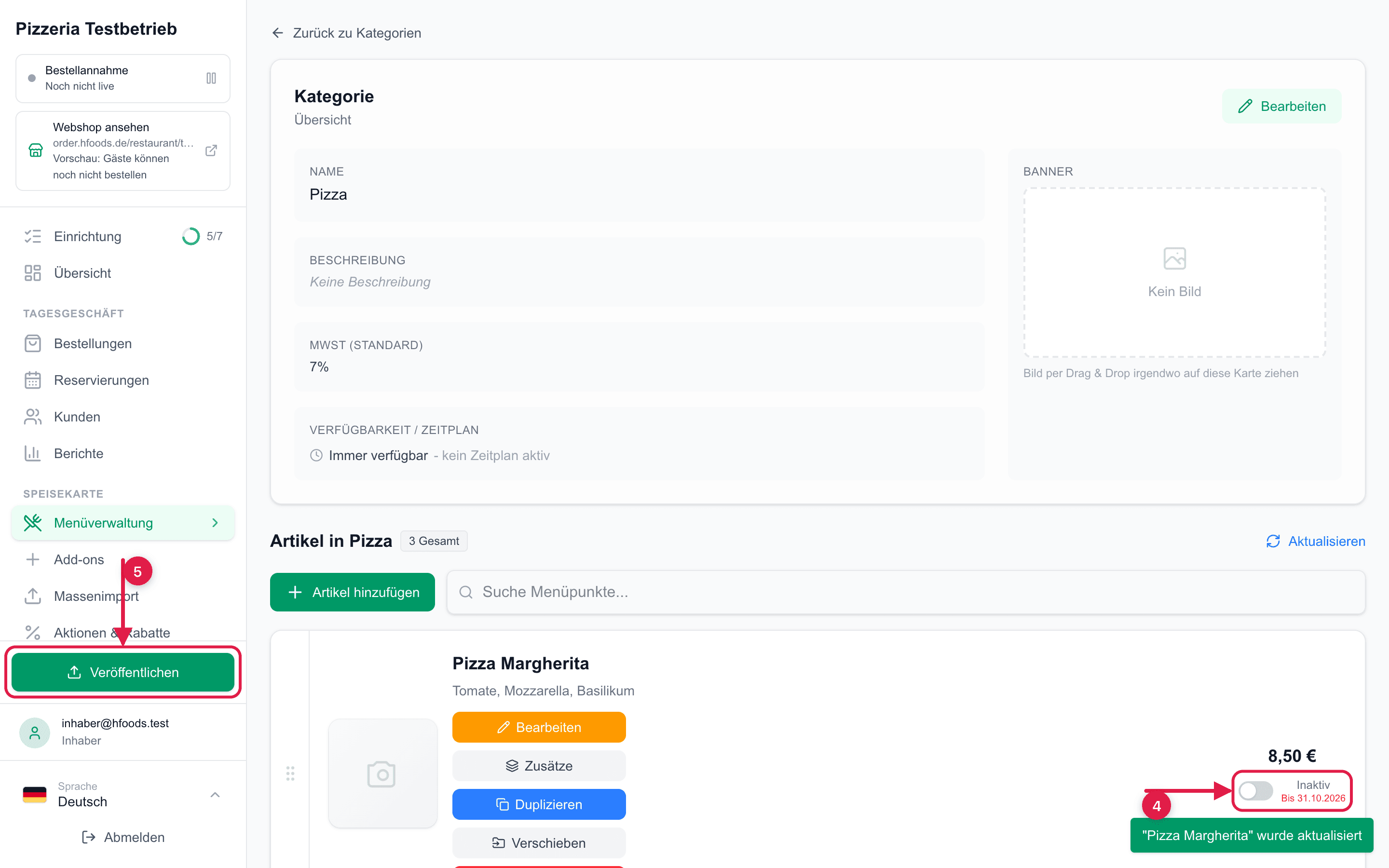
- In the item list, the switch shows Inaktiv (inactive). If you chose a duration, the date is shown below it, for example "Bis 28.09.2026" (until 28.09.2026).
- In the web shop and the app the item stays visible but is marked Ausverkauft (sold out) and cannot be ordered. This applies as soon as you click Veröffentlichen (publish).
- When the chosen time has passed, the item becomes active again automatically. The web shop and the app take this over by themselves, without you having to publish.
Requirements
You are signed in to the admin area as the owner and have opened the category page, see Open a category. For items with sizes you can also switch off individual sizes only, see Deactivate individual sizes.
Step by step
Switch off the item
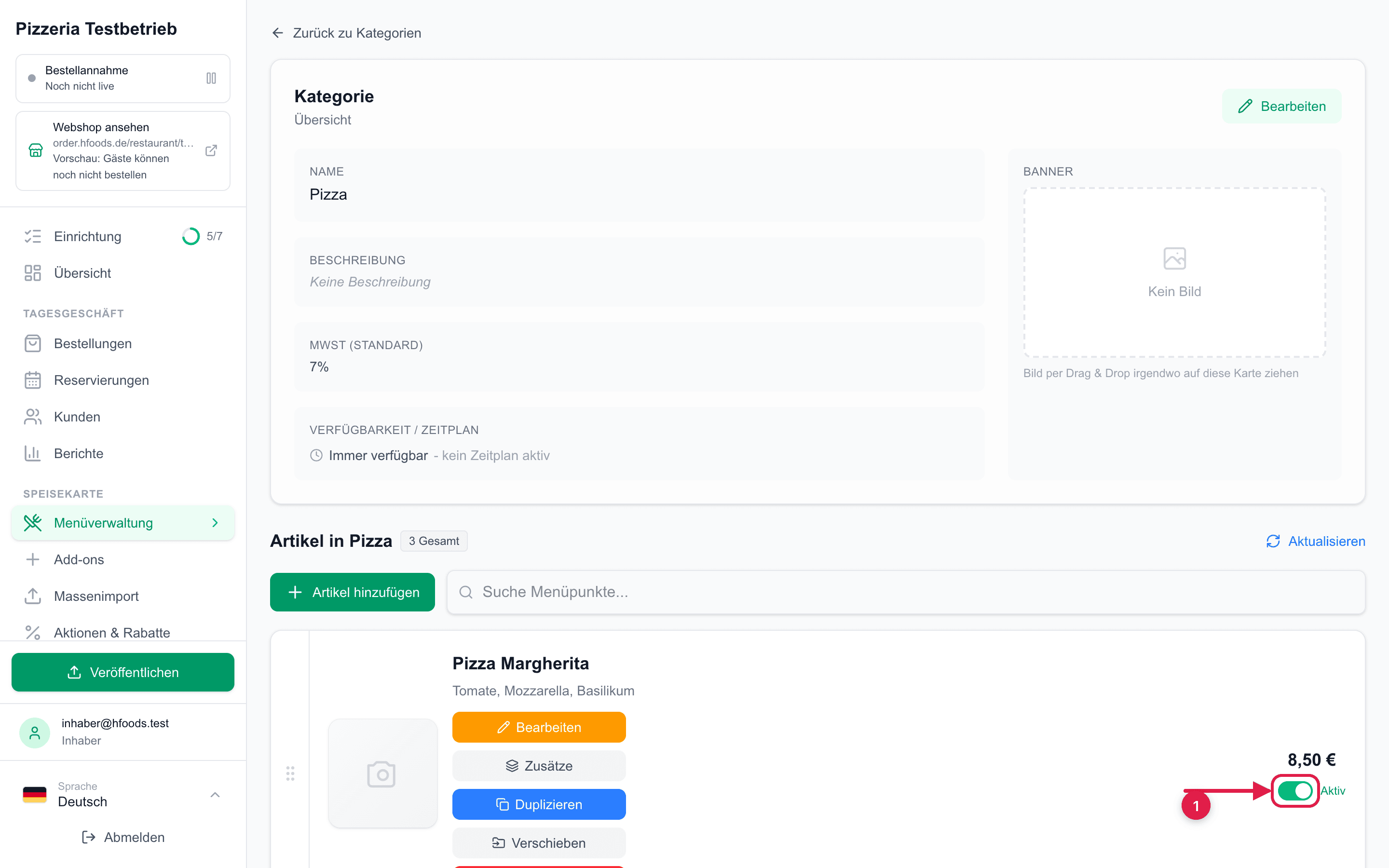
On the right of the item, below the price, is the Aktiv (active) switch. Click it. The Deaktivieren (deactivate) dialog opens with the item's name.
Choose the duration
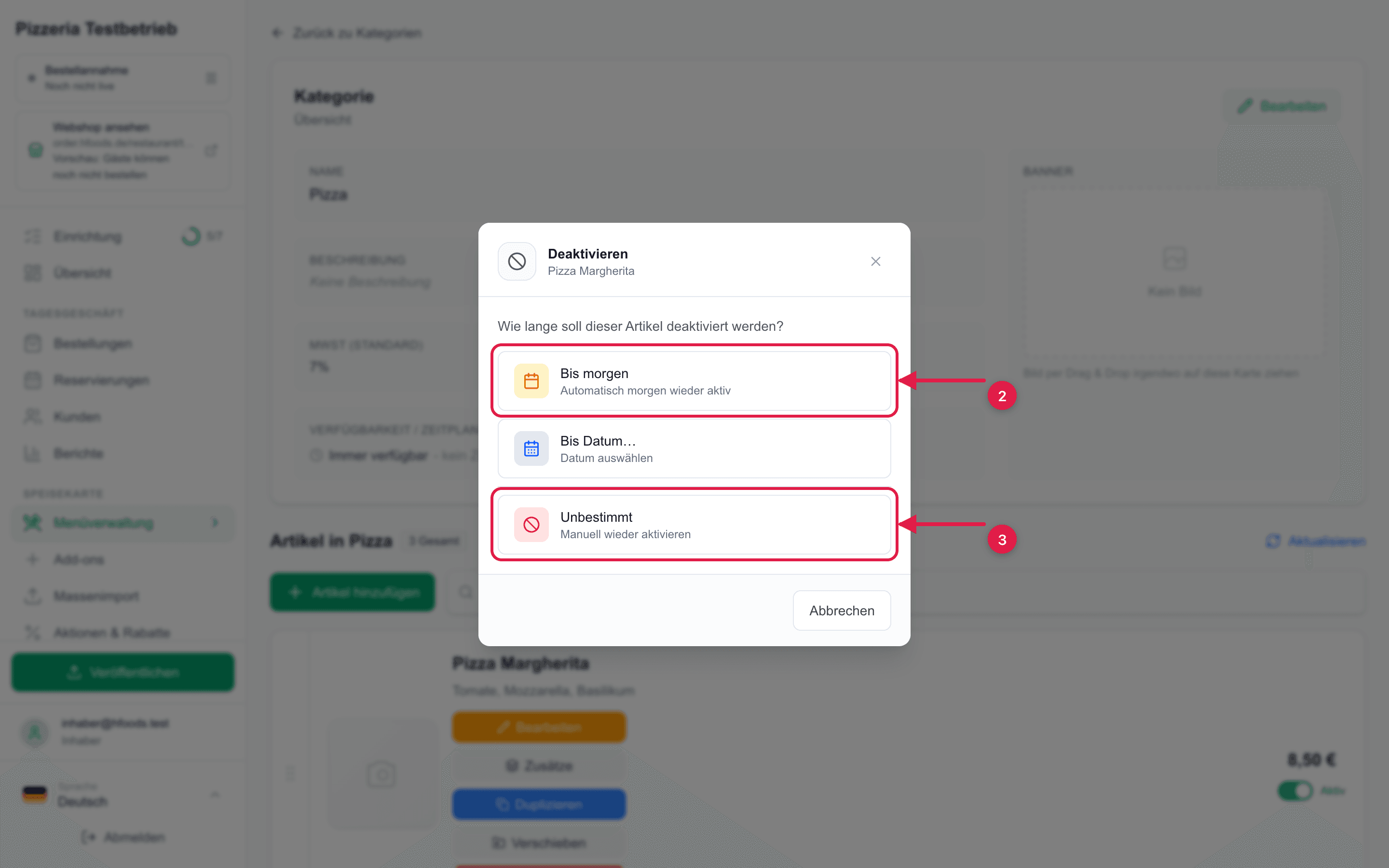
The dialog asks Wie lange soll dieser Artikel deaktiviert werden? (how long should this item be deactivated?). Choose one of the three options with one click:
- Bis morgen (until tomorrow, "Automatisch morgen wieder aktiv"): the item can be ordered again from 5 am the next morning. Ideal for "sold out today".
- Bis Datum… (until date, "Datum auswählen"): a calendar appears with the question Bis wann soll der Artikel deaktiviert bleiben? (until when should the item stay deactivated?). Choose the last day on which the item should be missing and click Übernehmen (apply). After that day it can be ordered again. Zurück (back) returns to the three options.
- Unbestimmt (indefinitely, "Manuell wieder aktivieren"): the item stays off until you switch it back on yourself.
Abbrechen (cancel) closes the dialog; the item stays active.
Check and publish
The switch now shows Inaktiv (inactive), with the date until which the item is off below it. Click Veröffentlichen (publish) on the left so guests see the item as sold out right away.
Result
The item cannot be ordered for a while and becomes active again by itself at the chosen time, or, with Unbestimmt, when you switch it back on.
Important: publish right away
Switching off only reaches guests after Veröffentlichen (publish). Without publishing, the web shop refreshes by itself within one hour at the latest; until then guests could still order the item. So publish directly after switching it off.
Tips
- Use Bis morgen for shortages on the day. You do not have to remember anything the next day.
- For seasonal items, Bis Datum… or Unbestimmt is a good fit.
- To offer an item again before the chosen time, click the switch again. It goes back to Aktiv immediately. Publish afterwards.
Frequently asked questions
Do guests still see the switched off item?
Yes. It stays visible on the menu, marked Ausverkauft (sold out), and cannot be ordered. That way guests know it is normally available.
When exactly is an item with "Bis morgen" back?
From 5 am the next morning. The menu in the web shop and the app is then updated automatically.
What happens with an item that has sizes?
When you switch it off, the admin area first asks whether you want to switch off all sizes or only some, see Deactivate individual sizes.