Create special days
Set different times for single days such as public holidays or town festivals, or close individual services.
What it is for
With Sondertage (special days) you set different times for a specific day than in the weekly schedule, for example on Christmas Eve or during a town festival. You can also close individual services for that day.
What changes
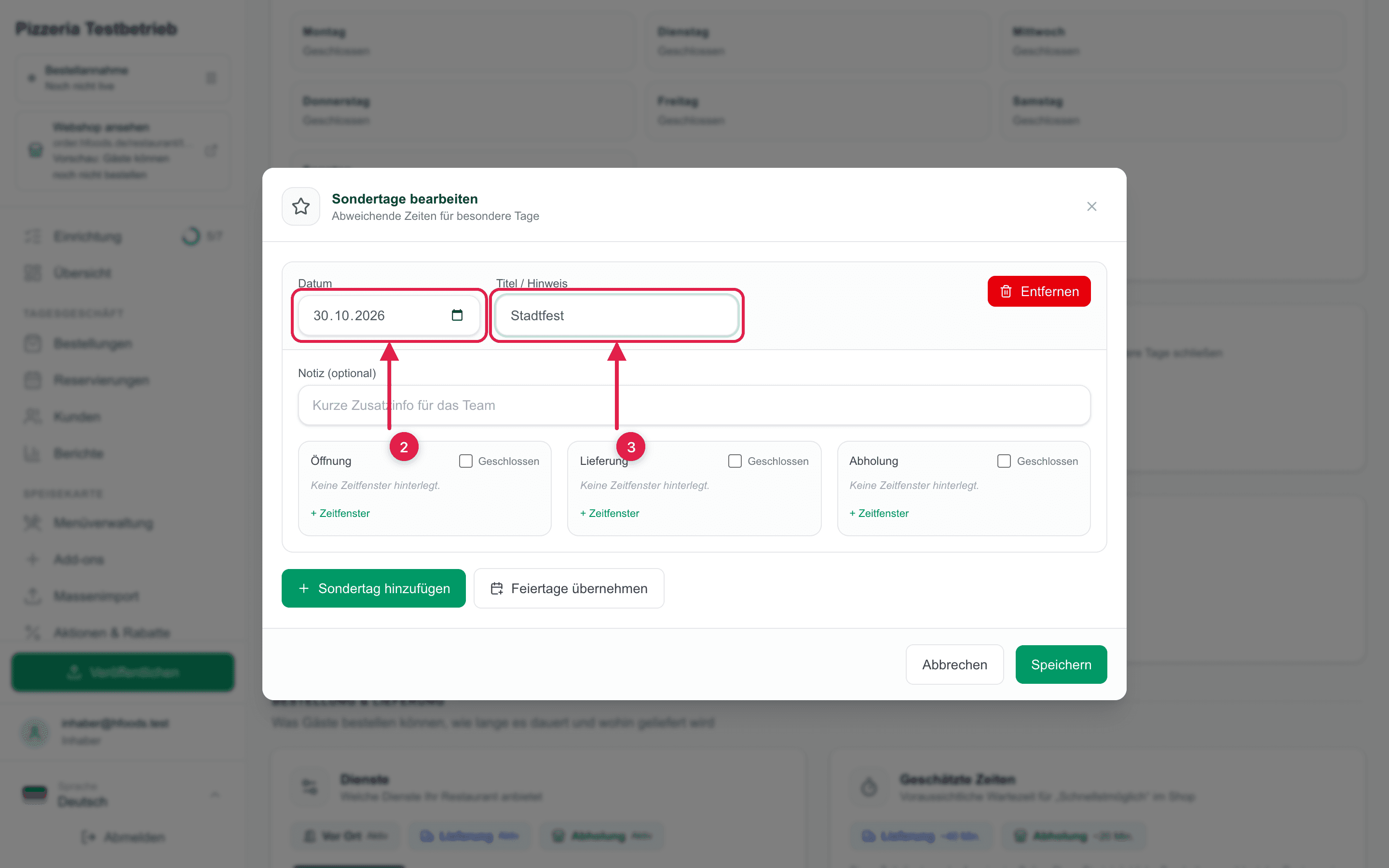
- A special day has Datum (date), Titel / Hinweis (title or note) and a Notiz (optional) (note) for your team.
- For Öffnung (opening), Lieferung (delivery) and Abholung (pickup) you choose Geschlossen (closed) or your own time slots with + Zeitfenster.
- If a service is neither closed nor has times, the weekly times apply to it on that day.
- A special day takes priority over the weekly times, a closure takes priority over the special day.
- Entfernen (remove) deletes the special day.
Requirements
You are signed in to the admin area as the owner. Staff do not see the settings.
Step by step
Add a special day
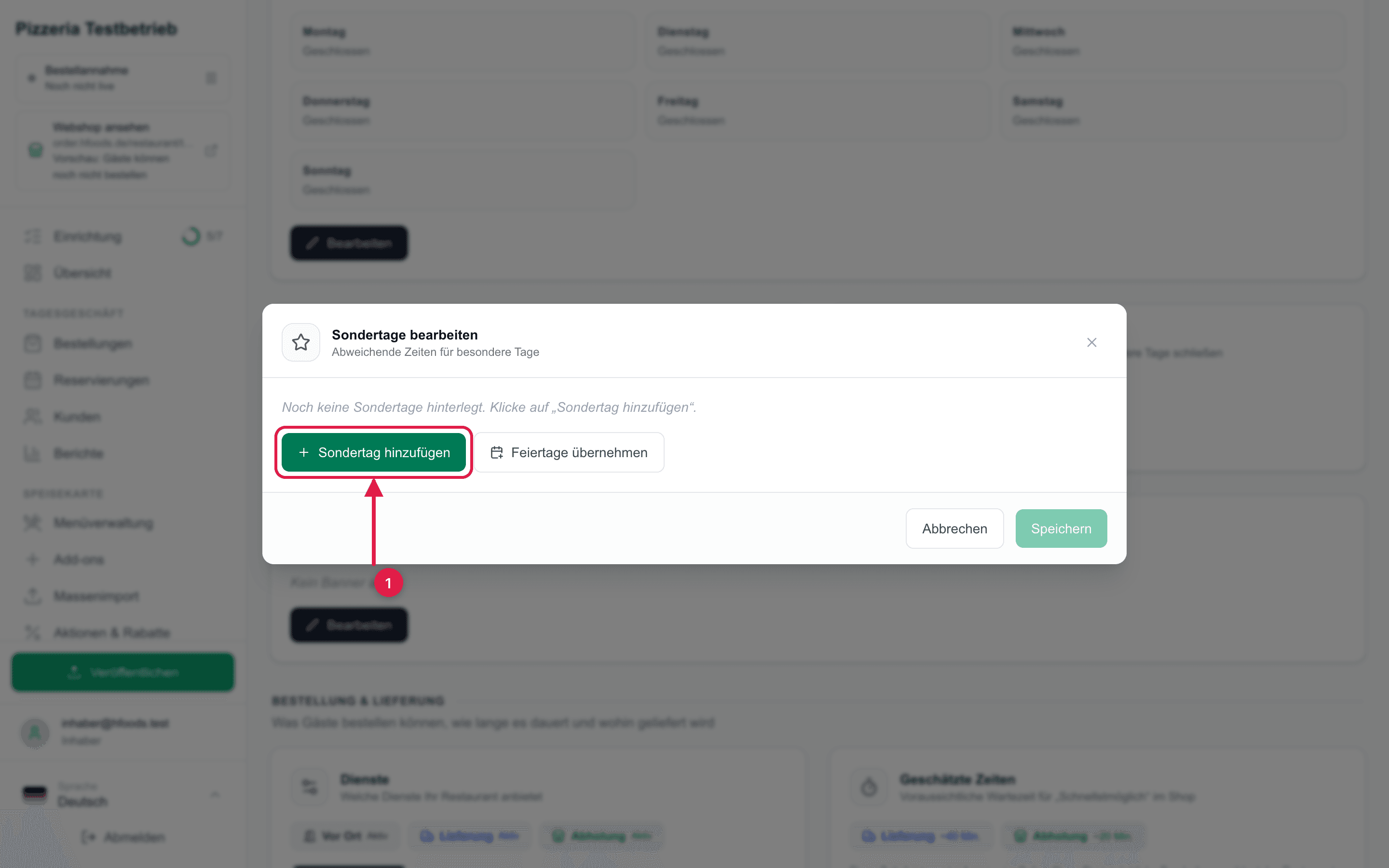
In the sidebar on the left, click Einstellungen (settings). Next to Sondertage click Bearbeiten (edit). In the Sondertage bearbeiten (edit special days) window click Sondertag hinzufügen (add special day).
Set the services
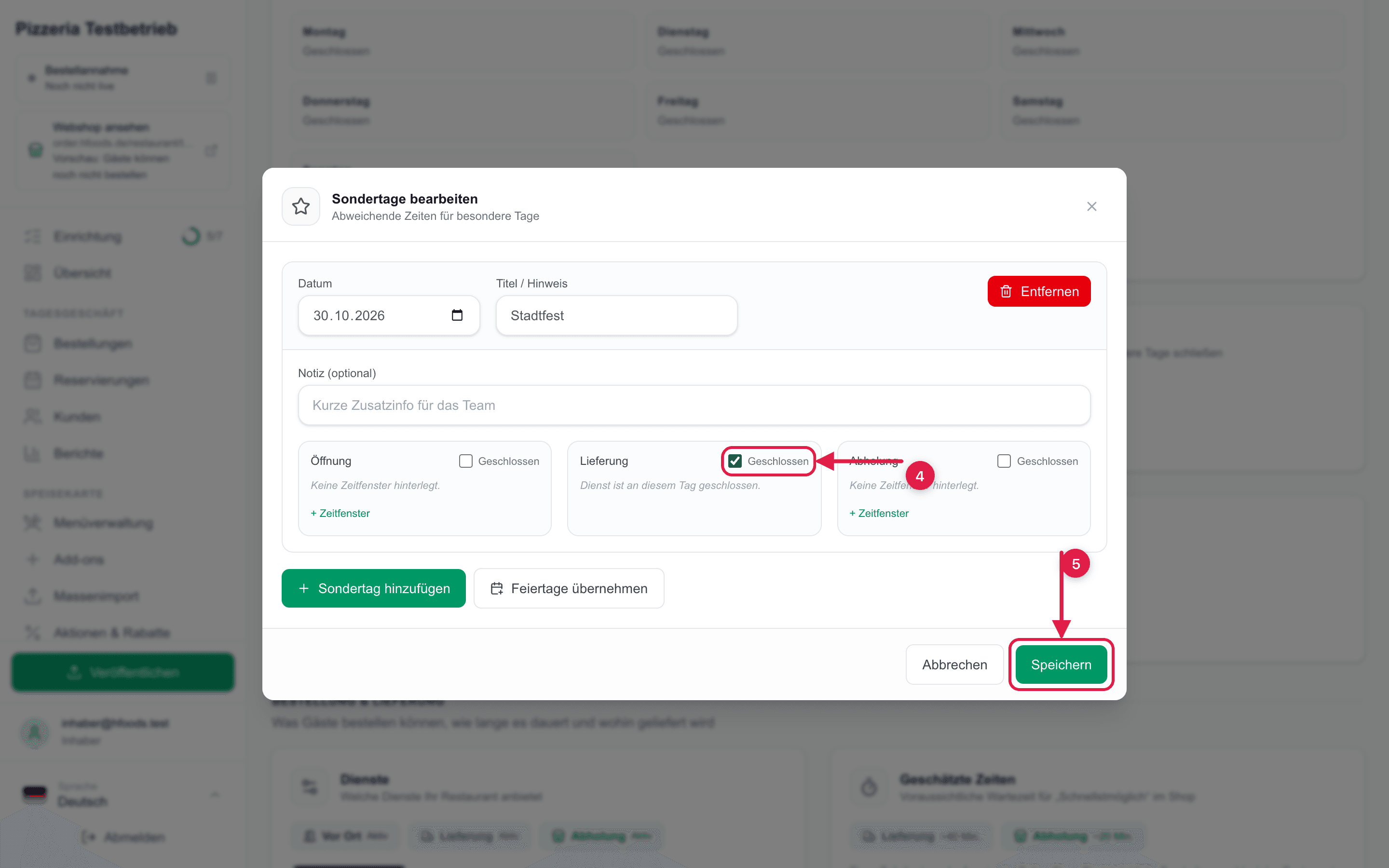
For each service tick Geschlossen or add time slots, in the picture delivery is closed. Click Speichern (save).
Result
The special day applies on its date. The card lists it with "teilweise geschlossen" (partly closed) or "individuelle Zeiten" (individual times). The web shop and the app take over the change by themselves after saving, you do not need to publish.