Create delivery areas as geo zones
Create delivery areas as circles or freely drawn shapes on the map, each with a minimum order value, fee and tax rate.
What it is for
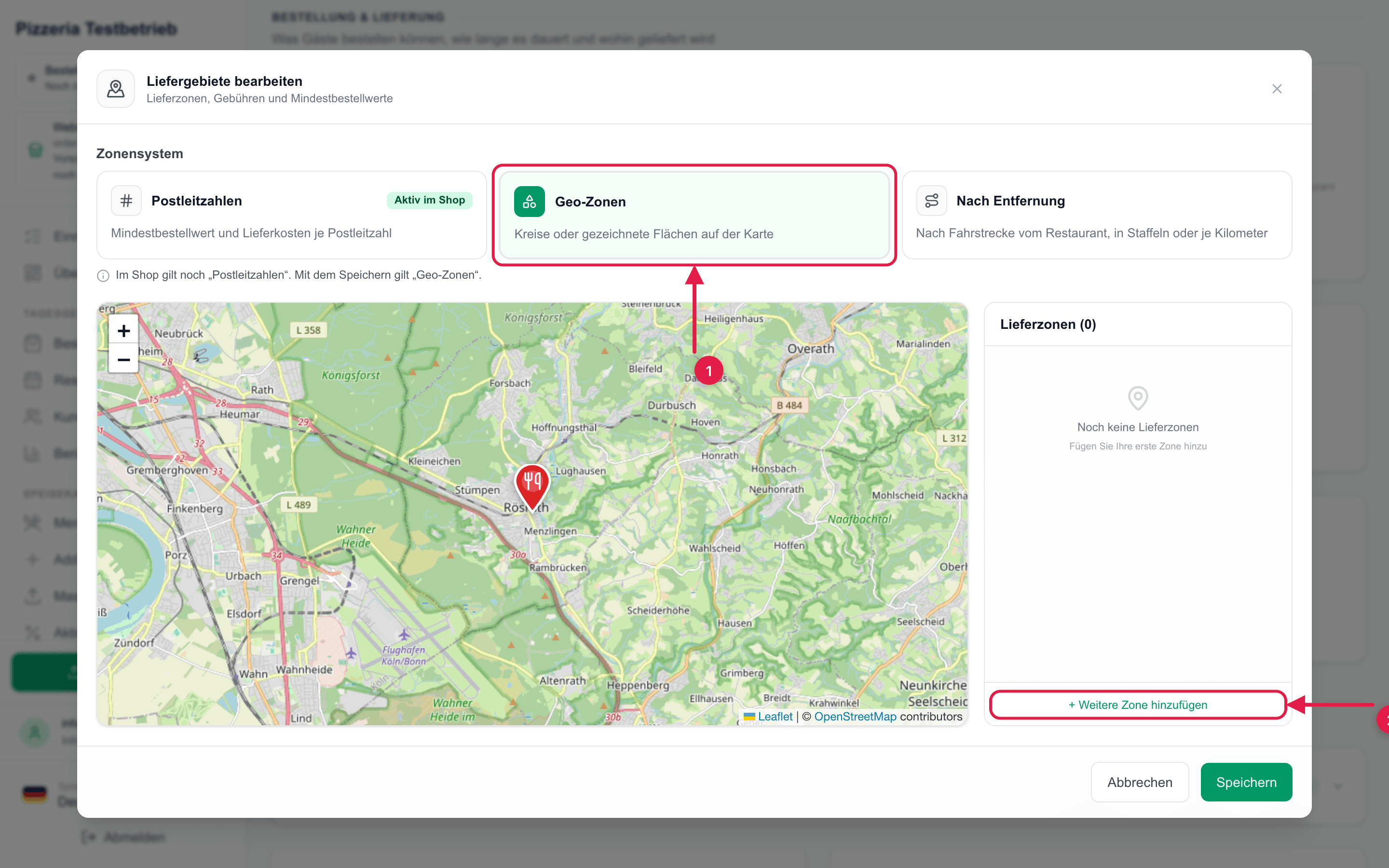
Under Liefergebiete (delivery areas) you decide where you deliver, what delivery costs and from which order value. At the top of the window you choose the Zonensystem (zone system): Postleitzahlen (postcodes), Geo-Zonen (geo zones) or Nach Entfernung (by distance). The system selected when saving applies. This guide is about Geo-Zonen: you set areas on a map, as a circle around your business or as a freely drawn shape. This system needs your business location coordinates. If they are missing, it says Restaurant-Koordinaten fehlen (restaurant coordinates missing), see Set location coordinates manually.
What changes
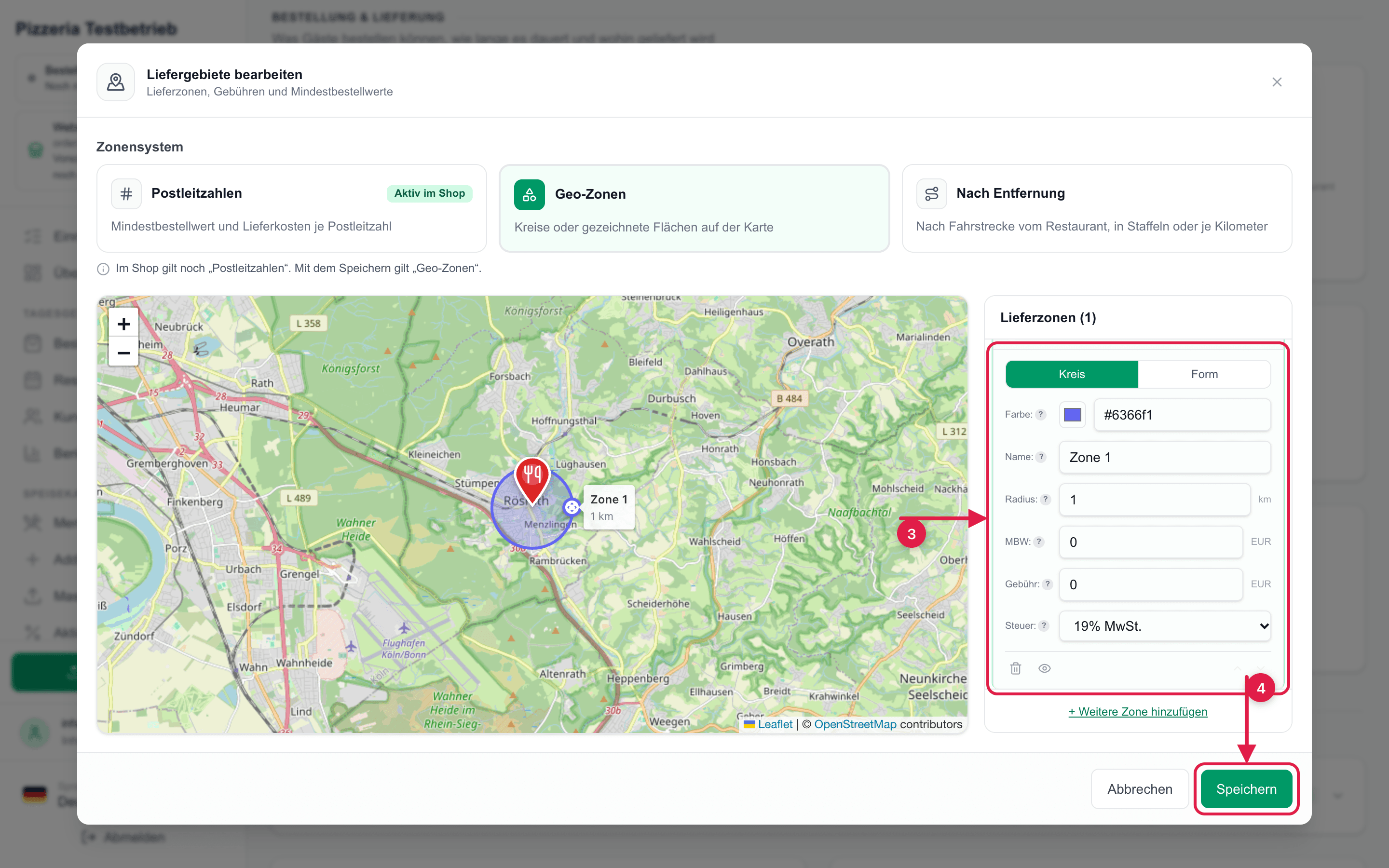
- A new zone is a circle with a 1 km radius and is called "Zone 1", "Zone 2" and so on.
- Each zone has Kreis (circle) or Form (shape), Farbe (colour), Name, Radius (km), MBW (minimum order value), Gebühr (fee) and Steuer (tax).
- You change the radius in the field or by dragging the handle on the map.
- With Form you click point by point on the map. Fertig (done) closes the shape, Rückgängig (undo) removes the last point, Abbrechen (cancel) discards it. If the edges cross, the page reports Ungültige Form (invalid shape).
- Zones can be deleted, switched active or inactive with the eye icon and moved up or down.
- For the Steuersatz (tax rate) of the delivery fee: 19% (voll) (standard), 7% (ermäßigt) (reduced) or 0% (steuerfrei) (exempt). Clarify which rate applies to your delivery fees with your tax adviser.
Requirements
You are signed in to the admin area as the owner. Staff do not see the settings. Your business location coordinates are set.
Step by step
Choose geo zones
In the sidebar on the left, click Einstellungen (settings). Next to Liefergebiete click Bearbeiten (edit). At Zonensystem click Geo-Zonen. The map shows your business. Click + Weitere Zone hinzufügen (add another zone).
Set up the zone and save
The new zone appears as a circle on the map. On the right set Radius, MBW, Gebühr and Steuer and give it a Name. Add more zones if needed. Click Speichern (save).
Result
Your geo zones are set. Guests in an active zone can have orders delivered on its terms.
Only valid after saving
Changes in the window only apply after Speichern (save). The web shop and the app then take them over by themselves, you do not need to publish.